
When your Pixel 10's internet crawls, it can turn simple tasks like loading a webpage or sending a message into a test of patience. The slowdown is often due to a temporary network glitch or a setting that needs a quick adjustment.
I'd start by toggling Airplane mode on and off. Swipe down from the top of your screen twice to open the Quick Settings panel and tap the Airplane icon. Wait about ten seconds, then tap it again to turn it off. This forces your phone to reconnect to the cellular network from scratch, which can clear up a lot of common slowdowns in about 30 seconds.
Check Your Mobile Network Mode
Your Pixel 10 might be stuck on a slower network type like 3G. You can manually set it to prefer 5G or 4G LTE for faster speeds. Go to Settings > Network & internet > Internet. Tap the settings gear next to your carrier's name, then tap Preferred network type.
Select "5G/LTE" or "LTE" to ensure your phone uses the fastest available network. If you're in an area with spotty 5G, choosing "LTE" can sometimes provide a more stable and consistent connection.
Clear the Cache for Google Play Services
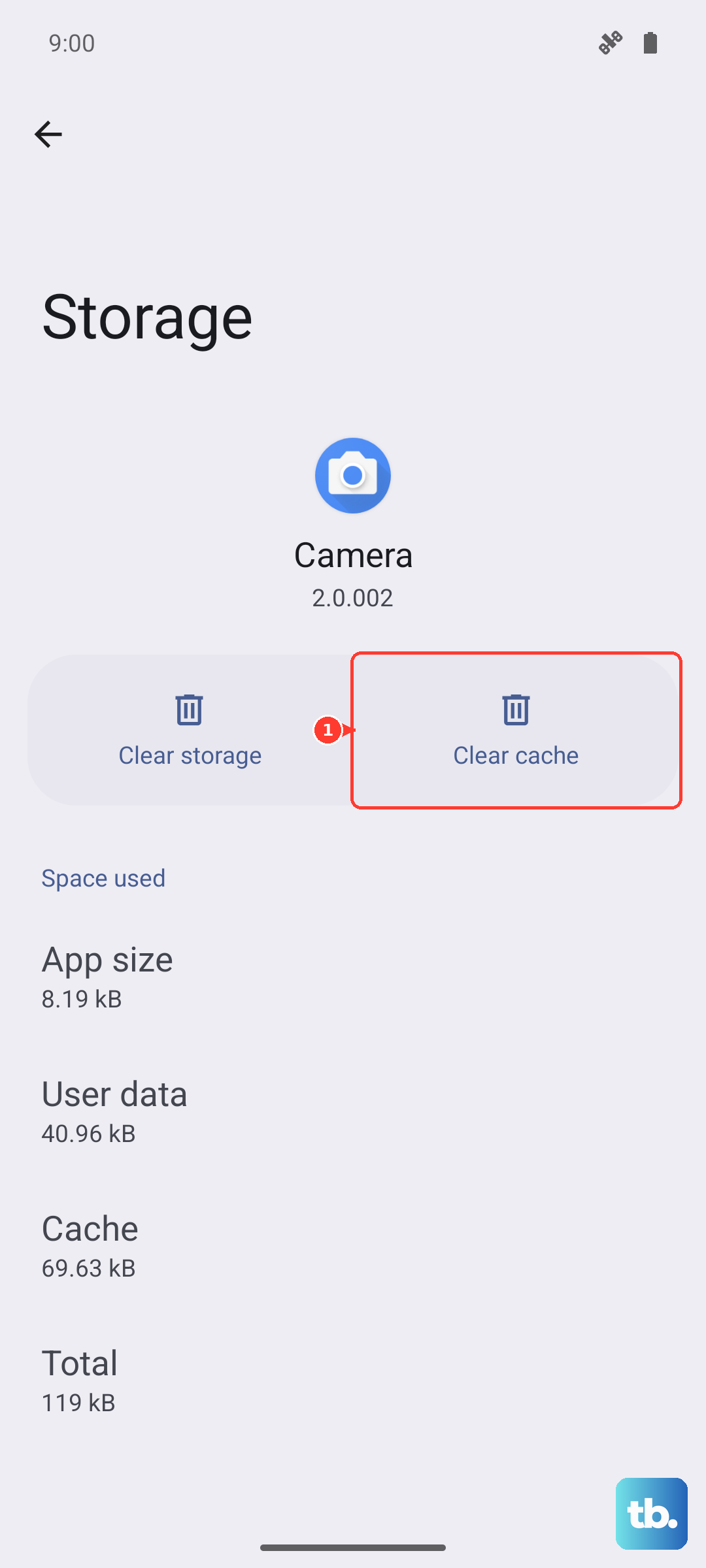
This system app handles background connections for many Google services, and its cached data can sometimes get corrupted. Clearing it won't delete any personal information. Head to Settings > Apps > See all apps.
Find and tap "Google Play Services" in the list. On the app info page, tap Storage & cache, then tap "Clear cache." After doing this, restart your phone to see if your browsing speed improves.
Review and Restrict Background Data
Apps running in the background can silently eat up your bandwidth, slowing down what you're actively trying to do. Android 15's Data Saver is a great tool for this. Go to Settings > Network & internet > Data Saver and turn it on.
For more control, you can restrict data for specific apps. Go to Settings > Apps, select an app, then tap Mobile data & Wi-Fi. Here, you can toggle off "Background data" for any app that doesn't need to update when you're not using it.
Forget and Reconnect to Your Wi-Fi Network
If the slow internet is happening on Wi-Fi, your phone might be holding onto an old connection profile. Open Settings > Network & internet > Internet. Tap the settings gear next to your Wi-Fi network's name and select "Forget."
After forgetting the network, tap on its name again from the list and re-enter the password to reconnect. This establishes a fresh connection and can often resolve speed issues caused by a bad handshake between your phone and the router.
Disable Any Active VPN Connections
While VPNs are great for privacy, they route your traffic through another server, which almost always adds latency and reduces speed. If you have a VPN app running, open it and disconnect from the VPN server.
You can also check the Quick Settings panel by swiping down from the top of the screen. If you see a VPN key icon or a label for your VPN, it means a connection is active. Tapping the VPN tile here will usually let you disconnect it quickly.
Reset Your Phone's Network Settings
When other fixes don't work, resetting network settings is a reliable next step. This will erase all saved Wi-Fi networks, Bluetooth pairings, and cellular preferences, so you'll need to reconnect to your Wi-Fi afterward.
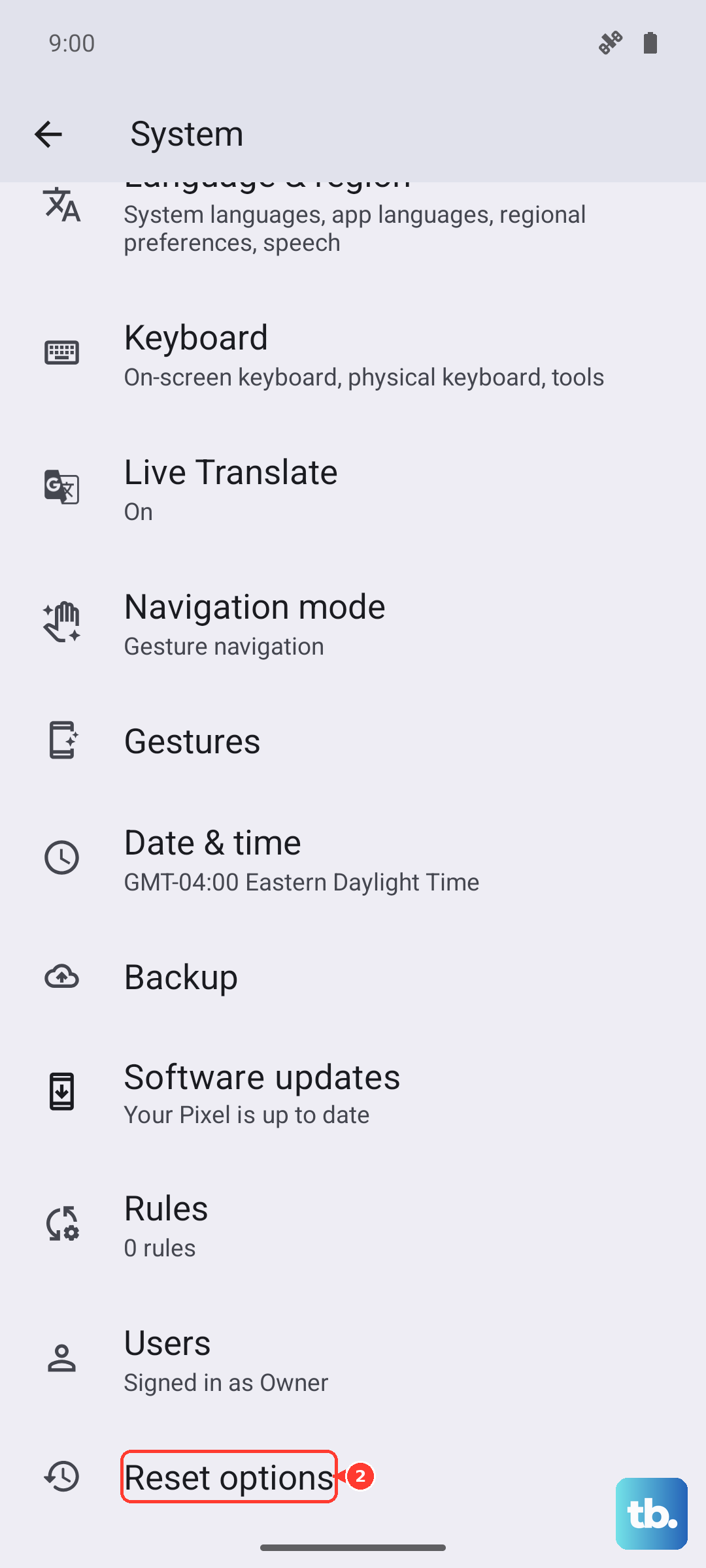
To do this, go to Settings > System > Reset options. Tap "Reset Wi-Fi, mobile & Bluetooth" and confirm. Your phone will restart, and you can then set up your connections again. This clears out any deep-seated configuration errors.
Ensure Your Software Is Up to Date
Google frequently releases system updates that include connectivity improvements and bug fixes. Make sure your Pixel 10 is running the latest available version of Android. Go to Settings > System > System update.
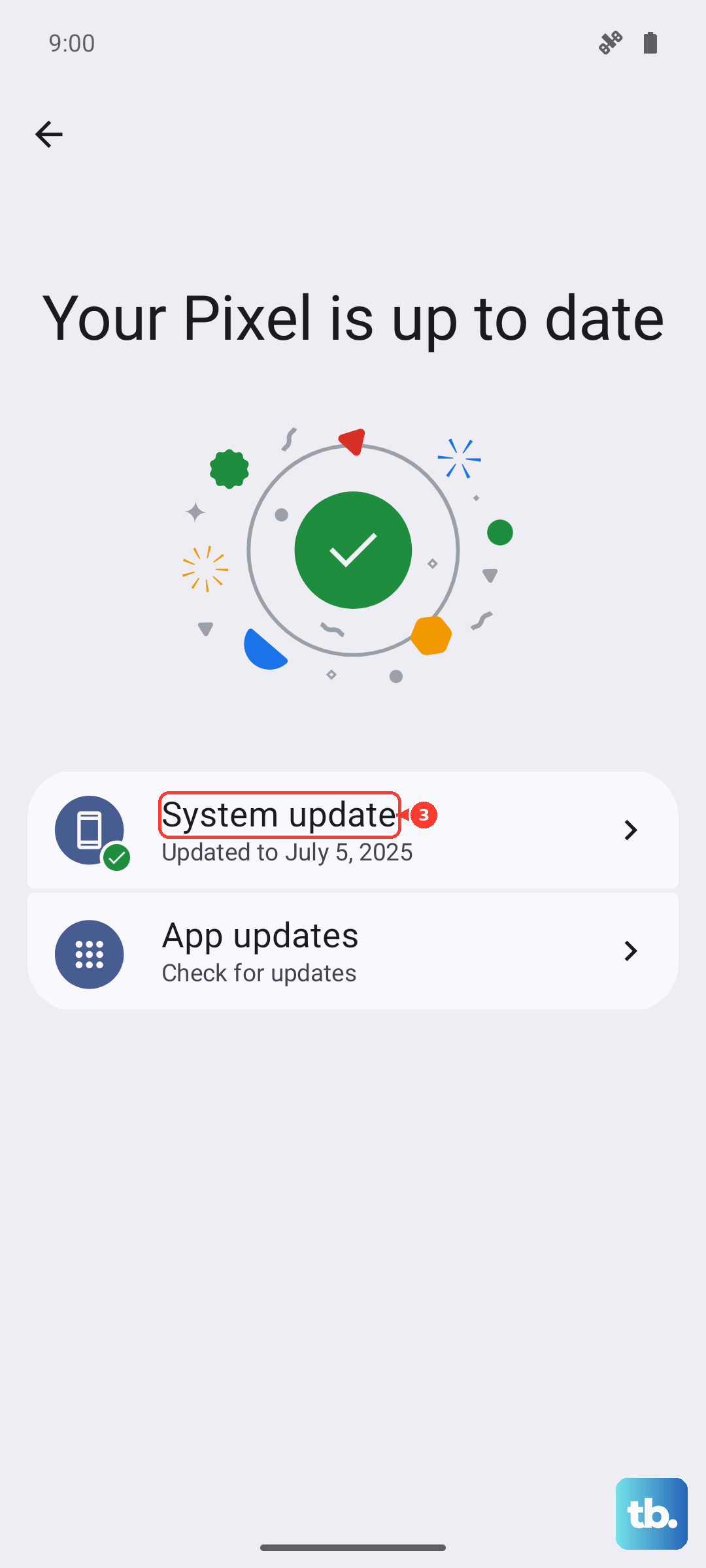
Tap "Check for update." If an update is available, install it. It's best to do this while connected to a strong Wi-Fi network and with your phone plugged into its official 30W charger, as the process can take a few minutes.
Perform a Force Restart
A simple restart can clear temporary software glitches, but if your phone is unresponsive or particularly sluggish, a force restart is more thorough. Press and hold the Power button and the Volume Up button together for about 10 seconds.
Release the buttons when you see the Google logo appear on the screen. This doesn't erase any data, it just gives the system a clean boot. After it starts up, check if your mobile data or Wi-Fi performance has gotten better.