
Nothing kills the momentum of a great photo session or a new game download faster than a "Storage full" notification. Your Pixel 10 Pro XL packs plenty of internal space, but between high-res photos, downloaded music, and app caches, it can fill up quicker than you'd expect. Here are nine ways to clear things out and get back to using your phone the way you want.
Check What's Taking Up Space
Head to Settings > Storage. This screen gives you a clear breakdown by category: Apps, Images, Videos, and Audio. Tap any category to see exactly what's eating your gigabytes. The Apps section is usually where you'll find the biggest surprises, especially social media and streaming apps that hoard cached data.
Clear App Caches
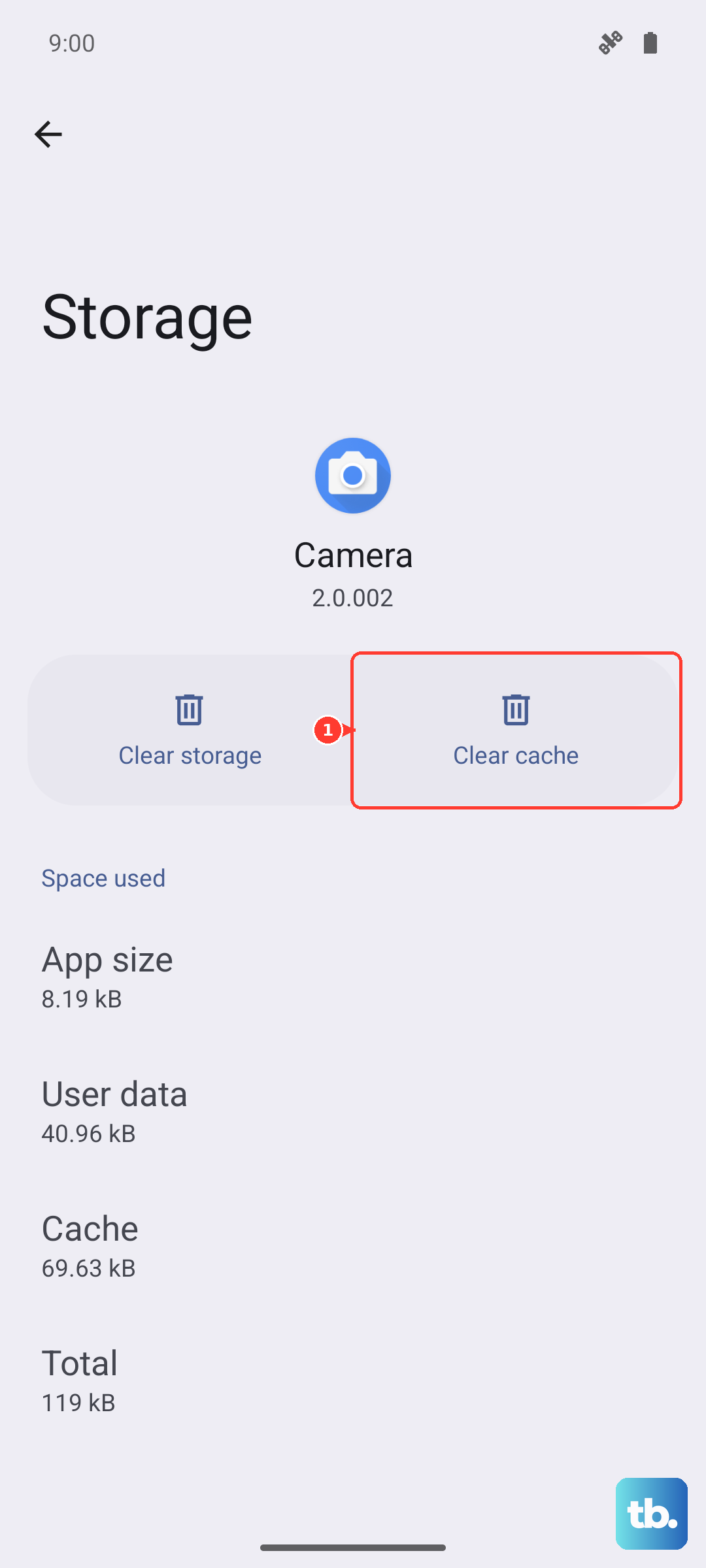
Apps like Instagram, TikTok, and Chrome build up caches over time that can run into the hundreds of megabytes. Go to Settings > Apps > [app name] > Storage & cache, then tap Clear cache. This removes temporary files without affecting your account or settings. Do this for your top five storage-hungry apps and you'll often reclaim a gigabyte or more in minutes.
Use Files by Google to Find Junk
The Files by Google app comes preinstalled on your Pixel and has a dedicated Clean tab. Open it, tap Clean, and it'll surface junk files, duplicate photos, old screenshots, and unused APKs. You can delete everything with one tap. I've seen this free up 2 3 GB on a phone that hadn't been cleaned in months.
Delete Old Messages and Their Attachments
Messages can hoard photos, videos, and GIFs that you forgot about. Open the Messages app, tap the three-dot menu, and select Delete old messages or manually delete large conversations. You can also set messages to auto-delete after a year or 30 days in Messages settings, but that only applies to new ones. For the stuff already sitting there, you'll need to clean manually or use the "large attachments" filter in Files by Google.
Uninstall Apps You Don't Use
Your Pixel's app drawer is probably hiding a few apps you haven't touched in months. Long-press any app icon and tap Uninstall. For apps you might need later, use Android's archive feature, which removes the app but keeps its data. You'll see the option when you tap an app in the Play Store that can be archived.
Free Up Space in Google Photos
Photos and videos are usually the biggest space hogs. Open Google Photos, tap your profile picture, then Free up device storage. This deletes any photos and videos that are already backed up to the cloud. If you use a Google One subscription, your full-resolution originals stay safe online, and you reclaim every megabyte they were taking locally.
Remove Offline Downloads
Streaming apps like Spotify, YouTube Music, Netflix, and Audible store downloaded content on your device. Open each app and look for a Storage or Downloads section. On Spotify, go to Settings > Storage > Remove all downloads. On Netflix, tap My Downloads and delete anything you've already finished.
Clear Your Browser Cache
Chrome, Firefox, or whatever browser you use builds up a hefty cache over time. In Chrome, tap the three-dot menu, go to Settings > Privacy and security > Clear browsing data. Select Cookies and site data and Cached images and files. You can also clear browsing history here. Doing this once a month keeps browser bloat in check.
Check for System Junk and Temporary Files
Go back to Settings > Storage and look at the System category or Other files. Android 16 sometimes accumulates temporary system files after updates. Tap into that category and you may see options to delete download caches and install packages. A full restart of your Pixel can also help clear residual temp files, just hold down the power button and tap Restart.