
When your Google Pixel 10 Pro XL speaker starts acting up, it can happen at the worst time. You might get no sound during calls, terrible audio quality in videos, or a total blackout. The good news is that most speaker problems on this phone come down to software quirks or simple blockages. Let’s work through nine fixes that usually do the trick, starting with the quickest ones.
It is worth confirming the basics with a quick quick sound test. If neither channel plays a tone, you are looking at a hardware or connection problem rather than a settings issue.
Check Your Volume and Sound Mode
Before you panic, make sure the phone isn’t just muted. Press the volume up button while you’re in a call or playing music. If you see a vibration icon instead of a speaker, the phone might be in silent mode.
Go to Settings > Sound & vibration and double-check that the media volume slider is up. Also tap Sound mode and make sure Sound is selected, not Vibrate or Silent. It sounds basic, but this catches a lot of audio problems.
Turn Off Do Not Disturb and Accessibility Mute
Do Not Disturb can block sounds even when you don't expect it. Open Settings > Notifications > Do Not Disturb and toggle it off if it’s on. You can also check the quick settings panel for a shortcut.
Head to Settings > Accessibility and look for Audio settings. Make sure Mute all sounds is turned off. Some users accidentally enable this and wonder why their Pixel goes completely quiet.
Disconnect Bluetooth and Remove Accessories
Your Pixel might be sending audio to a connected Bluetooth device instead of its own speakers. Swipe down twice from the top of the screen to open the quick settings panel, then tap the Bluetooth icon to turn it off. If you need to stay connected to something, go to Settings > Connected devices and disconnect only the audio device.
Also take off any phone case or screen protector that might cover the speaker grilles. The Pixel 10 Pro XL has a bottom-firing speaker and a top earpiece speaker both can get blocked by a thick case.
Clean the Speaker Grilles
Dirt and pocket lint love to collect in those tiny speaker holes. Grab a dry, soft-bristled toothbrush and gently brush across the grille at the bottom of the phone and the slim slit at the top. Use a flashlight to see if anything is wedged in there.
Don’t use compressed air or anything sharp. A quick gentle blow from your mouth can dislodge dust, but keep it brief. If you’ve been charging the phone while it’s in a case, that can trap heat and debris another reason to pop the case off regularly. The Pixel 10 Pro XL tends to run warm during charging, and heat can cause the phone to shut down and affect sound, so keeping it clean and cool helps on multiple fronts.
Restart or Force Reboot the Phone
A simple restart clears out temporary glitches. Hold the Power button and tap Restart. If the screen is frozen or the phone won’t respond, do a force restart instead: press and hold the Volume up and Power buttons together for about 10 seconds, then release when you see the Google logo. This works for any unresponsive audio issue on the Pixel 10 Pro XL.
Check Per‑App Audio Settings
If your Pixel is paired with more than one Bluetooth device, audio can play to the wrong output. Open the media player notification (or go to Settings > Connected devices) and make sure playback is set to This phone rather than a paired headset or speaker. Stock Android on the Pixel 10 Pro XL has no per-app audio-output setting, so if just one app is silent, check that app's own volume and audio settings. You can also tap on individual apps to see if they’re set to a connected Bluetooth device.
Boot Into Safe Mode
Safe mode starts the Pixel with only the system apps. This tells you whether a third‑party download is causing the audio problems. Press and hold the Power button, then tap and hold the Power off option until you see the Safe mode prompt. Tap OK to reboot into safe mode.
Once you’re in, test the speakers. If they work fine, a third‑party app is the problem. Restart the phone normally to leave safe mode, then uninstall recently downloaded apps one at a time until the sound comes back.
Clear App Cache or System Cache
Corrupted cache files can mess with audio, especially after a system update. First, try clearing cache for a specific app that’s having sound trouble: go to Settings > Apps, tap the app, then tap Storage & cache and choose Clear cache.
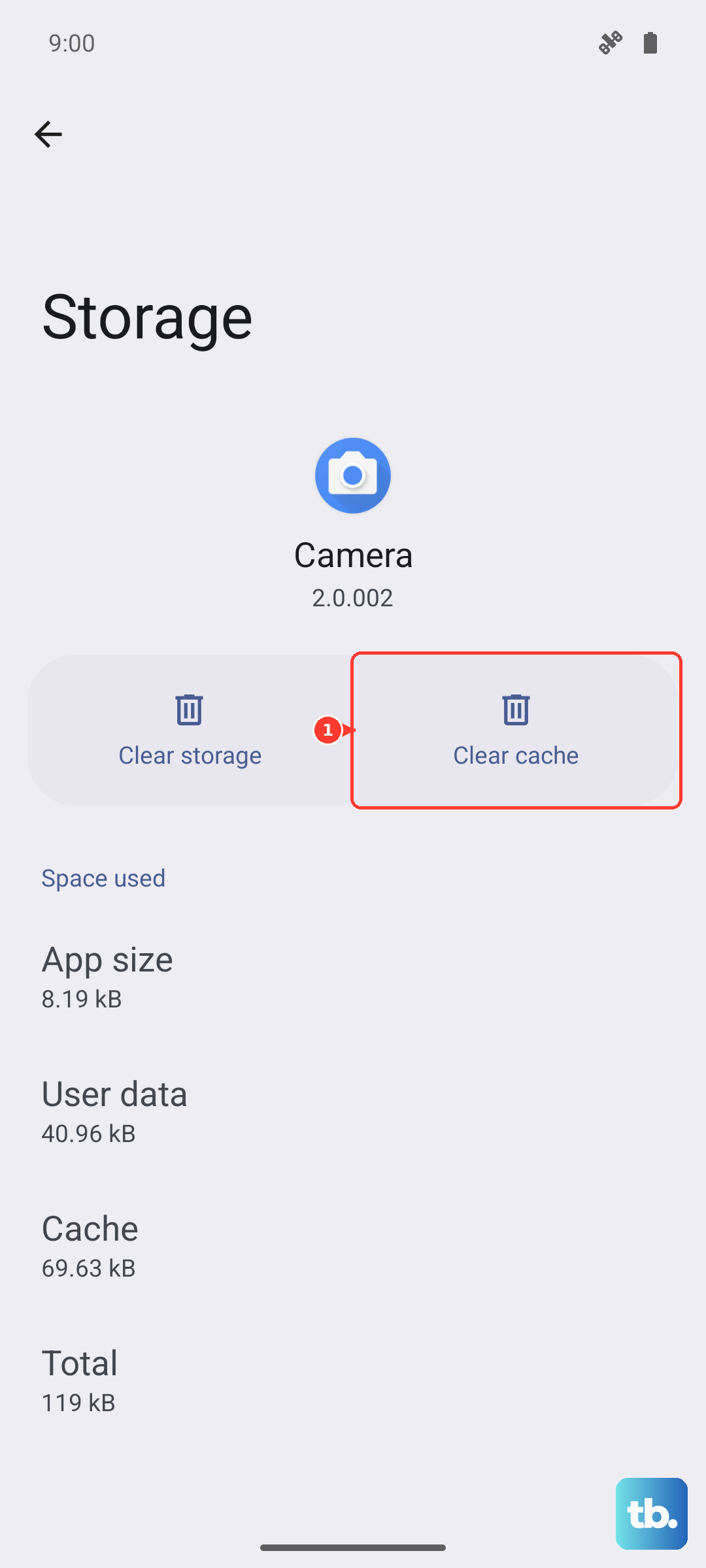
If the problem seems system-wide, know that the Pixel 10 Pro XL no longer has a Wipe cache partition option in recovery mode. Google dropped the separate cache partition when Pixels moved to seamless (A/B) system updates, and Android now manages the system cache on its own. Instead, clear the cache for the specific apps that are misbehaving, or simply restart the phone to flush temporary system files.
Update the Software
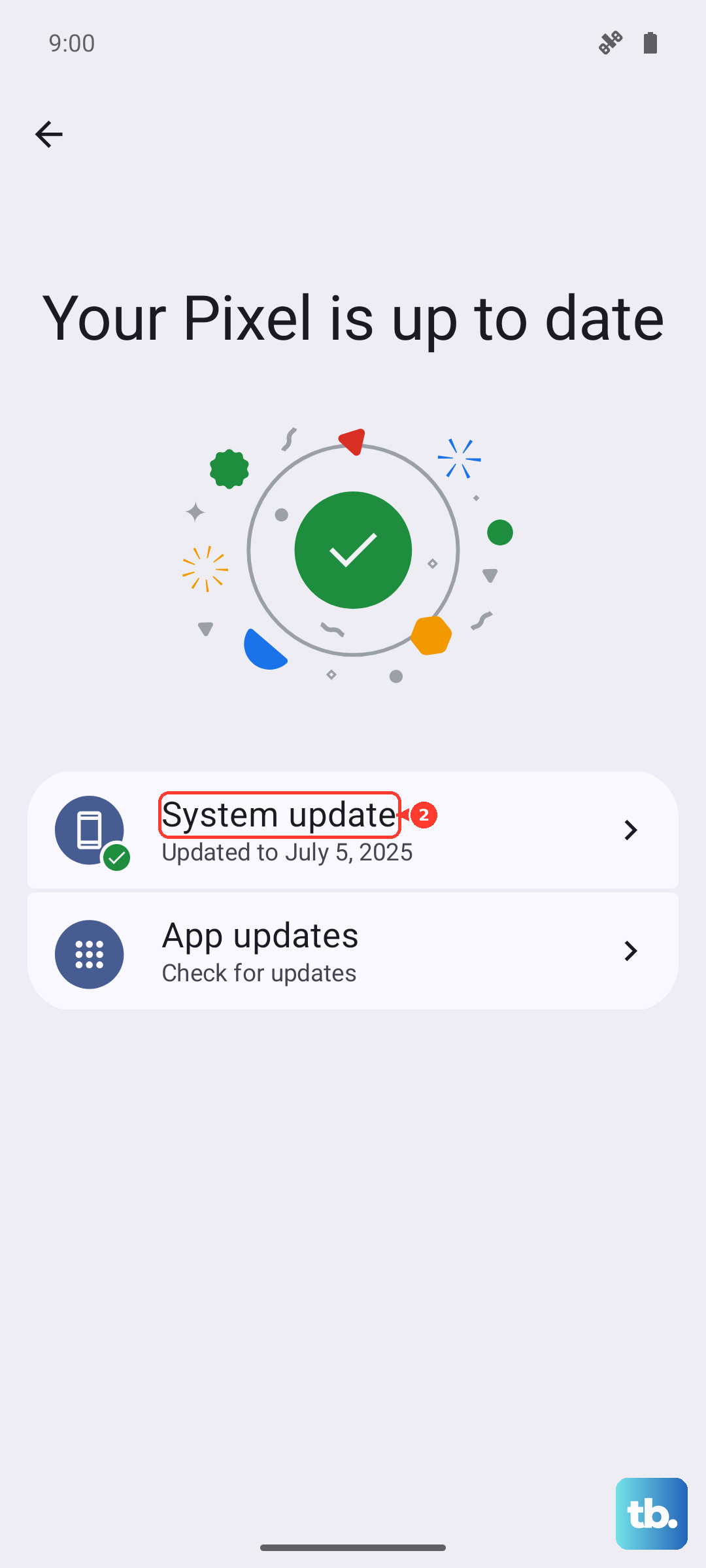
Google is good about pushing fixes for known bugs, including audio issues. Go to Settings > System > System update and tap Check for update. If one is waiting, download and install it while your phone is plugged in (using a 30W+ USB‑C PPS charger for fastest results). Updates sometimes take a bit, but they can instantly solve speaker glitches.
If none of these steps bring back the sound, the last resort is a factory reset. Back up your data first, because this erases everything. Go to Settings > System > Reset options > Erase all data (factory reset). If even that doesn’t fix it, the speaker hardware might be faulty but most of the time, one of the steps above will get your Pixel 10 Pro XL talking again.