When your Pixel 10 Pro XL autocorrect starts making things up, typing turns into a guessing game. Gboard usually nails it, but sometimes it gets confused. Here's how to get it back on track.
Clear Gboard Cache and Data
Corrupt cache files are usually the reason predictive text goes haywire. Go to Settings > Apps > See all apps and tap Gboard. Hit Storage & cache and select Clear cache to remove the junk.
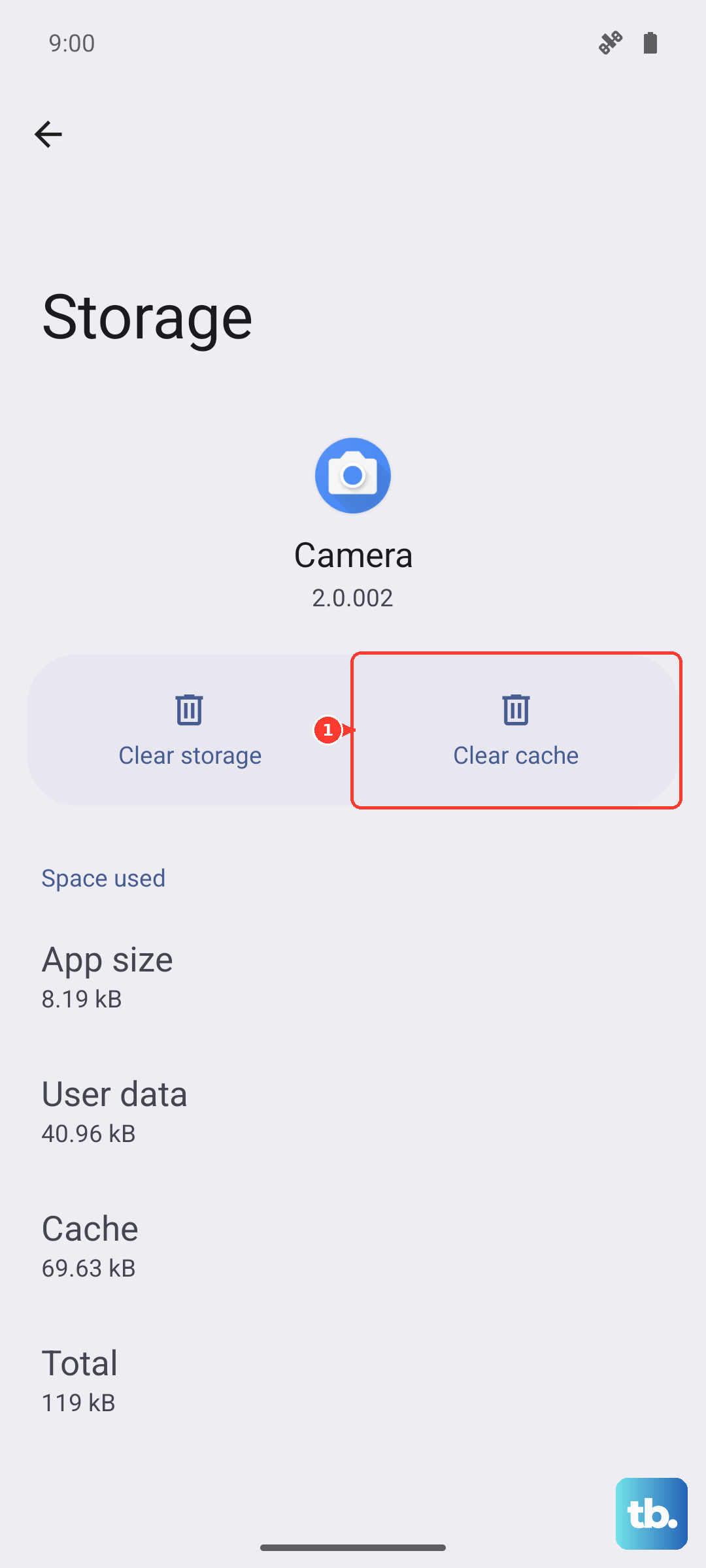
If the problem sticks around, tap Clear storage on that same screen. This wipes your personal dictionary and learned words, so your keyboard will feel like a fresh install. You'll have to retrain it, but it beats dealing with a broken autocorrect.
Check Your Text Correction Settings
Open Settings and head to System > Languages & input > On-screen keyboard > Gboard > Text correction. This is the control center for everything autocorrect related.
Make sure Auto-correction is set to your preferred level, I usually stick with Moderate unless you want it to be more aggressive. Check that Show suggestion strip is turned on, otherwise you won't see predictions at all.
Force Restart Your Pixel 10 Pro XL
A quick restart clears up temporary glitches that mess with keyboard performance. If your phone is still responsive, just hold the Power and Volume up buttons and tap Restart.
If the keyboard is frozen or the whole phone is acting sluggish, force a reboot. Press and hold the Power button for up to 60 seconds, then release when the device begins to reboot and the G logo appears. This won't erase any data, it just kicks the system back into shape.
Toggle Predictive Text Off and On
Sometimes the predictive text engine just needs a refresh. In the same Text correction menu, find the toggle for Predictive text and switch it off.
Give it about ten seconds, then turn it back on. This reloads the language model and often fixes a suggestion bar that's gone blank or stuck on old words.
Clean Up Your Personal Dictionary
Gboard learns from your typing habits, but it can pick up some weird stuff over time. In Text correction, tap Personal dictionary and scroll through the list.
Delete any entries that are misspelled or just plain wrong. If you want a completely fresh start, you can clear all learned data from the Advanced menu in Gboard settings.
Update Gboard and Android 16
Google pushes updates to Gboard through the Play Store that fix autocorrect bugs. Open the Play Store, tap your profile icon, and search for Gboard to see if an update is pending.
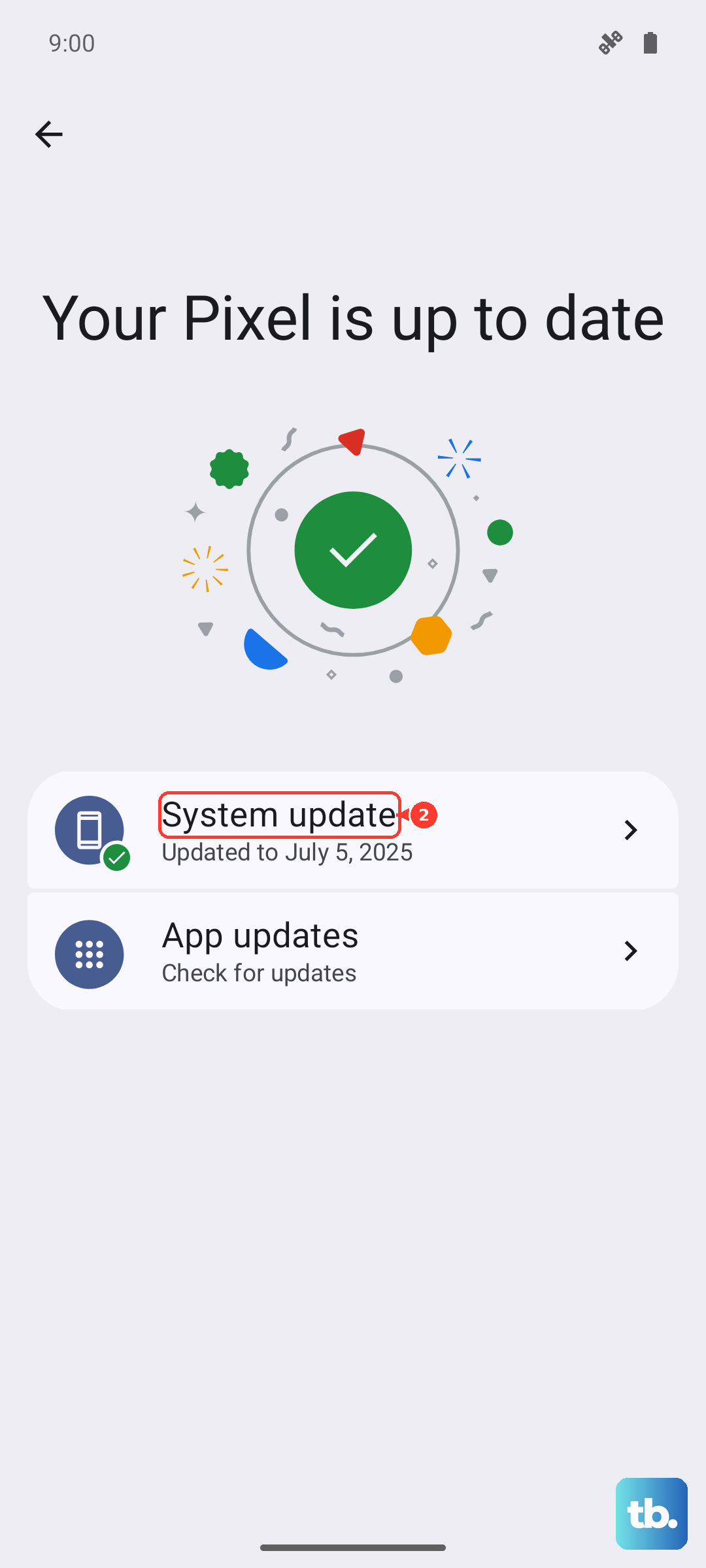
Since you're running Android 16, it's worth checking for system updates too. Go to Settings > System > Software update and install anything that's available. Keeping both the keyboard and the OS current covers most software-related issues.