
You feel your Pixel 10 Pro XL vibrate, you see the call notification pop up, but you hear nothing. It's a weird spot to be in because the phone clearly knows a call is coming in. Most of the time, this is just a setting that got flipped or a software quirk that's easy to fix.
Let's run through what usually causes this and get that ringtone working again.
Check for "Do Not Disturb" or Bedtime Mode
This is the most common reason a Pixel goes quiet. Do Not Disturb blocks incoming call sounds and vibrations unless you've set up exceptions. Swipe down twice from the top of the screen to open the full Quick Settings menu and look for the Do Not Disturb icon (it looks like a circle with a line through it). If it's highlighted, tap it to turn it off.
You can also check if it's scheduled. Go to Settings > Modes > Do Not Disturb and look at the "Schedules" section. If Bedtime mode or a custom schedule is turning it on without you realizing it, that's likely your culprit.
Turn Up the Ring Volume
It sounds obvious, but it's easy to accidentally lower the ringer volume and not notice. Press the Volume Up button on the side of your Pixel 10 Pro XL. You'll see a slider appear at the top of the screen. Tap the three-dot menu icon on that slider to expand the full volume panel.
Make sure the "Ring" slider is all the way up. If it's muted down near the bottom, that's your problem.
Make Sure You Didn't Flip the Vibration Switch
On the Pixel 10 Pro XL, there isn't a physical mute switch like on some other phones. Instead, the volume panel controls whether your phone rings, vibrates, or stays silent. When you press the volume buttons, look at the icon at the top of the slider. If it shows a phone with a line through it, your phone is in silent mode. Tap that icon to cycle through Sound, Vibrate, and Mute until you see the bell icon.
Disconnect Bluetooth Headphones or Speakers
Your Pixel 10 Pro XL might be sending the call audio to a connected Bluetooth device instead of its own speakers. This happens a lot with wireless earbuds or car kits that stay connected in the background.
Pull down the Quick Settings panel and tap the Bluetooth icon to turn it off temporarily. Then have someone call you. If the ringtone comes through, you'll know a paired device was stealing the audio.
Check the Active Call Ringtone in Phone Settings
Sometimes the ringtone itself gets changed to a silent tone. Open the Phone app, tap the three-dot menu in the top-right corner, and select Settings > Sounds and vibration. Make sure "Phone ringtone" is set to one of the default Pixel sounds (like "Haptic Bells" or "Triton") and not set to "None".
While you're there, check that "Vibrate for calls" is enabled if you want the physical buzz along with the ring.
Restart Your Pixel 10 Pro XL
A quick restart clears out temporary software glitches that can mess with audio routing. Press and hold the Power and Volume Up buttons for a couple of seconds until the power menu pops up, then tap Restart.
If the phone is completely unresponsive to touch, you can force a restart. Press and hold the Volume Up and Power buttons together for about 10 seconds until you see the Google logo. This doesn't wipe any data, it just forces the phone to reboot.
Update Android 16
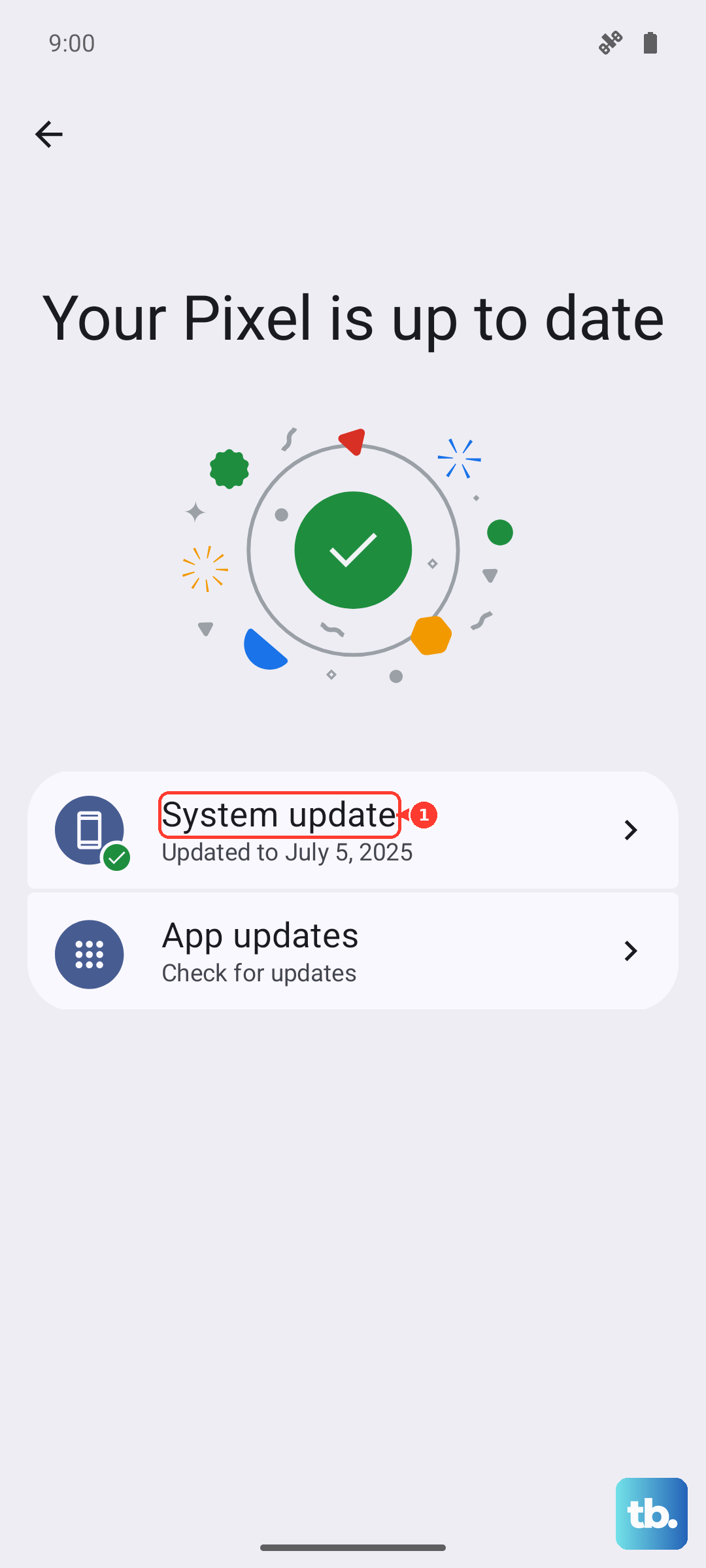
Software updates often patch bugs related to audio and call handling. Go to Settings > System > System update and see if there's a pending update. If there is, get it installed. This is particularly worth checking if you just recently updated Android or restored from a backup.
Check for App Interference
A few apps can take temporary control of your ringer volume or override your ringtone settings. Think about any "ringer manager" or scheduling apps you might have installed. The stock Digital Wellbeing app (under Settings > Digital Wellbeing & parental controls) also has a Focus mode that can mute calls.
Tap on Focus mode and see if any of your scheduled profiles or custom quick tiles are silencing calls.
Reset Your App Preferences
If you've messed around with default app settings, your Phone app might not have the correct permissions. Go to Settings > Apps > See all apps. Tap the three-dot menu in the top-right corner and select Reset app preferences. This won't delete your data, but it will restore default permissions and defaults for all apps. You might need to re-select your default Phone and SMS apps afterward.
Wipe the Cache Partition
Corrupted system cache files can cause weird behavior like silent calls. On the Pixel 10 Pro XL, you can't access the recovery menu the same way as older Androids. Instead, go to Settings > Storage > Other Apps and look for a cache-clearing option. The cleaner method is to boot into Safe Mode to see if a third-party app is causing the problem.
Try Safe Mode to Rule Out Third-Party Apps
Press and hold the Power and Volume Up buttons together until the power menu appears. Touch and hold the Restart option until you get a prompt to reboot into Safe Mode. Tap OK. The phone will restart with "Safe mode" in the bottom-left corner.
Now try a test call. If the ringtone works in Safe Mode, you know one of your downloaded apps is the culprit. Restart normally and start uninstalling recently added apps until you find the one causing trouble.
Clear the Phone App's Cache
Go to Settings > Apps > See all apps > Phone. Tap Storage & cache and then hit Clear cache. Don't worry, this won't delete your call history or contacts. It just removes temporary data that might be corrupted.
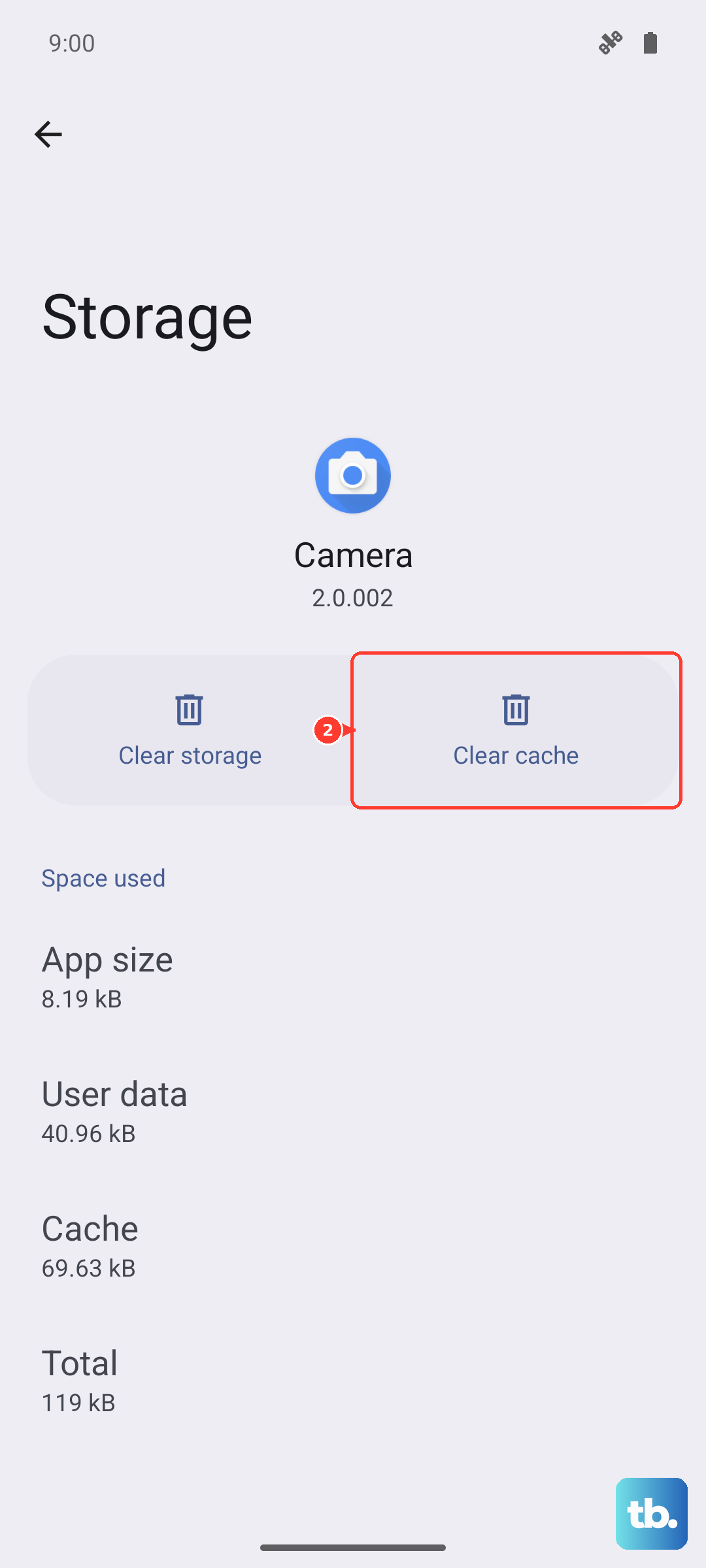
After that, tap Force stop on the same screen and then test the ringtone again.
Factory Reset (Last Resort)
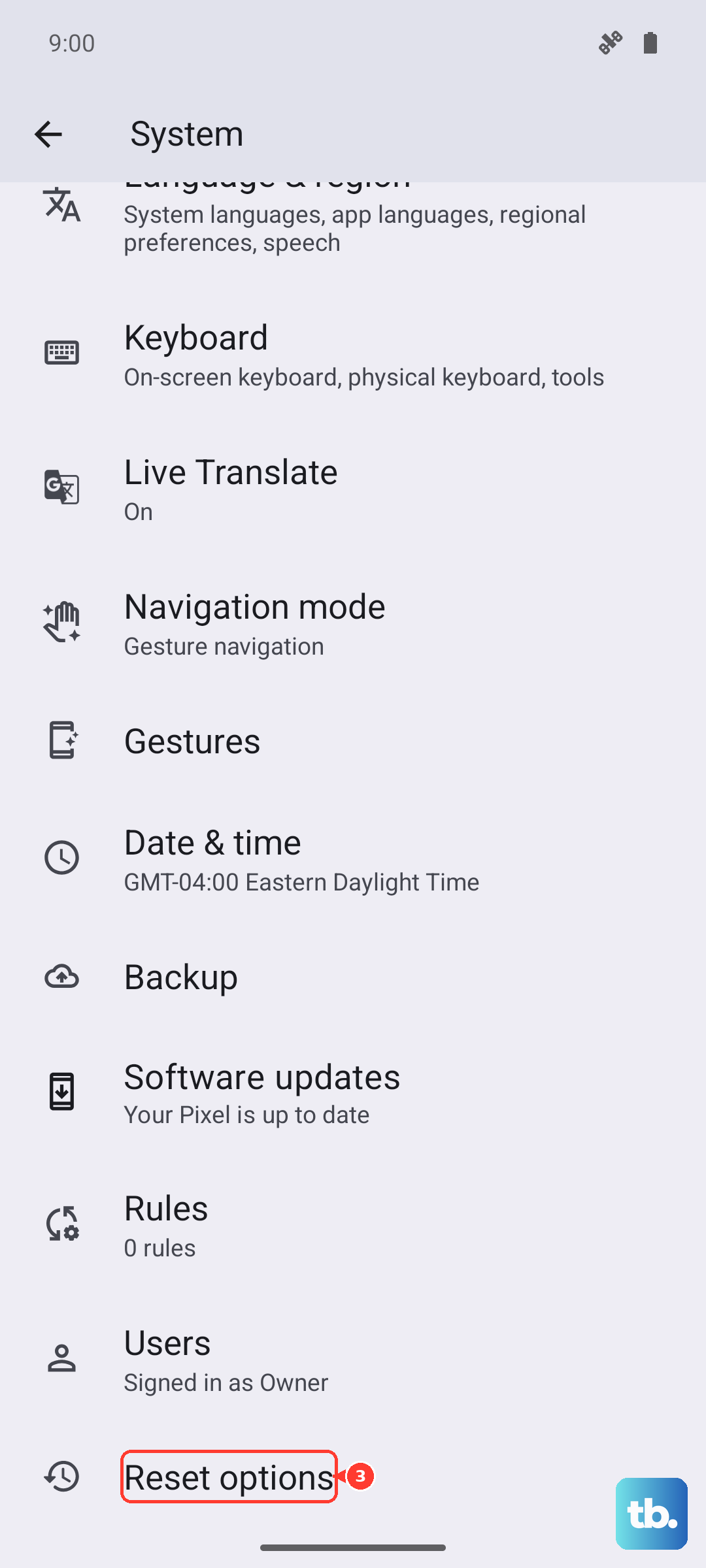
If nothing above has worked, a factory reset can wipe out any lingering software problems. Before you do this, back up everything important by going to Settings > System > Backup and making sure your Google One backup is up to date.
Then go to Settings > System > Reset options > Erase all data (factory reset). You'll need to enter your PIN or password. This will wipe the phone completely, so only do this after you've tried every other option here.
Missing calls on a Pixel 10 Pro XL is usually a simple setting getting in the way. Work through these steps and you'll almost certainly find the reason your phone has gone quiet.