
Your Pixel 10 Pro XL keyboard suddenly stopped responding, and you can't even type a quick text. It's a headache, but most of the time the fix is simpler than you'd think. Here are nine ways to get your keyboard back up and running.
Force Stop the Keyboard
Sometimes the Gboard app just gets stuck. A quick force stop clears the glitch without losing any of your settings.
Open Settings > Apps > See all apps. Tap the three dots in the top-right corner and select Show system. Scroll to Gboard (that's the default keyboard on your Pixel) and tap Force stop. Exit Settings and try typing again.
Restart Your Pixel Using the Force Restart
If force stopping didn't cut it, a proper restart can fix deeper software hiccups. The Pixel 10 Pro XL has a dedicated force restart sequence that's a little different from a normal reboot.
Press and hold the Volume up and Power buttons simultaneously for 10 seconds, then release when the device restarts. Your phone will reboot fresh, and the keyboard should work normally afterward.
Clear Gboard Cache and Data
Corrupted cache files can cause the keyboard to crash or not open at all. Clearing them removes the junk without deleting your personal data, though you will lose any custom dictionary words or keyboard layout tweaks.
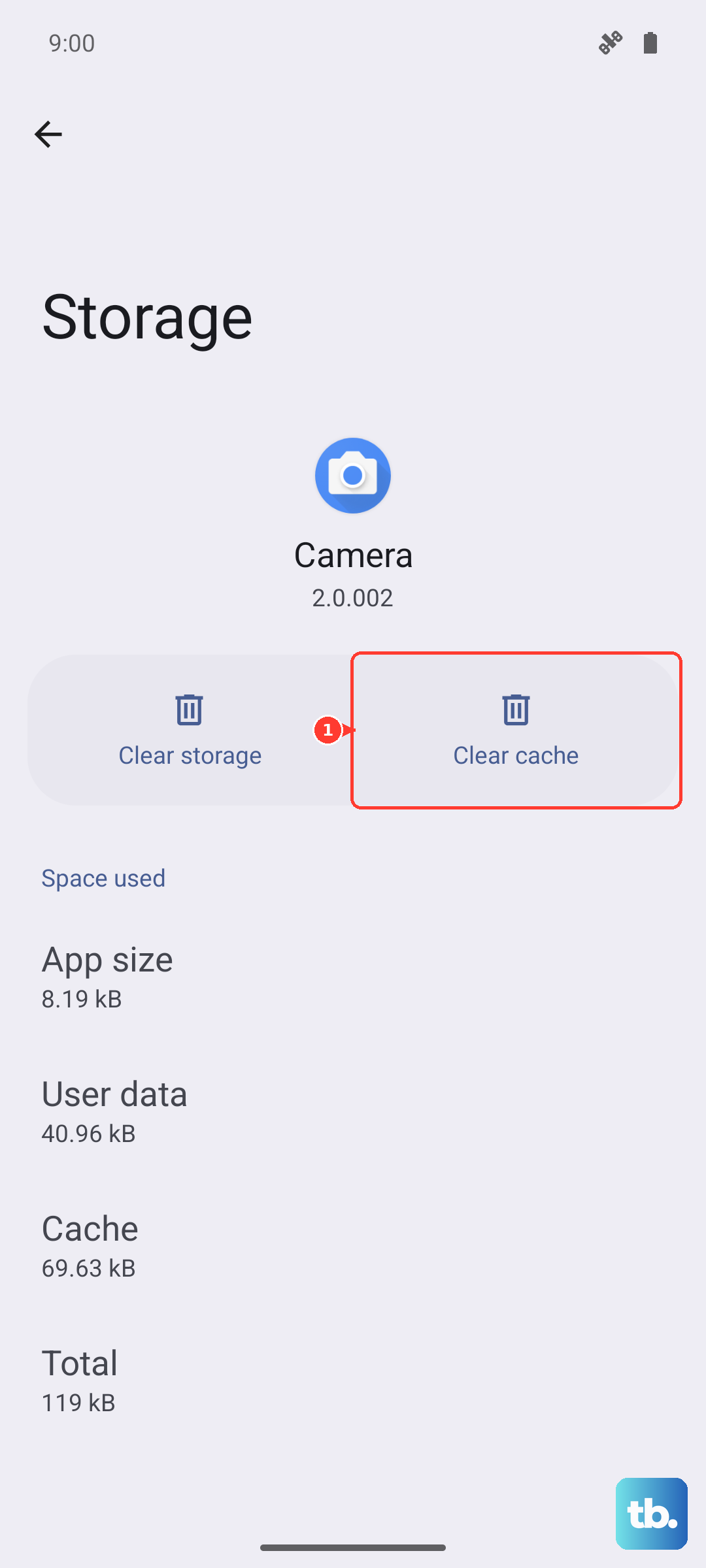
Go to Settings > Apps > See all apps > Gboard > Storage & cache. Tap Clear cache first. If that doesn't help, tap Clear storage (this is the same as "Clear data" on some Android versions). Reboot your phone after, and Gboard will start from scratch.
Update Gboard Through the Play Store
An outdated keyboard app can have bugs that newer versions fix. Checking for updates takes a minute.
Open the Google Play Store, tap your profile picture in the top-right, and select Manage apps & device. Under Updates available, find Gboard and tap Update. If you don't see it, your keyboard is already up to date.
Switch to a Third-Party Keyboard (Temporarily)
If Gboard keeps acting up, installing a different keyboard gives you an immediate workaround. You can always come back later once the issue is resolved.
Download SwiftKey, Grammarly Keyboard, or AnySoftKeyboard from the Play Store. Open Settings > System > Languages & input > On-screen keyboard and pick your new keyboard as the default. This confirms whether the problem is with Gboard specifically or something system-wide.
Update Android 16
Software updates often include keyboard-related bug fixes. Your Pixel 10 Pro XL runs Android 16, and Google pushes regular security and stability patches.
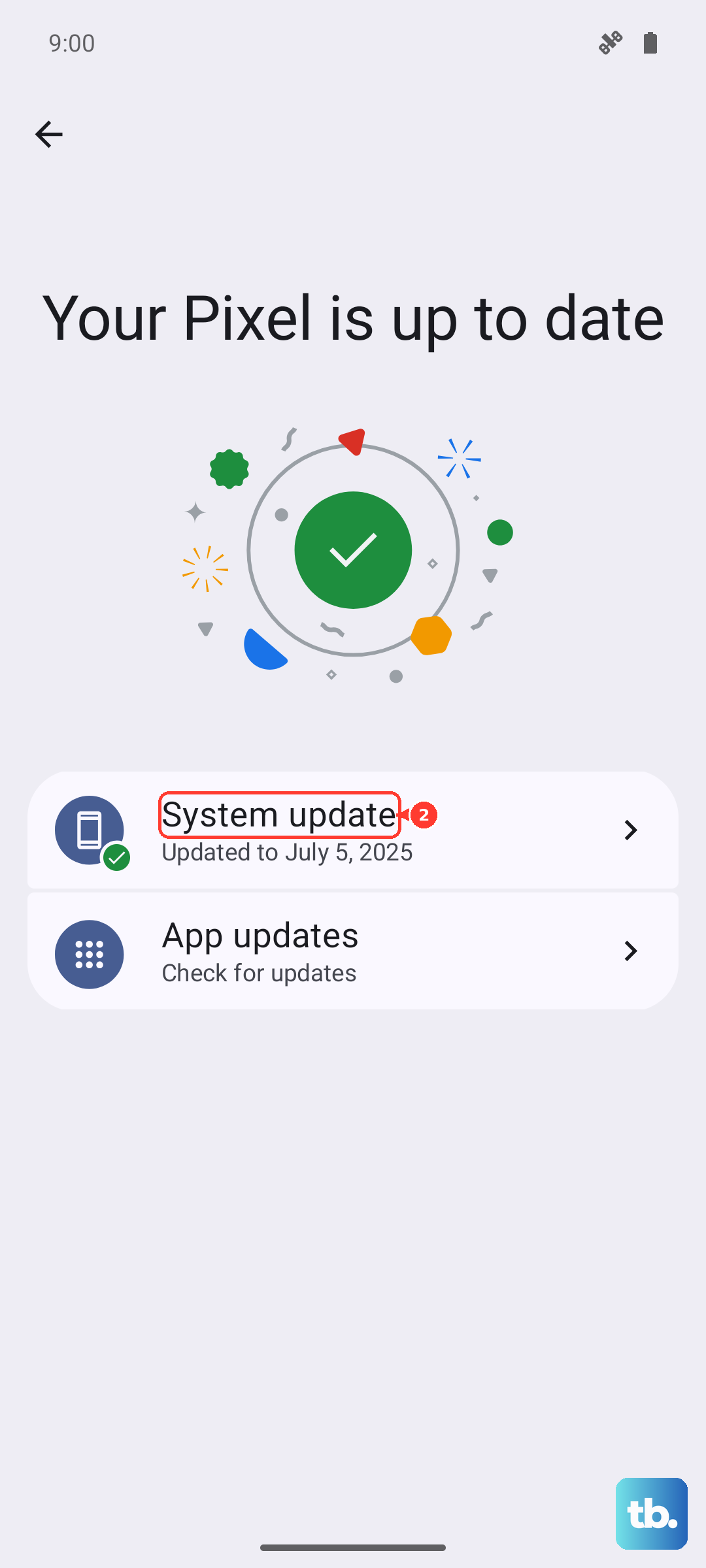
Head to Settings > System > System update. Tap Check for update. If there's a pending update, download and install it. Your phone will reboot, and the keyboard should be back to normal.
Boot Into Safe Mode
Safe mode disables all third-party apps, so you can tell if a recent download is messing with the keyboard. If Gboard works fine in safe mode, a rogue app is the culprit.
Press and hold the Power button until the power menu appears. Touch and hold Power off until the "Safe mode" prompt pops up, then tap OK. Your phone will restart with "Safe mode" at the bottom of the screen. Test the keyboard. If it works, boot back normally and uninstall any apps you added just before the trouble started.
Reset All Settings
This resets system settings (Wi-Fi, Bluetooth, display, etc.) back to factory defaults without wiping your apps or personal data. It's a middle ground before a full factory reset.
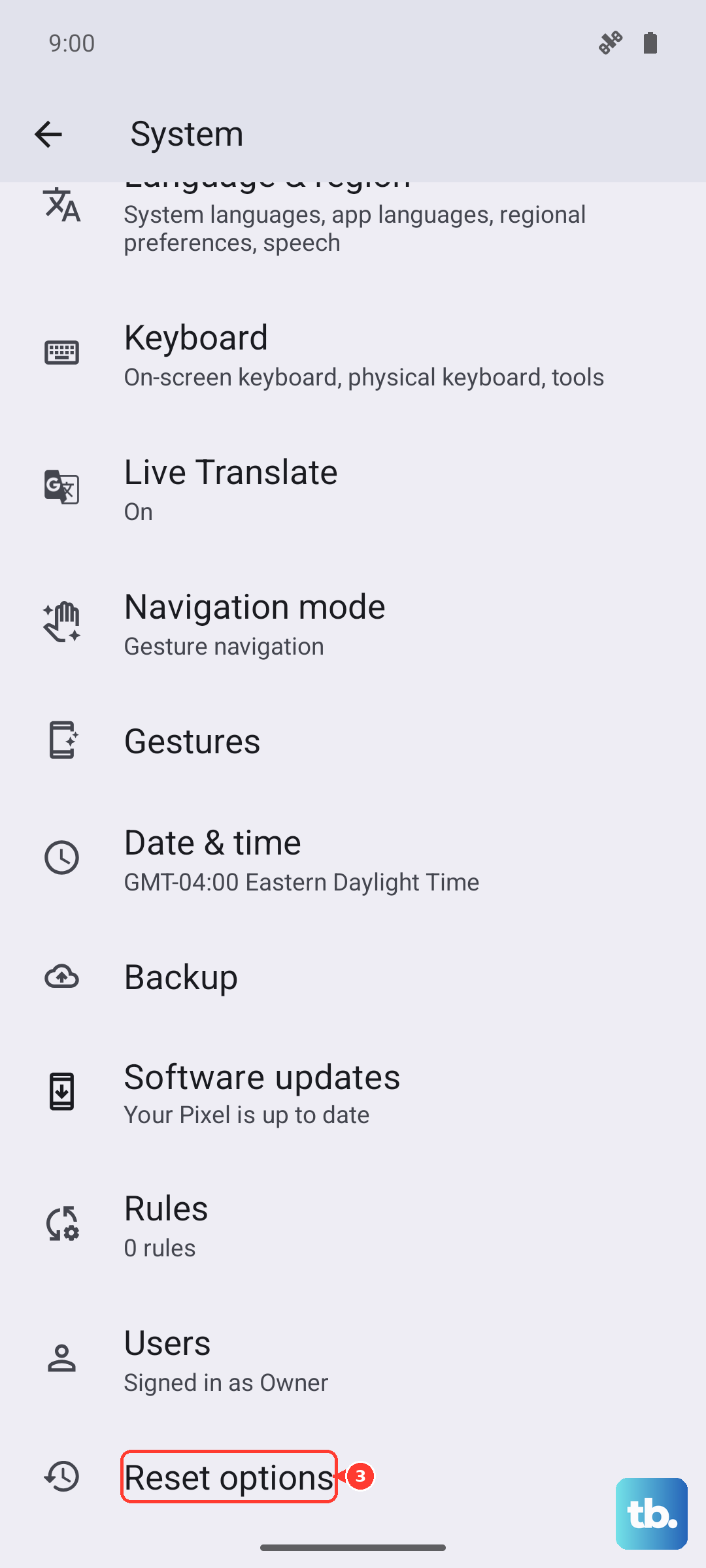
Go to Settings > System > Reset options > Reset settings. Tap Reset settings and confirm. Your phone will restart, and you'll need to reconfigure things like wallpapers and Wi-Fi networks, but your keyboard should be functional again.
Factory Reset (Last Resort)
If nothing else works, a factory data reset will restore your Pixel to out-of-the-box condition. This erases everything on your phone, so back up your photos, messages, and files to Google Drive or a computer first.
Go to Settings > System > Reset options > Erase all data (factory reset). Tap Reset phone and follow the prompts. After the reset, the keyboard will be fresh and clean. Most people never need to go this far, but it's there if you do.