
Your Pixel 10 Pro XL is showing the wrong location in Google Maps, and it's not just a minor glitch, it's throwing your whole navigation off. The good news is that most location issues on the Pixel 10 Pro XL can be fixed with a few targeted steps. Here's what to do, starting with the quickest fixes.
Restart or Force Restart the Phone
Start with a restart. On Pixel 6 and later, press and hold the Power and Volume up buttons for a few seconds, then tap Restart. If the phone is frozen and will not respond, hold the Power button for up to 60 seconds and release when the Google G logo appears.
A restart can clear temporary Android or app problems without deleting data, but Google does not describe it as resetting a separate GPS module.
Toggle GPS and Airplane Mode
If a restart didn't do it, quickly cycling your location signal can help. Swipe down twice from the top of the screen to open Quick Settings. Tap the Location icon to turn it off, wait about 30 seconds, then tap it again.
Next, try toggling Airplane Mode from Quick Settings. Turn it on, wait 10 seconds, then switch it back off, and make sure Wi-Fi or mobile data is back on. Google Maps recommends mobile data or Wi-Fi with Airplane mode off when location accuracy is low; GPS itself is a satellite location source, not a wireless connection that Airplane Mode reestablishes.
Check Location Settings and Permissions
On Pixel 10 Pro XL, check the current Android Location Accuracy setting instead of the old High accuracy mode. Go to Settings > Location > Location Services > Location Accuracy and turn on Improve Location Accuracy. This lets Android use available GPS, Wi-Fi, mobile networks, and sensors to improve location, especially indoors or near large buildings.
Then go to Settings > Location > App location permissions, tap Google Maps or another navigation app, allow location while using the app or all the time if that option is available, and turn on Use precise location.
Turn Off Battery Saver Mode
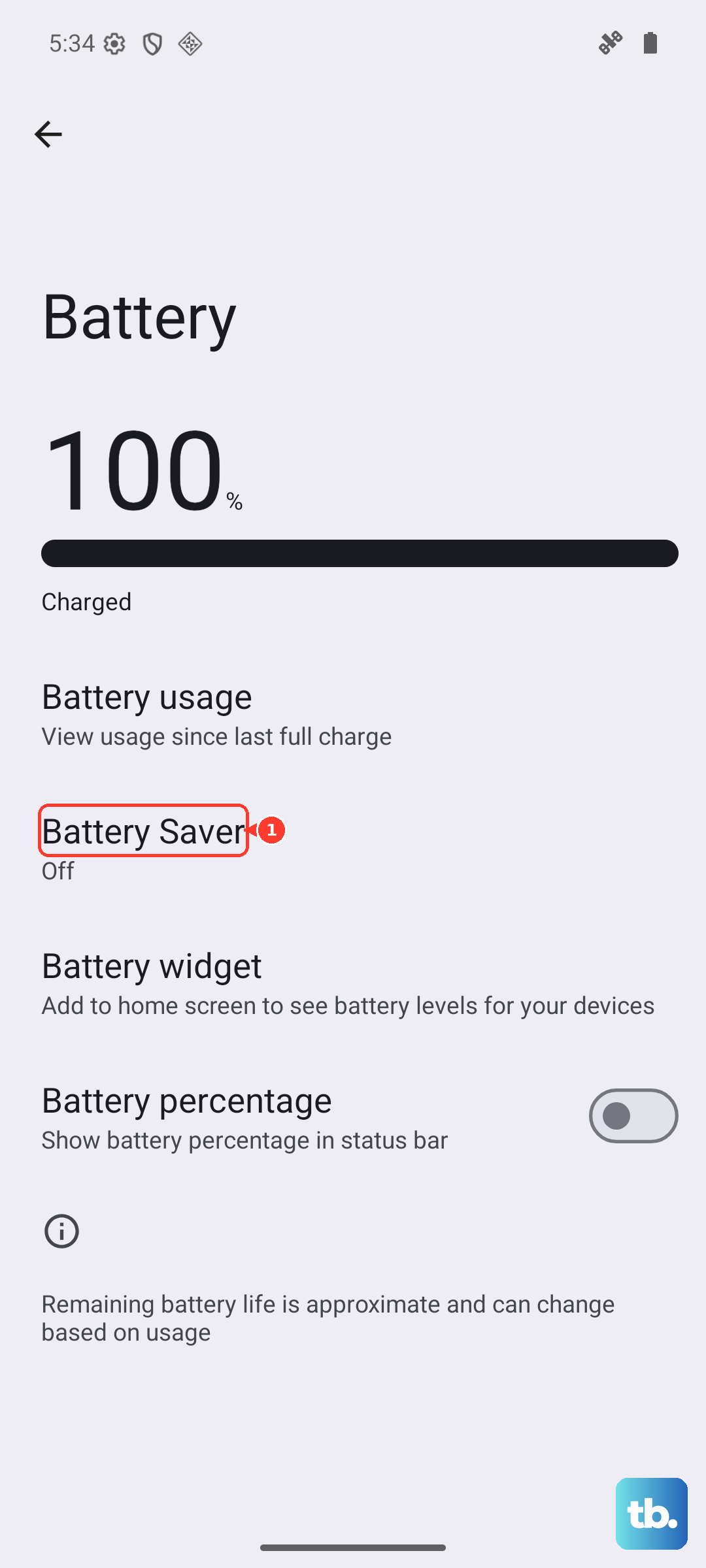
Google Maps recommends turning off Battery Saver if your location jumps around. Swipe down from the top of the screen and tap the Battery Saver tile, or go to Settings > Battery > Battery Saver. Standard Battery Saver can stop location services when the screen is off and prevent apps from running in the background unless battery optimization is disabled; Extreme Battery Saver can pause most apps.
Clear Google Maps Cache and Data
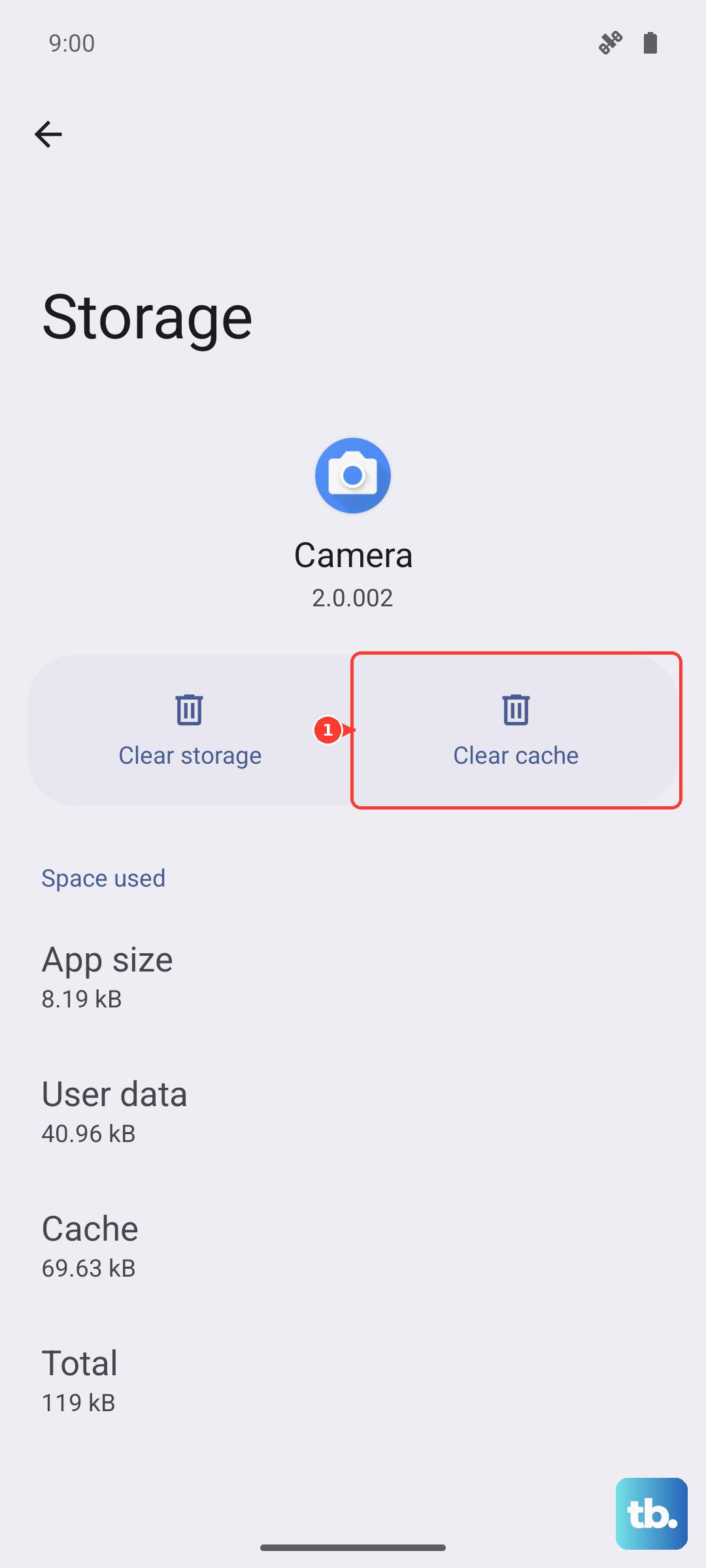
Clear Google Maps local data only if the simpler fixes do not help. Go to Settings > Apps, select Maps, open Storage or Storage & cache, and clear the cache first. If you clear app data or storage, Google says the action deletes Maps data stored on the phone, such as cached map tiles, searches, directions, and cookies, but not data stored on Google servers.
Update Apps and System Software
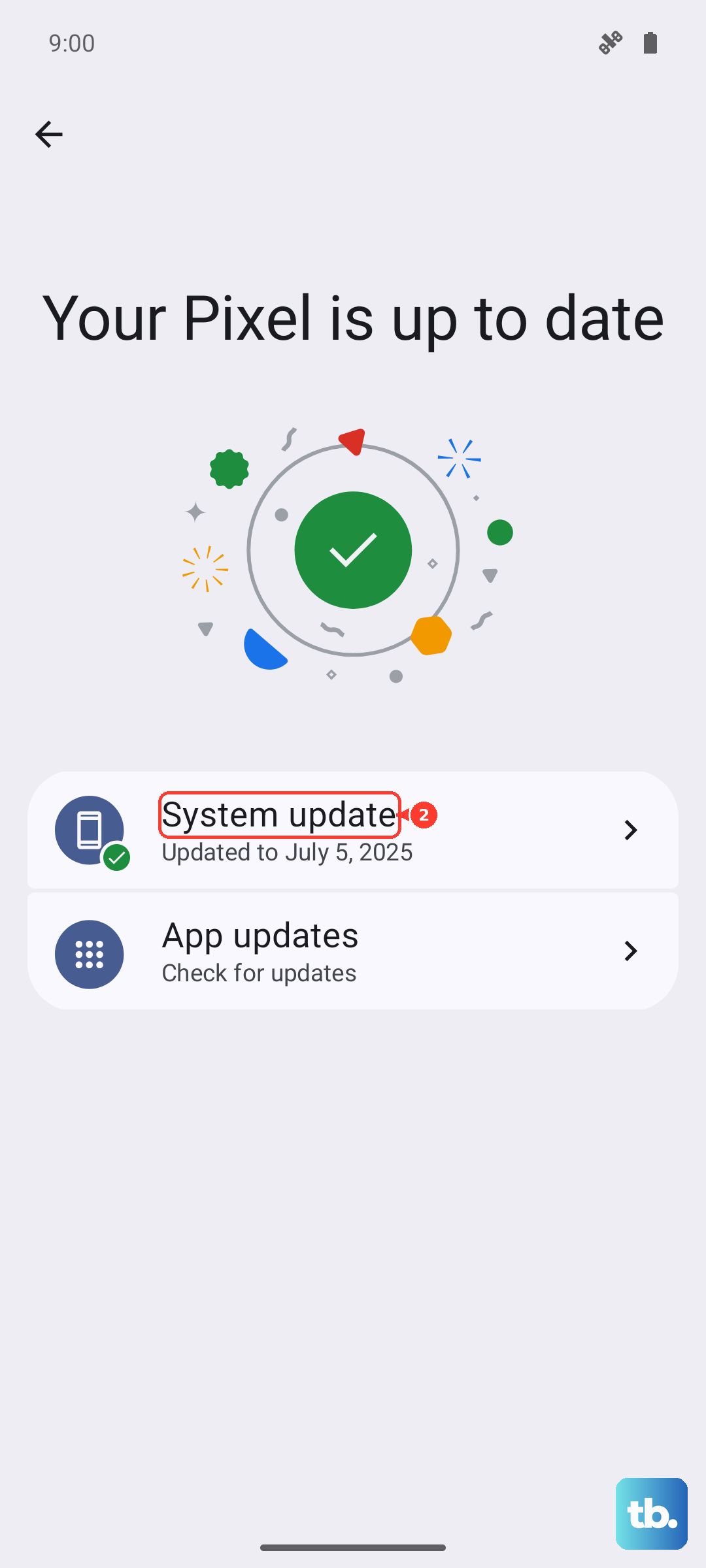
An outdated version of Google Maps or Android itself can cause location inaccuracies. Open the Play Store, tap your profile icon, then Manage apps & device to update all apps. For system updates, go to Settings > System > Software update and install anything pending.
Boot Into Safe Mode
Safe mode lets you check whether a downloaded app is likely causing the location problem. On Pixel 6 and later, press and hold the Power and Volume up buttons for a few seconds. On the power menu, touch and hold Power off or Restart, then tap OK. After the phone starts in Safe mode, turn Airplane mode off if it was enabled automatically, then test Google Maps. If the problem goes away, remove recently downloaded apps one by one and restart normally after each removal.
Calibrate the Compass
If the blue dot's beam is wide or points in the wrong direction, open Google Maps and make a figure-8 motion until the beam becomes narrow and points correctly. You can also tap the blue dot, tap Calibrate, and follow the on-screen instructions; Maps may open the Lens/Live View calibrator when Street View coverage is available.
Remove Your Phone Case and Check for Obstructions
Thick or metal‑reinforced phone cases can block the GPS antenna on the Pixel 10 Pro XL. Pop the case off and test the location again. Also make sure you're not in a basement or surrounded by tall buildings that could be reflecting the GPS signal.
Watch for Overheating
The Pixel 10 Pro XL is known to overheat during fast charging, and heat can throttle the GPS chip. If you've been charging the phone with a 45W adapter and notice location drift, unplug it and let the phone cool down for 10 minutes. Avoid wireless charging while using GPS if the pad alignment is slightly off, poor alignment can cause extra heat buildup.
Try these steps in order. If the issue persists, contact Google support or start a Pixel repair check instead of assuming a specific GPS antenna module defect.