When the camera on your Pixel 10 Pro XL suddenly goes black, freezes, or throws an error, the fastest fix is a force restart. Press and hold the Volume up and Power buttons at the same time for about 10 seconds. Let go when the phone vibrates and the Google logo appears.
Start with a free camera test to rule out a hardware fault. If a live preview appears there but not in your app, the camera is fine and the app is the problem.
Give it 30 seconds to reboot fully. This clears out any temporary software hiccup that might be blocking the camera from loading. I've seen this fix work for all kinds of sudden app failures, including the camera freezing on a black screen.
Key Points
- Force restart first: Hold Volume up and Power for 10 seconds to reboot a frozen camera.
- Clean the lens: A smudged lens causes blurry or hazy photos, even on the Pixel's excellent camera hardware.
- Clear the camera app cache: Removes corrupted temporary files that cause crashes.
- Check for system updates: Android 16 patches fix known camera bugs.
- Verify app permissions: The camera needs both Camera and Microphone permissions enabled.
- Boot into Safe Mode: Identifies third-party apps that conflict with the camera.
- Free up storage space: Low storage prevents saving new photos and videos.
- Reset camera app settings: Wipes all custom preferences without deleting your photos.
- Watch for overheating: The Pixel 10 Pro XL can shut off the camera to protect internal components.
Start With the Lens
It sounds basic, but a dirty lens is the most common reason for blurry or hazy photos. The Pixel 10 Pro XL's camera bump picks up fingerprints and pocket lint easily. Wipe the entire lens array with a clean microfiber cloth.
If you've been using a case, check that the case cutout isn't partially covering the lenses. Some cases shift over time and block the camera's view. A quick visual check takes two seconds.
For hazy or foggy images, moisture could be trapped under the lens glass. Leave the phone in a warm, dry place for an hour before testing the camera again.
Clear the Camera App's Cache
Corrupted cache files can cause the camera app to crash or refuse to open. Go to Settings > Apps > Camera > Storage & cache and tap Clear cache.
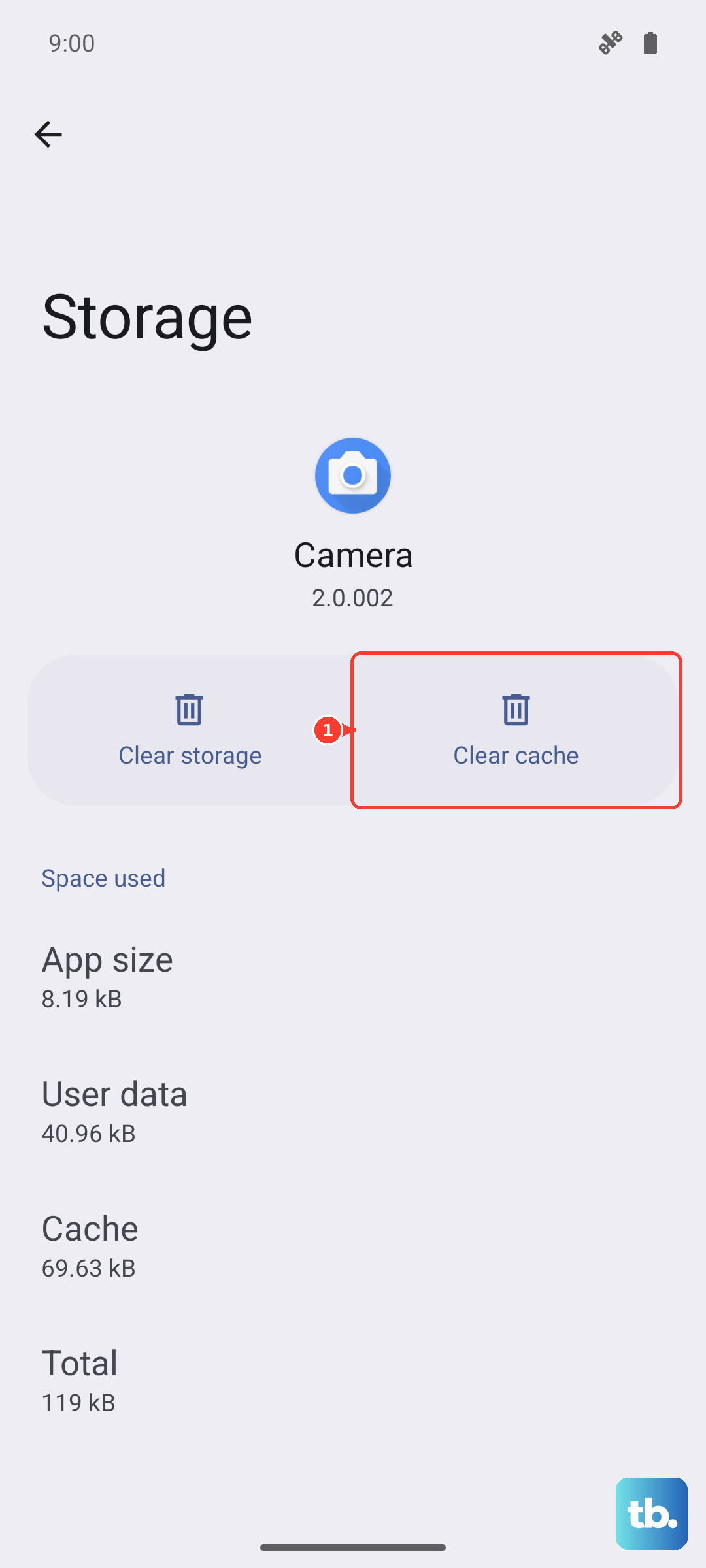
This won't delete any of your photos or videos. It only removes temporary files that the app stores for faster loading. After clearing the cache, open the camera app and test it.
If the camera still won't work, tap Clear storage on the same screen. This resets the app to its factory state, which also removes any saved camera settings but leaves your media untouched.
Check for an Android 16 Update
Google has pushed several camera-focused patches for Android 16 since the Pixel 10 Pro XL launched. Open Settings > System > Software update and tap Check for update.
If an update is available, install it and restart your phone. Many camera bugs that cause the viewfinder to stay black or crash mid-recording have been fixed through these updates. Restarting after the update makes sure the changes take effect properly.
Verify Camera Permissions
The camera app needs both Camera and Microphone permissions to work. Go to Settings > Apps > Camera > Permissions and make sure both are set to Allow only while using the app or Ask every time.
If you recently denied either permission, the camera might open but show a black screen or refuse to record video. Toggle them back on and test the camera again.
This also applies to third-party camera apps like Snapchat or Instagram. If those apps can't access the camera, check their individual permissions the same way.
Boot Into Safe Mode
A third-party app can interfere with the camera hardware. To check this, restart your Pixel 10 Pro XL and hold the Volume down button during the reboot. You'll see "Safe Mode" at the bottom of the screen.
In Safe Mode, all third-party apps are disabled. Open the camera app and test it. If it works fine, a downloaded app is the problem. Uninstall recently installed apps one by one, restarting into normal mode after each removal to test the camera.
To exit Safe Mode, simply restart the phone normally by holding the Power button and tapping Restart.
Free Up Storage Space
The camera can't save new photos if your internal storage is full. Go to Settings > Storage to check how much space remains. If it's below 1 GB, the camera app may refuse to open or crash immediately after taking a shot.
Delete old videos, clear out your downloads folder, or move photos to Google Photos with the "Free up space" option. After freeing at least 2 GB, test the camera again.
The Pixel 10 Pro XL records 4K video at high bitrates, so a single minute of footage can take up over 400 MB. Keep an eye on storage if you shoot a lot of video.
Reset Camera App Settings
If you've changed any camera settings like resolution, grid lines, or HDR preferences, a misconfigured option could cause problems. Go to Settings > Apps > Camera > Storage & cache and tap Clear storage.
This resets all camera settings to default, including any saved Scene Modes or video resolution preferences. Your photos and videos are safe, but you'll need to set up your preferred shooting mode again.
After the reset, open the camera app and test it before changing any settings. If it works, gradually reapply your preferred settings one at a time to find which one caused the issue.
Watch for Overheating
The Pixel 10 Pro XL runs warm during charging or heavy use, and it's a known issue that the phone can shut off the camera to protect internal components. If you've been charging wirelessly or using GPS navigation, let the phone cool down for 15 minutes before testing the camera.
Remove the phone case to help it cool faster. Avoid using the camera while the phone is charging, especially with the 45W wired charger. Center the phone carefully on Qi2 wireless pads to prevent misalignment heating.
If the camera consistently stops working after a few minutes of use, overheating is likely the cause. Let the phone rest in a cool, shaded spot and try again later.
Try a Different Camera App
Open a third-party camera app like Open Camera or Snapchat to see if the problem is limited to Google's camera app or affects all camera software. If the third-party app works, the issue is software-specific and can usually be fixed by clearing cache or reinstalling updates for the Google Camera app.
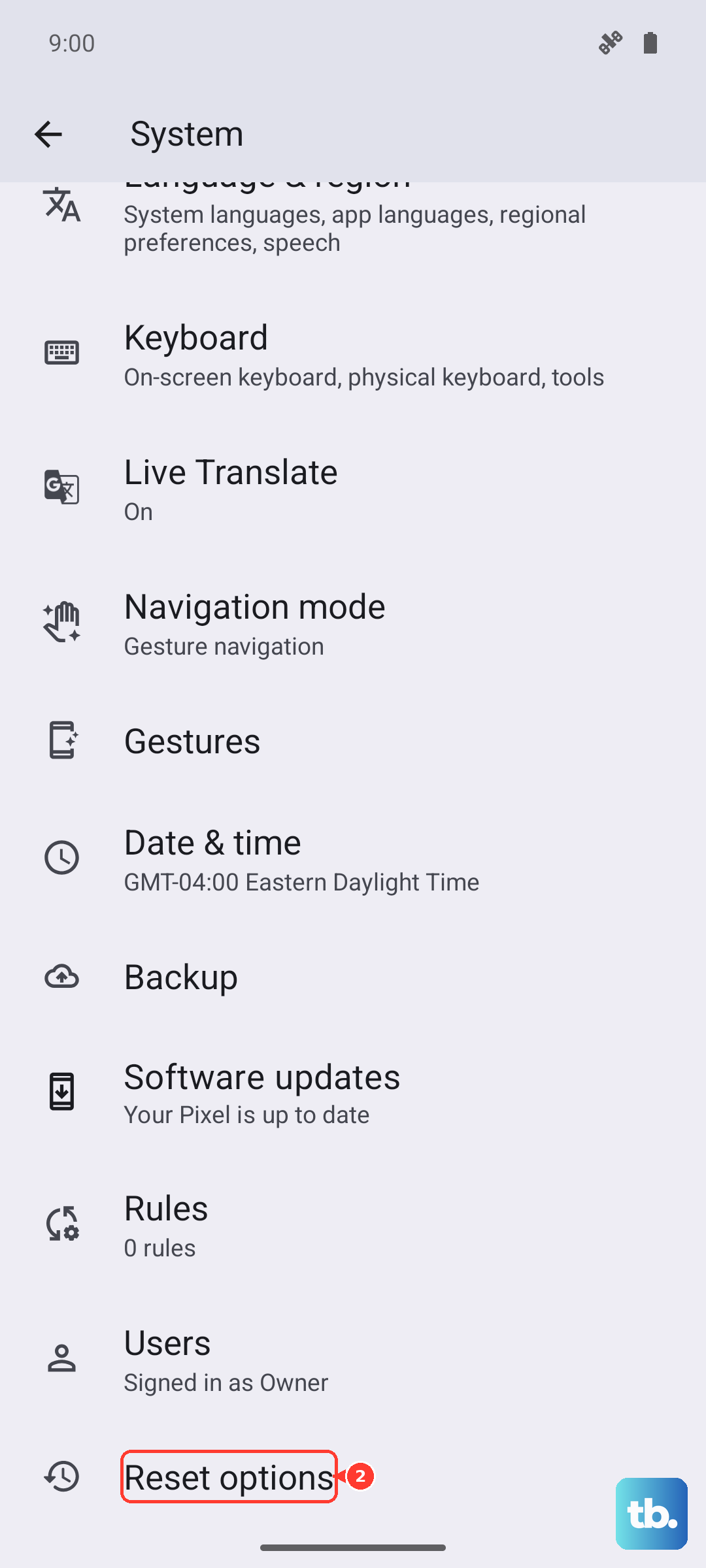
If no app can access the camera hardware at all, the problem is likely deeper. In that case, a factory reset through Settings > System > Reset options > Erase all data (factory reset) can clear persistent software corruption. Back up your photos first, as this wipes everything on the phone.