
The Google Pixel 10 Pro XL is a powerhouse, but if you're seeing the battery percentage drop faster than expected, you're not imagining it. Google lists fast wired charging as up to 70% in about 30 minutes with a 45W USB-C PPS charger or higher, sold separately, and Pixelsnap wireless charging up to 25W. Several settings and app behaviors can still drain it quickly, so start with the checks below.
Check Battery Diagnostics First
Open Settings > Battery > Battery diagnostics > Battery draining too quickly. Google lists this diagnostic for Pixel 6 and later, so it should be the first check when Pixel battery drain is unusual.
Check Which Apps Are Draining the Battery
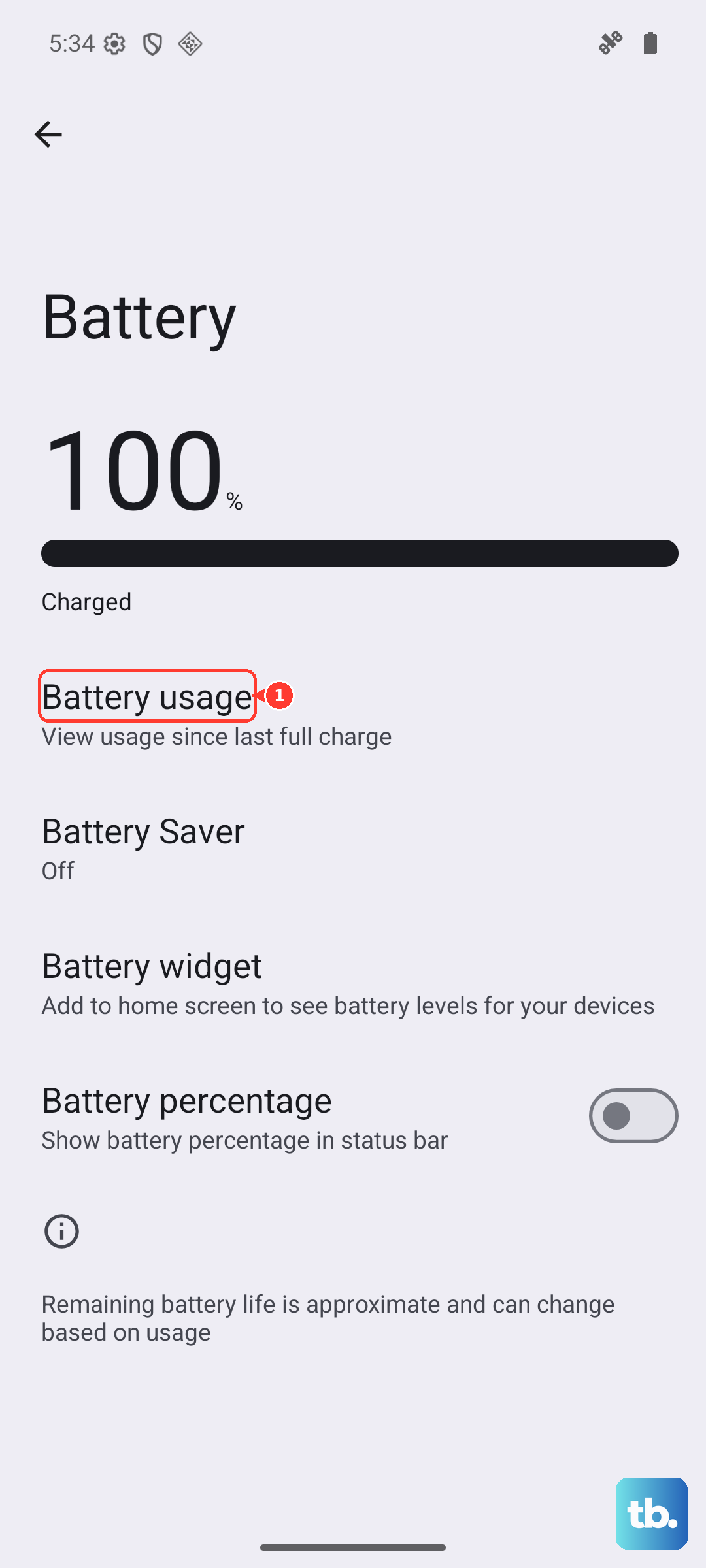
Open Settings > Battery > Battery usage, then tap View by apps to compare app usage. Tap a listed app and open Allow background usage if you need to review how it uses battery in the background. Google recommends keeping Optimized on for most apps; if one app is clearly abnormal or you do not need it, update it or uninstall it.
Check for System and App Updates, Then Keep Adaptive Battery On
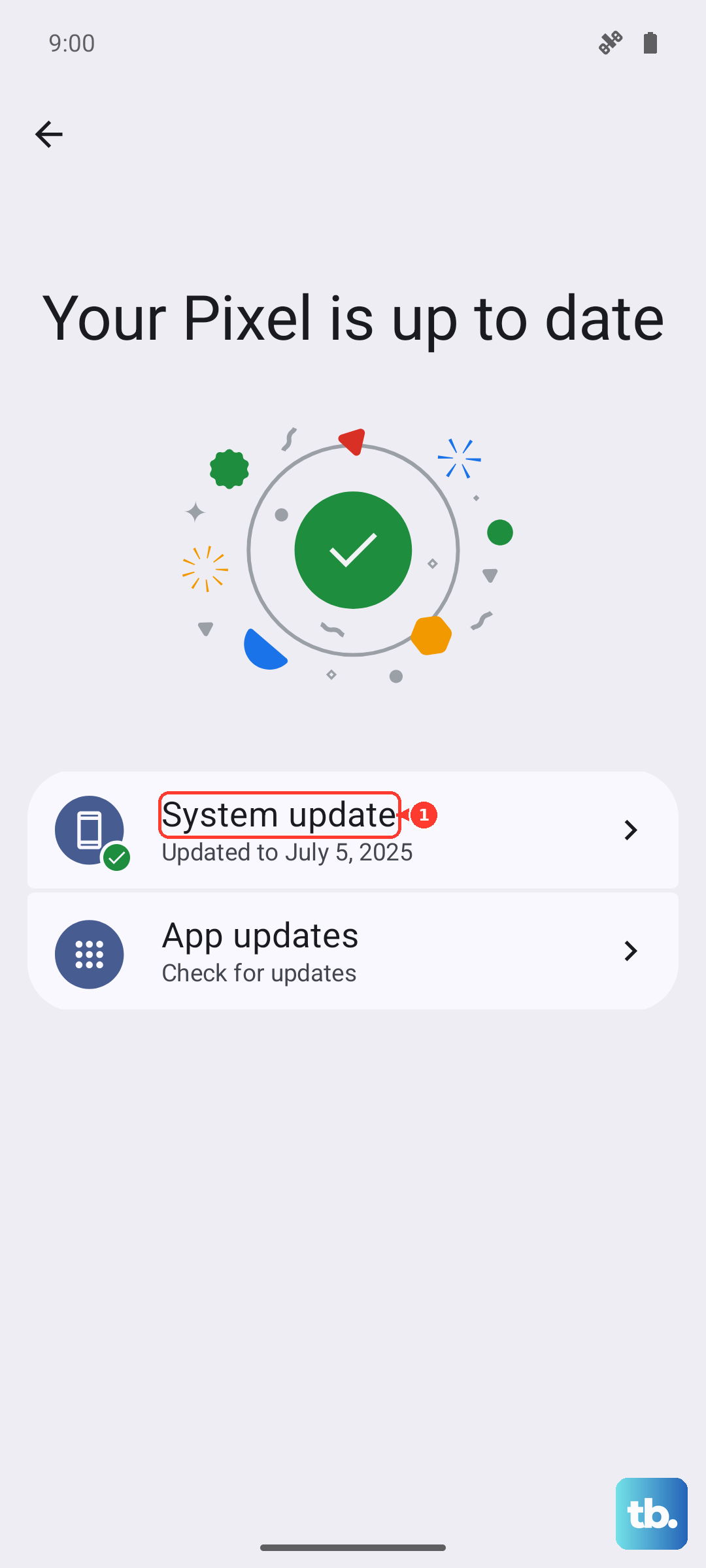
The Pixel 10 Pro XL launched with Android 16, so focus on installing any pending system updates rather than treating Android 16 itself as an upgrade step. Go to Settings > System > Software update and follow the update steps. Then open the Play Store, tap your profile icon, choose Manage apps & devices, and update apps. Keep Adaptive Battery on at Settings > Battery > Battery Saver > Adaptive Battery > Use Adaptive Battery.
Use Battery Saver or Adaptive Connectivity for Mobile-Network Drain
If mobile-network drain is the pattern, start with Google's built-in controls. Turn on Battery Saver from Settings > Battery > Battery Saver; Google notes that a 5G Pixel may use 4G while Battery Saver is on, depending on your carrier. You can also try Settings > Network & internet > Adaptive connectivity and turn Use adaptive connectivity on, though some U.S. carriers may limit it.
Use Dark Theme and Reduce Brightness
Google recommends Dark theme, lower brightness, Adaptive brightness, and a shorter screen timeout to save battery. Turn on Dark theme at Settings > Display & touch > Dark theme. For Adaptive brightness, go to Settings > Display & touch > Adaptive brightness. For screen timeout, go to Settings > Display & touch > Screen timeout and choose a short time such as 30 seconds.
Disable Always-On Display
To save battery, turn off Always-on Display from Settings > Display & touch > Always-on Display.
Review Background Battery Use
Open Settings > Apps > App battery usage, or open Settings > Apps > See all apps, choose an app, tap App battery usage, then tap Allow background usage. Keep Optimized on for most apps. Google warns that turning battery optimization off lets an app run more while you are not using it, which can use more battery.
Stop Unnecessary Location Services
Open Settings > Location > App location permissions. Move apps that do not need background location away from Allowed all the time and use Allow only while using the app, Ask every time, or Don't allow as appropriate. If you want to reduce location scanning, go to Location > Location services > Location Accuracy and turn Improve Location Accuracy off, but expect less accurate location in some apps.
Turn Off Smooth Display (Optional)
The Pixel 10 Pro XL supports Smooth Display from 1-120 Hz, and Google lists turning off Smooth Display as a battery-saving setting. Go to Settings > Display & touch > Smooth Display and turn it off.
Keep the Phone Cool While Charging
Google recommends keeping your Pixel in a cool spot while charging. If the phone gets too warm, charging might pause to protect the battery and resume after it cools. Avoid direct sunlight and surfaces that trap heat, and remove a thick or non-compatible case if charging is slow or unsteady. For long-term battery health, use Settings > Battery > Battery health > Charging optimization.
Use the Right Charger and Wireless Pad
For the Pixel 10 Pro XL's fastest wired result, use a 45W USB-C PPS charger or higher, sold separately; Google lists fast charging up to 70% in about 30 minutes with that charger class. Older USB-A chargers can charge more slowly. For wireless charging, use a Qi2-certified charger such as Pixelsnap. Pixel 10 Pro XL can reach up to 25W on Pixelsnap with a 35W or higher USB-C power adapter, while older Qi chargers may charge much more slowly.
Restart If the Phone Feels Sluggish
If the battery drain seems sudden and the phone is acting weird, restart the phone first. On Pixel 6 and later, press and hold Power + Volume up for a few seconds, then tap Restart. If the phone is frozen or will not respond, force restart it by holding the Power button for up to 60 seconds, then release when the G logo appears.