
You just got the Google Pixel 10 Pro XL, and the first thing you try is downloading an app from the Play Store. Instead of installing, it just sits there spinning, or worse, throws an error. That's frustrating, especially on a flagship running Android 16.
The good news is most Play Store issues are easy to fix. Let's walk through what usually works.
Start with a force restart
Before anything else, try a force restart. This clears out temporary glitches without deleting any of your data. On the Pixel 10 Pro XL, press and hold the Volume up and Power buttons together for about 10 seconds. The phone should restart on its own. Once it's back up, open the Play Store and see if downloads work.
A lot of users skip this step, but I've seen it resolve Play Store hiccups more often than you'd think. It takes ten seconds and costs you nothing.
Check your internet connection
A shaky connection is the most common reason the Play Store won't download apps. Pull down the notification shade and make sure Wi-Fi or mobile data is turned on. If you're on Wi-Fi, try switching to mobile data and see if that helps.
Some Wi-Fi networks block the port Google Play uses for downloads. If you're on a public or work Wi-Fi, that could be the issue. Toggle airplane mode on for a few seconds, then turn it off to force a fresh connection.
Set the date and time automatically
Google's servers check your phone's clock when you download apps. If the date or time is off, the Play Store might refuse to work. Go to Settings > System > Date & Time and make sure Use network-provided time is turned on. If it's already on but downloads still fail, toggle it off, set the time manually, then switch it back to automatic.
Clear the Play Store's cache and data
Corrupted cache files are a common culprit. Head to Settings > Apps > Google Play Store > Storage & cache. Tap Clear cache first. If that doesn't help, tap Clear storage (this will sign you out of the Play Store temporarily, but that's fine).
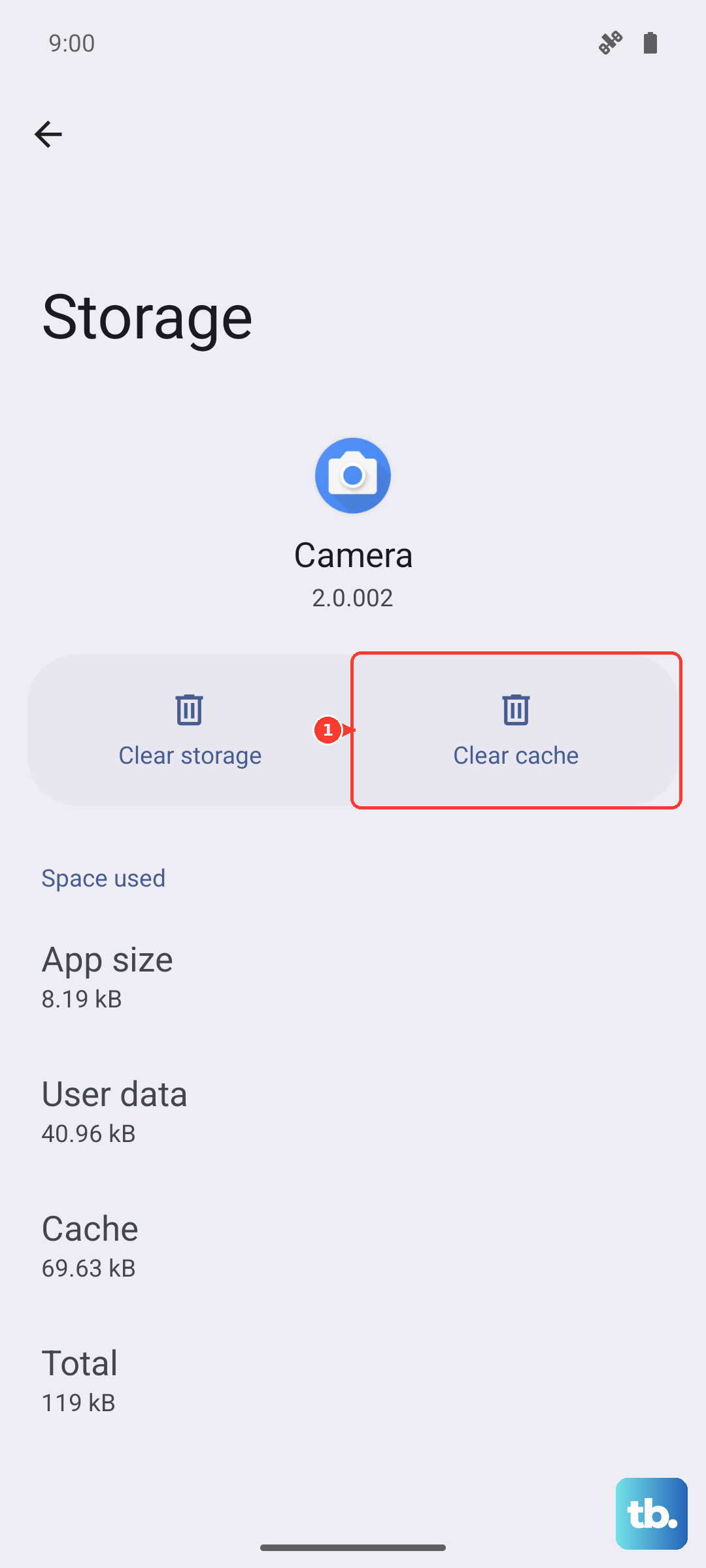
After clearing, restart your Pixel and open the Play Store again. You'll need to accept the terms of service, but downloads should start working.
Clear Google Play Services data too
Google Play Services handles the behind-the-scenes communication between apps and your phone. If it's glitching, the Play Store can't function properly. Go to Settings > Apps > Google Play Services > Storage & cache. Tap Clear cache, then tap Manage storage and Clear all data.
Don't worry, this won't delete your apps or accounts. It just resets Play Services to a clean state.
Force stop Google Play Services
If clearing data didn't do it, force stopping Play Services can kick it back into gear. Go to Settings > Apps > Google Play Services and tap Force stop. Wait a few seconds, then try downloading from the Play Store again.
Check app permissions for Play Services
Google Play Services needs certain permissions to function. Go to Settings > Apps > Google Play Services > Permissions. Make sure Storage is allowed. If it's not, toggle it on.
Also check the Change system settings option under the same app info screen and make sure it's allowed.
Refresh your Google account sync
Sometimes the sync between your Google account and the Play Store gets stuck. Go to Settings > Passwords & accounts (or Accounts) and select your Google account. Tap Account sync. Tap the three-dot menu and choose Cancel sync. Wait about 30 seconds, then tap the three-dot menu again and select Sync now.
This forces a fresh connection between your phone and Google's servers, which often clears up download issues.
Update Android 16 and the Play Store
Running outdated software can cause compatibility problems. Go to Settings > System > System update and check if any updates are available. Install them if there are.
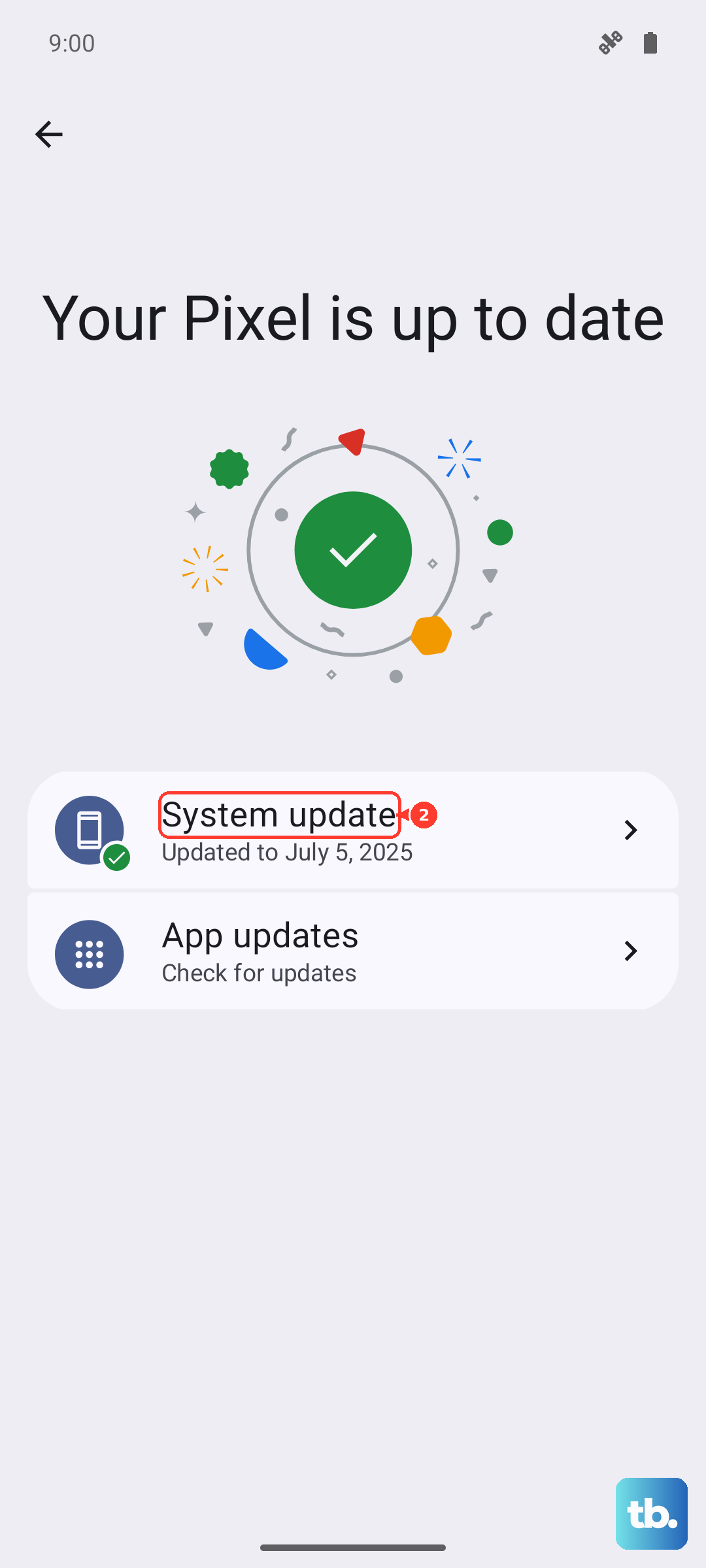
While you're at it, open the Play Store, tap your profile icon, and go to Settings > About. Tap Update Play Store if the option is there. Sometimes the Play Store itself needs a refresh.
Remove and re-add your Google account
If nothing else has worked, try removing your Google account and adding it back. Go to Settings > Passwords & accounts, tap your Google account, and select Remove account. Don't worry, your apps and data will stay on the phone. After removing it, go back and tap Add account to sign in again.
Restart your Pixel after adding the account back. Then try downloading from the Play Store.
Uninstall Play Store updates (if needed)
A recent Play Store update can sometimes introduce bugs. To roll it back, go to Settings > Apps > Google Play Store, tap the three-dot menu, and select Uninstall updates. This reverts the Play Store to its factory version. Then open the Play Store and let it update itself again.
This has fixed stubborn download issues on more than a few Pixel phones I've worked with.
One of these steps should get your Pixel 10 Pro XL downloading apps again. Start with the force restart and work your way through. In most cases, it's a cache or connection issue that clears up in under a minute.