When you're swiping through the Pixel 10 Pro XL's gorgeous display and an app just freezes or kicks you back to the home screen, it's a total momentum killer. Apps crashing on a phone running Android 16 usually comes down to one of a handful of culprits: a temporary system glitch, corrupted data, or the phone trying to protect itself from heat. Let's walk through the fixes that work best for this specific device.
Force Restart the Pixel 10 Pro XL
Before diving into settings, give it a hard reboot. This clears out any temporary software hangups that might be interfering with your apps. On the Pixel 10 Pro XL, the process is specific.
Press and hold the Volume up and Power buttons simultaneously for 10 seconds, then release when the device restarts. You don't need to tap anything else, just hold it until the screen goes black and the Google logo appears. This often nips app crashing in the bud immediately.
Check If the Phone Is Overheating
One of the most common triggers for app crashes on the Pixel 10 Pro XL is thermal throttling. If you've been charging it, especially wirelessly, or using it in direct sunlight, the device might shut down apps to cool off. This is a safety feature baked into Android 16.
Immediately pull the phone out of its case. Cases trap heat, and the 10 Pro XL runs warm enough as it is during fast charging or heavy gaming. Let it sit for a minute and stop using it. If you're wireless charging, make sure the phone is perfectly centered on the Qi2 pad, alignment issues can cause the charging coil to work inefficiently, generating extra heat.
Update Your Apps and Android 16 System
Developers push updates to fix the exact bugs that cause crashes. The Pixel 10 Pro XL usually gets updates first, but you should manually check that you're current. Open the Google Play Store, tap your profile icon, and select Manage apps & devices. Tap Update all to bring everything up to date.
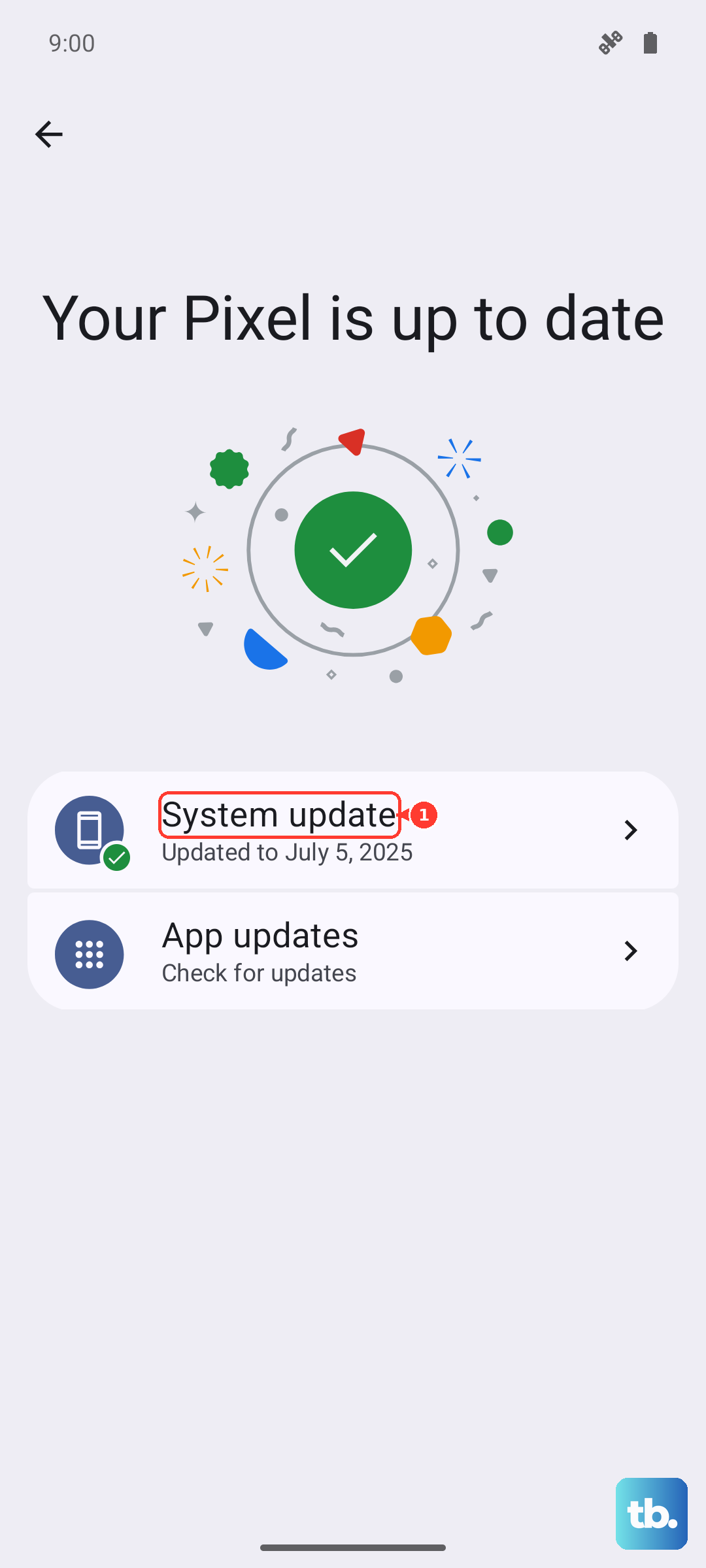
Don't forget the system itself. Go to Settings > System > System update. If Android 16 has a pending patch, installing it can resolve underlying issues that cause apps to be unstable. A full restart after the update is always a good idea.
Force Stop the Problematic App
If a specific app is stuck in a crash loop, force stopping it gives it a clean slate. Go to Settings > Apps > See all apps and find the troublemaker. Tap Force stop. This kills the process entirely, along with any background tasks that might be conflicting with Android 16's memory management.
Clear the App Cache and Data
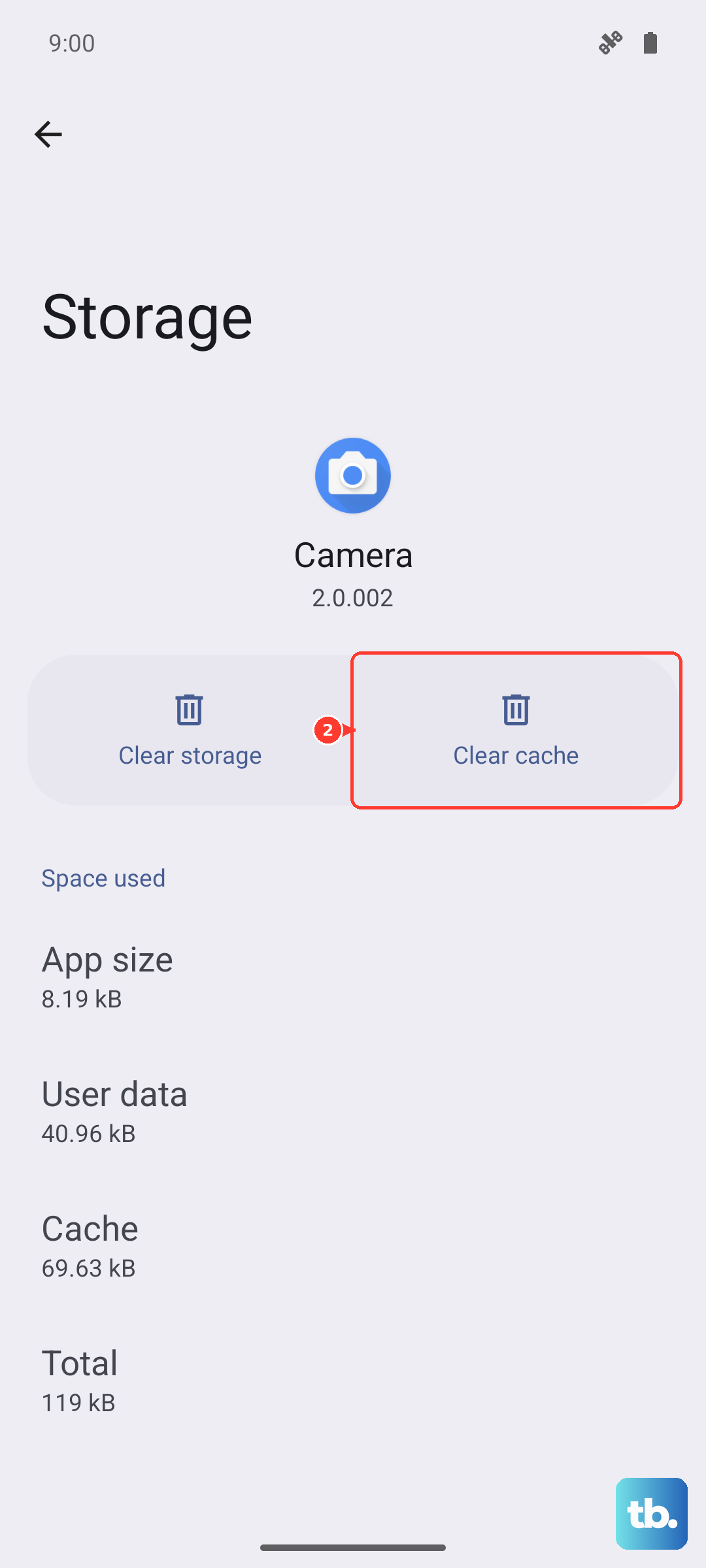
Corrupted cache files are a prime suspect in app crash cases. With the app selected in your app list, tap Storage & cache. First, try Clear cache, this is safe and won't delete your login information. If that doesn't work, tap Clear storage (or Clear data). Just keep in mind that clearing data will log you out and reset the app to its factory defaults.
Check Your Internet Connection
Apps that rely on a constant data stream will crash hard if the connection drops. If you're on Wi-Fi, try restarting your router. If you're on mobile data, check that you have a strong signal. Sometimes the Pixel 10 Pro XL can struggle to transition smoothly between Wi-Fi and 5G, causing apps to time out. Toggle Airplane Mode on and off to force a fresh connection to the tower.
Free Up Storage Space
Android 16 needs a certain amount of free space to swap memory and run apps smoothly. If your Pixel 10 Pro XL is running low, apps will crash more frequently. Go to Settings > Storage to see what's eating up the space. Offload old photos to Google Photos, delete downloaded files you no longer need, and uninstall any apps you haven't used in the last month.
Reinstall the App
If a single app keeps crashing and nothing else works, uninstall it and reinstall a fresh copy from the Google Play Store. Long-press the app icon, tap Uninstall, then head to the Play Store to download it again. This ensures you have the latest version without any corrupted leftover files.
Factory Reset the Pixel 10 Pro XL
If you've tried everything and apps are still crashing across the board, a factory reset will return the device to its out-of-the-box state. This erases everything on the phone, so make sure your photos, contacts, and files are backed up to the cloud first.
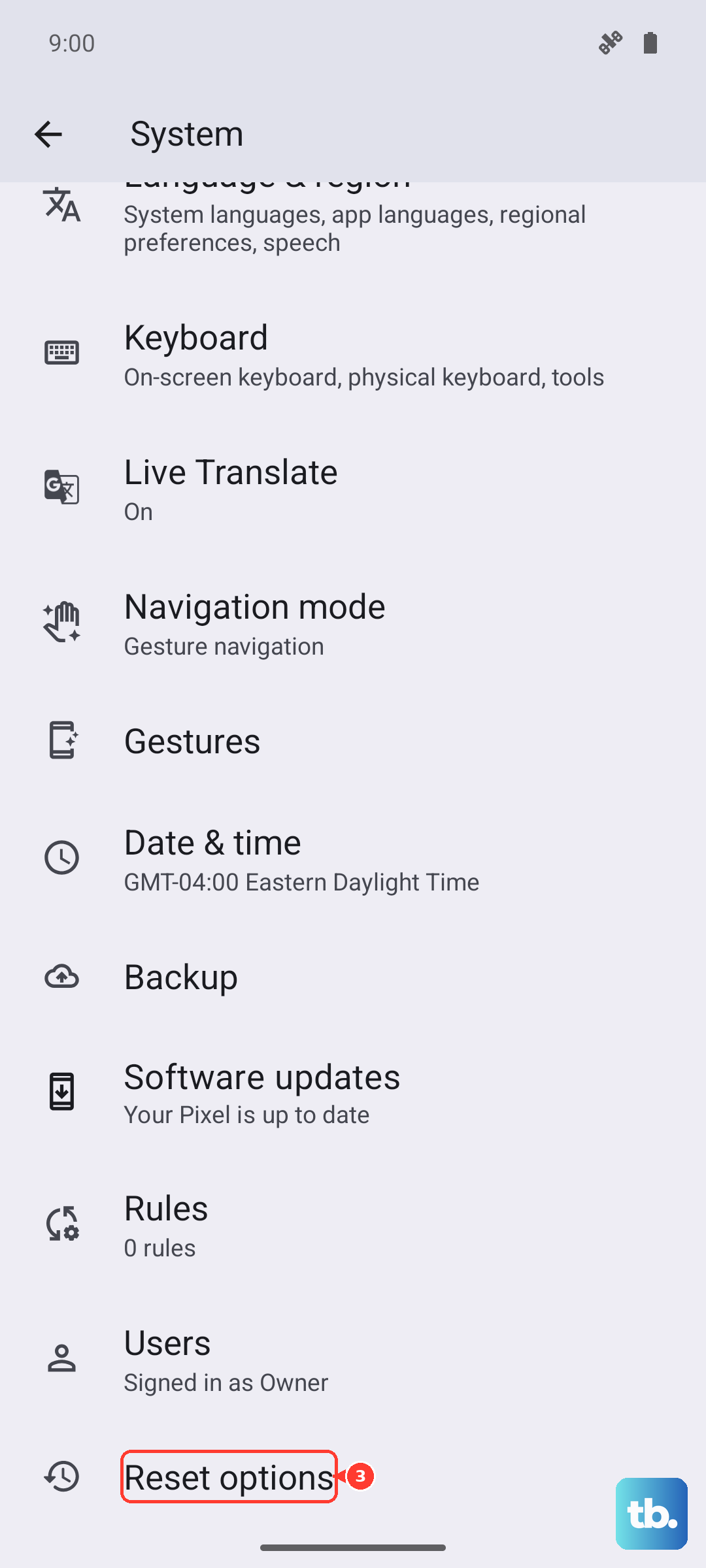
Go to Settings > System > Reset options > Erase all data (factory reset). The process takes a few minutes, and once it's done, you can restore your data from your Google backup. This is the most thorough way to fix deep software conflicts causing persistent app crashes.