
When your Google Pixel 10 Pro's voice assistant stops responding, it can feel like you've lost a helpful sidekick. Whether it's "Hey Google" not triggering or Assistant commands being ignored, the fixes are usually straightforward. Let's get it working again.
Verify Gemini or Google Assistant Settings
The first thing to check is whether your current assistant is enabled and listening. If your Pixel 10 Pro is using Gemini, open the Gemini app and tap Menu > your profile picture or initial > Settings > Talk to Gemini hands-free.
Make sure "Hey Google" is toggled on and follow the prompts to set up Voice Match if needed. If you switched back to Google Assistant, open Assistant settings and check Hey Google & Voice Match instead.
Check for Audio Interference and Modes
Your phone's current audio state can block the Assistant. If your phone is on silent or Do Not Disturb is active, the Assistant might not audibly respond, though it should still listen.
For lock-screen use with Gemini, open the Gemini app and go to Menu > your profile picture or initial > Settings > Gemini on lock screen, then turn on "Use Gemini without unlocking." If you use Google Assistant, use Assistant's Lock screen setting for Assistant responses on the lock screen.
Retrain Your Voice Model
If Assistant is having trouble recognizing your specific voice command, retraining it often helps. In the Google Assistant settings > Voice Match menu, you'll see an option to "Retrain voice model" or "Delete voice model."
Tap to delete your existing model, then set it up again. The phone will prompt you to say "Hey Google" and "Ok Google" a few times. Speak clearly in your normal voice. This recalibrates the system to your current speech patterns.
Inspect Your Microphones
The Pixel 10 Pro uses multiple microphones for noise suppression and clear pickup. If any are blocked, "Hey Google" detection can fail. Google's hardware diagram lists top, rear-facing, and bottom microphones, so check around the top edge, camera bar area, and bottom edge.
Look for lint, dust, or case alignment issues. Remove the case or screen protector while testing, and if the speakers or microphones are dirty, gently clean them with a soft, lint-free cloth. Avoid using metal picks that could damage the internal components.
Review App Permissions and Battery Settings
Google Assistant needs the right permissions to function. Go to your phone's main Settings > Apps > Google. Tap on Permissions and ensure Microphone access is allowed.
Also, check the battery setting only if voice activation is still unreliable. Go to Settings > Apps > Google > Battery and, if available, set it to "Unrestricted." This can help rule out background restriction as a trigger issue on Android.
Disable Other Listening Features Temporarily
Certain accessibility features can interfere. Go to Settings > Accessibility and look for "Sound Notifications" or "Live Transcribe." If these are enabled, try turning them off temporarily to test if they're conflicting with the "Hey Google" detection system.
Similarly, if you use any third-party voice control apps, they might be trying to use the same microphone resource. Closing those apps or disabling them for a test is a good step.
Clear the Google App's Cache and Data
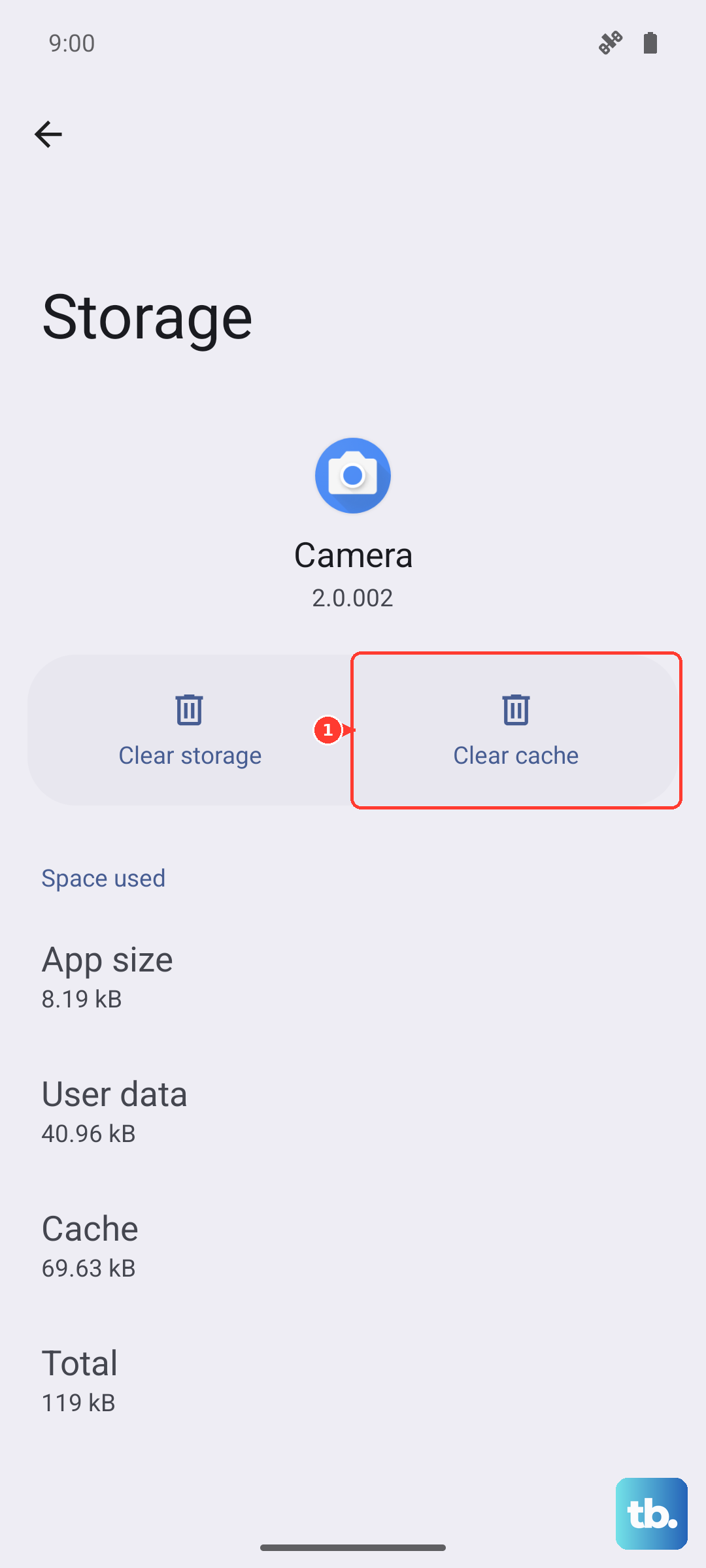
Corrupted temporary files can cause the assistant to glitch. Start with cache, which only removes temporary data. Go to Settings > Apps > Google > Storage & cache.
Tap "Clear cache" first and test the assistant. If the problem persists, go back and tap "Clear storage" or "Manage space," then "Clear all data." Google says clearing storage permanently deletes app data, so expect the Google app to reset and require setup again.
Perform a Software Update
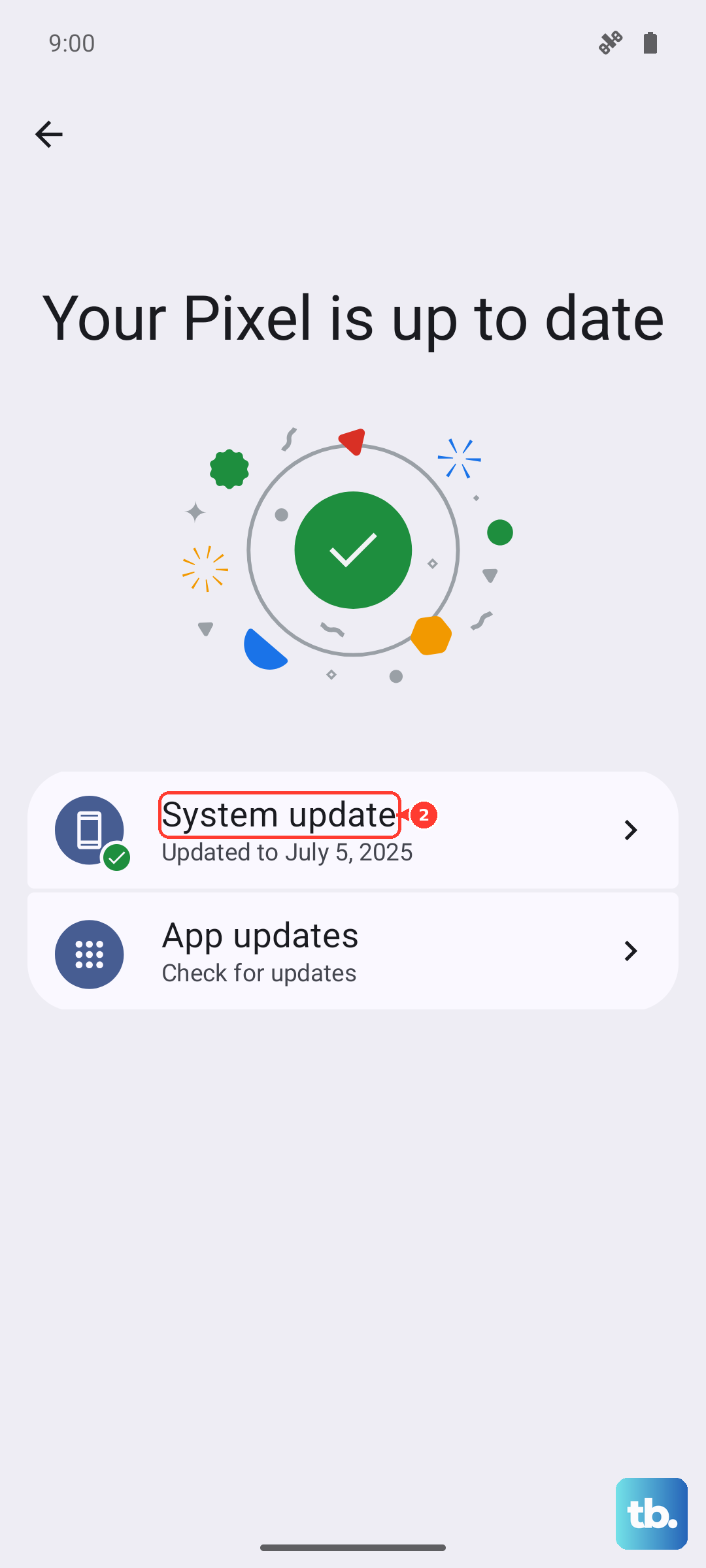
Bugs in Android itself or the Google app itself are often patched in updates. Go to Settings > System > System update to check for any available OS updates.
Then, open the Play Store, tap your profile icon, and go to Manage apps & device > Updates available. Look for updates to the "Google" app specifically, as this is the core component for the Assistant.
Restart or Force Restart Your Pixel
A simple reboot clears out temporary system errors. Just hold the power button and tap "Restart." If the phone is unresponsive or the issue feels system-wide, use a force restart.
For a normal restart on Pixel 6 and later, press and hold the Power button and Volume Up button for a few seconds, then tap "Restart." If the phone is frozen, press and hold the Power button for up to 60 seconds and release when the "G" logo appears.
Check Your Network Connection
While many basic "Hey Google" commands are processed on-device, more complex queries need the internet. Assistant will often fail silently if it can't reach Google's servers.
Make sure you're connected to Wi-Fi or have a strong mobile data signal. Try asking a simple question like "What's the weather?" If it works but "Hey Google" doesn't, the issue is likely with the voice trigger system itself, not the network.