
When your Google Pixel 10 Pro won't send texts, it can be incredibly frustrating. You might see a message stuck on "Sending," get a "Not sent" error, or nothing happens at all. The good news is, this is usually a quick fix.
Check Your Signal and Connection
First, look at the top of your screen. If you don't see any signal bars or you have an "X" over the signal icon, your phone can't connect to your carrier's network. Move to a different location or try toggling Airplane Mode on and off from the Quick Settings panel. This forces your phone to reconnect to the cellular network, which often gets texts flowing again.
Force Restart Your Pixel
A simple restart can clear up a lot of temporary glitches. For the Pixel 10 Pro, press and hold the Power button and the Volume Up button together for about 10 seconds. Let go when you see the Google logo appear on the screen. This is more thorough than a standard restart and can resolve issues with the messaging service.
Check Your Default Messaging App
If you've installed other messaging apps, your Pixel might be trying to send from the wrong one. Go to Settings > Apps > Default apps and tap on SMS app. Make sure Messages by Google is selected. I've seen this fix the problem when texts seem to vanish into thin air.
Clear the Messages App Cache
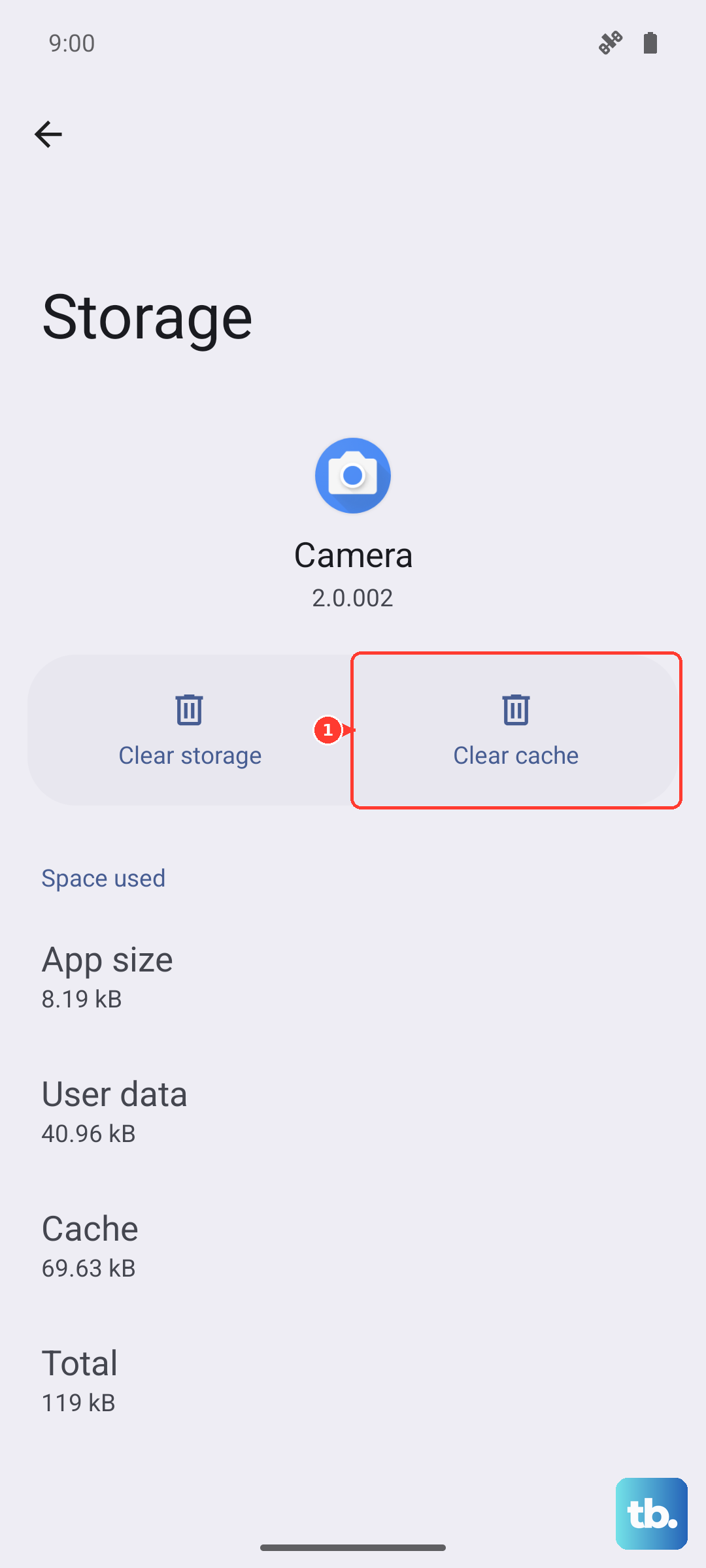
Sometimes, the app's temporary data gets corrupted. Go to Settings > Apps, find and tap on Messages. Then, tap Storage & cache and hit Clear cache. This won't delete your messages, but it can fix sending errors. If the problem persists, you can try Clear storage next, but be aware this will erase your message history within the app.
Check for Carrier Services Updates
Your messaging relies on a background app called Carrier Services. Open the Google Play Store, tap your profile icon, and go to Manage apps & device > Manage. Look for Carrier Services in the list of installed apps. If an update is available, install it. These updates are crucial for fixing carrier-specific texting problems.
Verify Your APN Settings
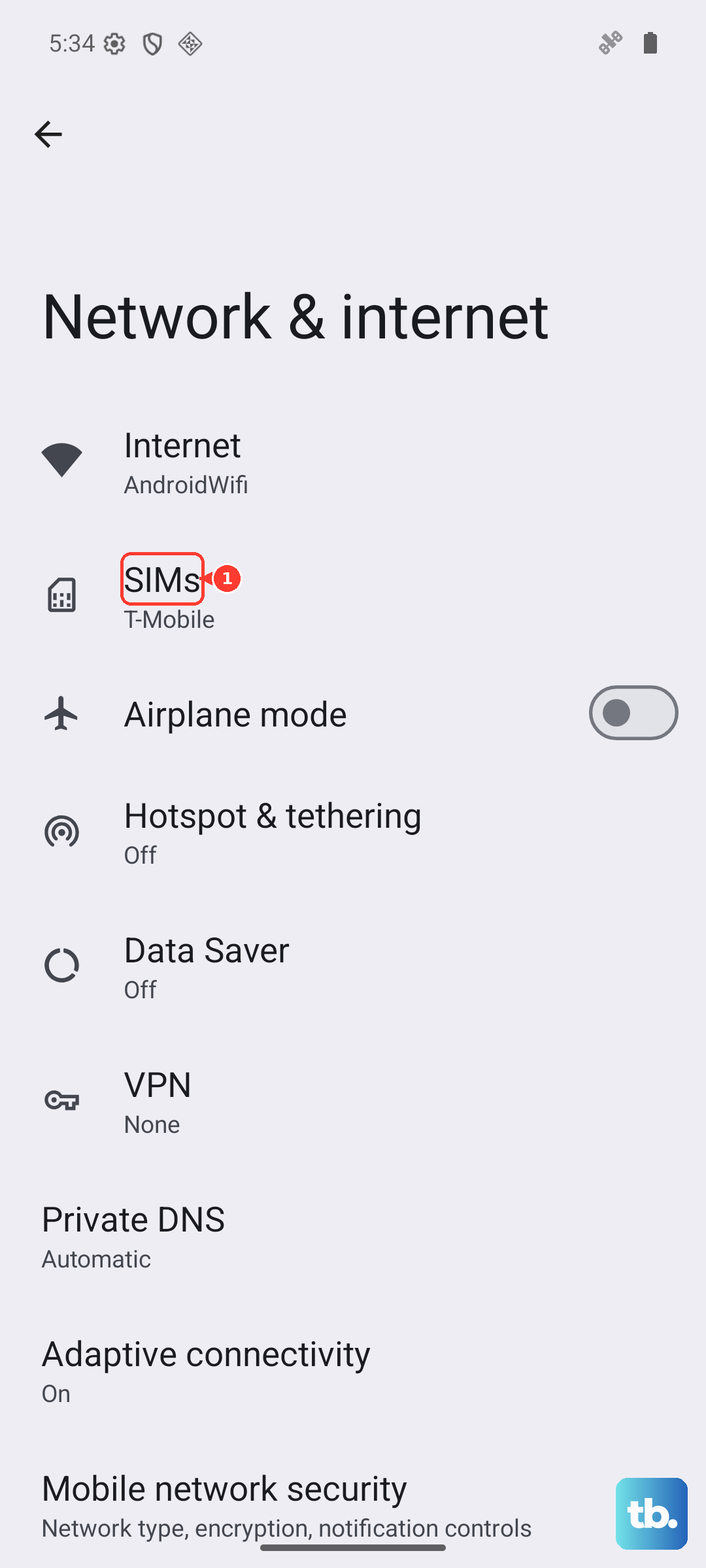
Incorrect Access Point Name (APN) settings can block MMS (picture messages). Go to Settings > Network & internet > SIMs. Tap on your active SIM and select Access Point Names. Your carrier's correct APN should be selected. If you're unsure of the settings, a quick search for "[Your Carrier] APN settings" will provide the details you need to enter.
Reset Your Network Settings
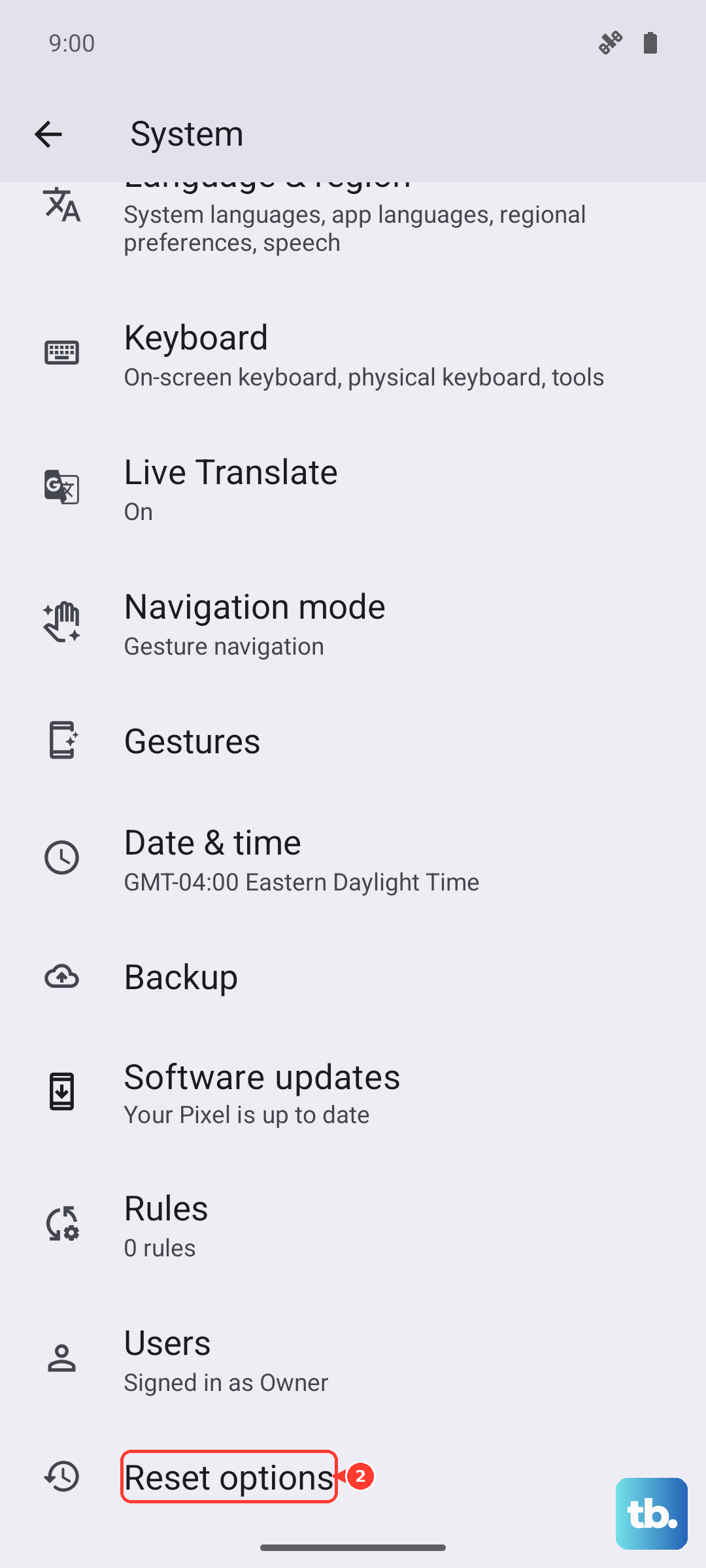
This is a more comprehensive step that resets all your network connections. Navigate to Settings > System > Reset options. Tap on Reset Wi-Fi, mobile & Bluetooth and confirm. Your phone will restart, and you'll have to reconnect to Wi-Fi networks and re-pair Bluetooth devices, but it can resolve deep-seated network issues preventing texts from sending.
Check for an Android Update
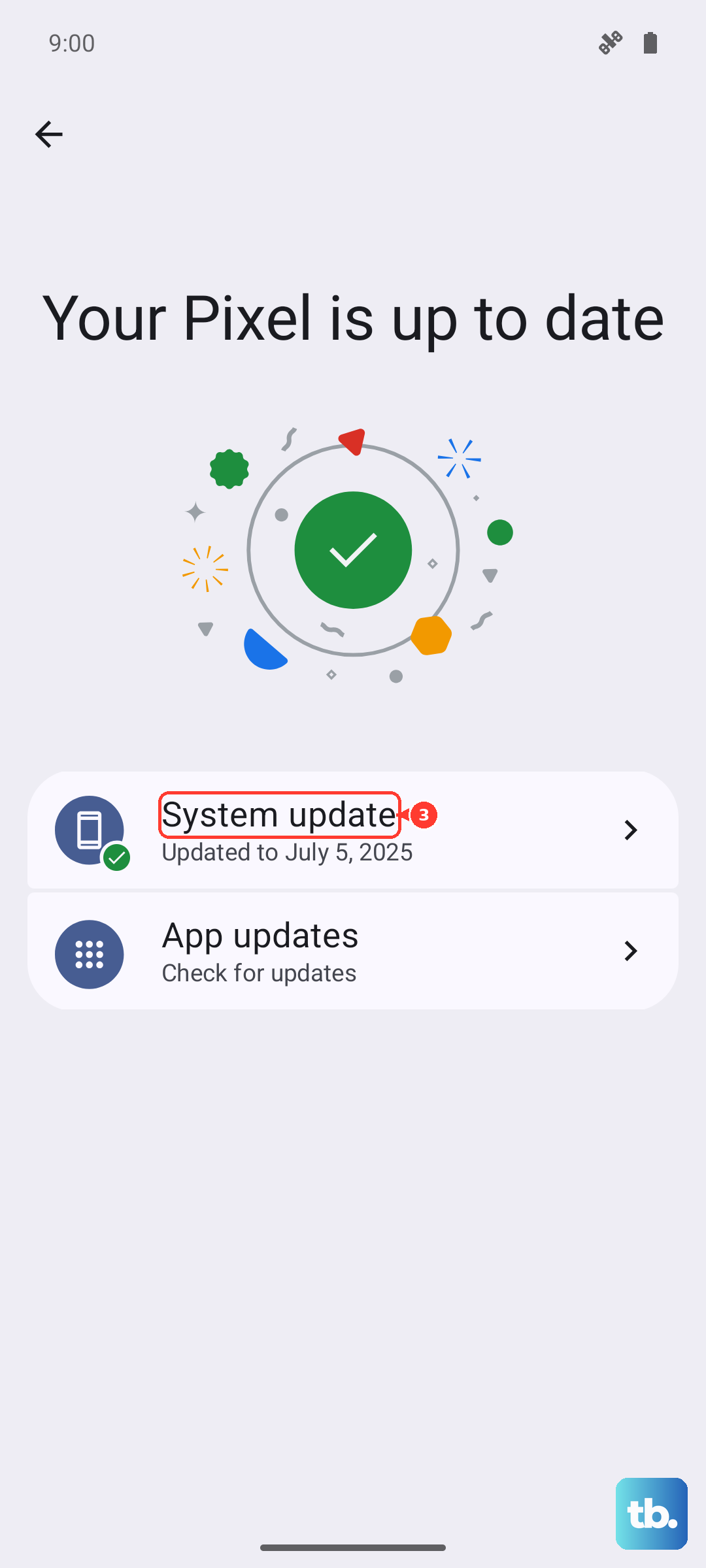
System bugs in Android 15 can sometimes affect messaging. Go to Settings > System > System update to check for any available updates. Installing the latest software patch can include fixes specifically for connectivity and messaging problems reported on the Pixel 10 Pro.
Try Your SIM Card in Another Phone
If you have access to another unlocked phone, power down your Pixel and remove the SIM card. Insert it into the other device and try sending a text. If it also fails, the issue is likely with your carrier account or the SIM card itself. This test helps narrow down where the problem actually lies.
Contact Your Mobile Carrier
If you've tried everything else, it's time to call your carrier. There might be an outage in your area, a problem with your account provisioning, or your SMS/MMS service might be suspended. They can check your account status and, if needed, reprovision your services or send you a replacement SIM card.