
Seeing a "Not registered on network" error on your Google Pixel 10 Pro is a real roadblock. It means your phone can't find or connect to your carrier's signal, so calls, texts, and mobile data won't work. This usually happens when there's a hiccup in the communication between your phone and the cell towers.
Before we get into the deeper fixes, there's one quick thing you should try right away. Pull down the notification shade twice and tap the Airplane Mode icon to turn it on. Wait for about 15 seconds, then tap it again to turn it off. This forces your Pixel's modem to completely restart its search for a network, and it often clears up temporary glitches.
Restart Your Pixel 10 Pro
A full restart is a classic fix for a reason. It clears out the phone's memory and reloads all the system processes, including the one that handles network registration. Just press and hold the power button, then tap Restart on your screen. Wait for the phone to fully boot up and see if the signal bars return.
If the screen is unresponsive and you can't use the software restart, you'll need to force a restart. Press and hold the Power button and the Volume Up button together for about 10 seconds. Let go when you see the Google logo appear on the screen.
Check Your SIM Card
A loose or dirty SIM card is a very common culprit for network errors. First, power off your Pixel 10 Pro completely. Use the SIM eject tool (or a small paperclip) to pop open the SIM tray on the bottom edge of the phone.
Carefully remove the SIM card and take a look at the gold contacts. If you see any dust or lint, gently wipe them with a soft, dry cloth. You can also use a quick burst of compressed air into the SIM tray slot. Reinsert the card, making sure it's seated correctly in the tray, and push the tray back in until it clicks. Power your phone back on.
Verify Your Carrier Account
Sometimes the issue isn't with your phone at all. If your mobile plan has expired, a bill is overdue, or there's an account problem, your carrier will suspend service. Your Pixel will show it's not registered because, from the carrier's side, it isn't.
Try logging into your carrier's account portal from a computer or another phone. Check that your line is active and in good standing. If you're on a prepaid plan, make sure you have credit or data remaining.
Update Your Network Settings
Your Pixel 10 Pro stores carrier-specific configuration data. If this gets corrupted, it can prevent a proper connection. Resetting these settings is a strong next step. Go to Settings > System > Reset options.
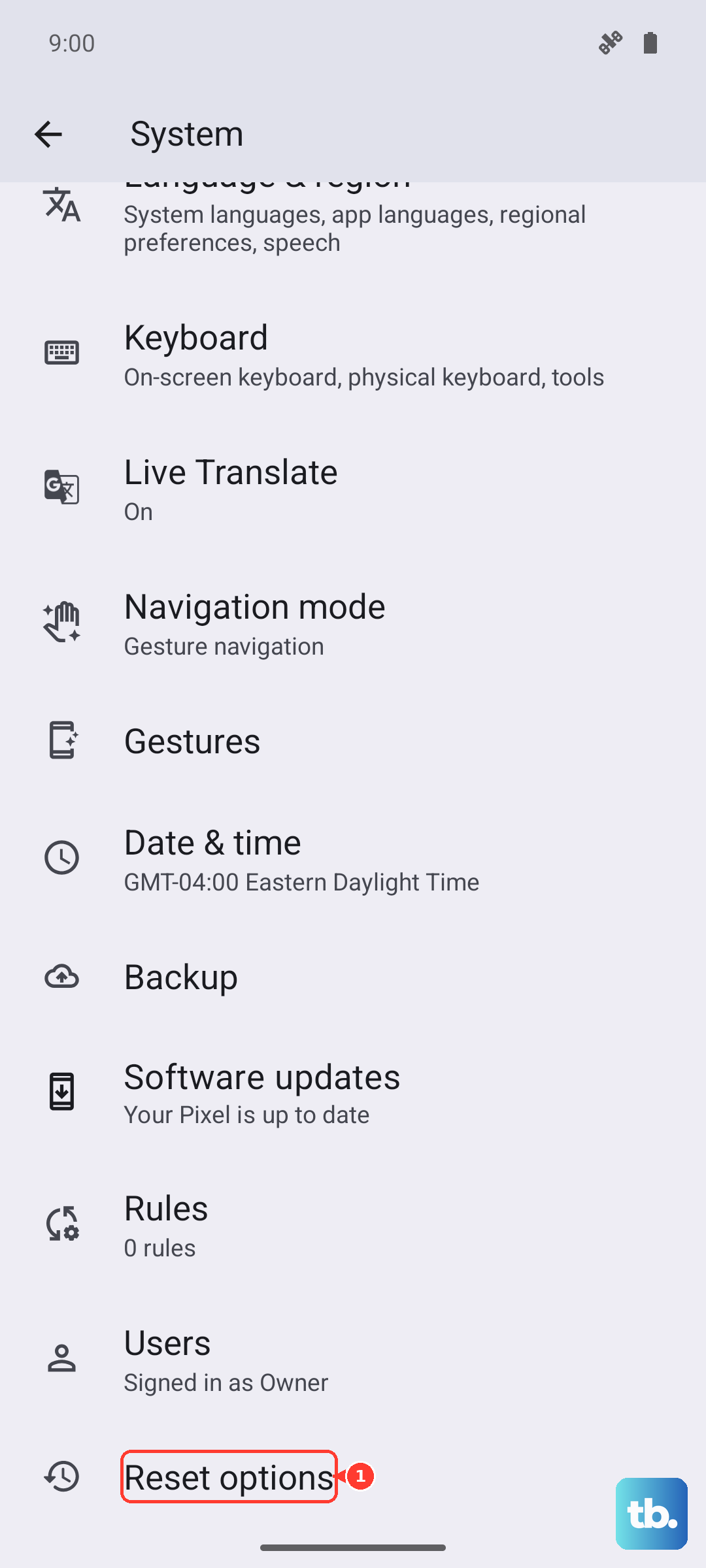
Tap on Reset Wi-Fi, mobile & Bluetooth. Confirm the reset. Your phone will restart, and you'll need to reconnect to Wi-Fi networks and re-pair Bluetooth devices, but it often resolves persistent network registration problems.
Manually Select a Network
Your phone might be stuck trying to connect to a specific tower or network band that's having issues. You can tell it to search for all available networks and pick one manually. Go to Settings > Network & internet > SIMs and tap on your active SIM.
Tap on Carriers or Network operators. Turn off the "Choose automatically" toggle. Your phone will search and present a list. Select your carrier's name from the list. If it connects, you can turn automatic selection back on later.
Install System Updates
Google frequently releases updates for Android that include fixes for connectivity bugs. An outdated software version on your Pixel 10 Pro could be the root cause. Connect to a Wi-Fi network, then go to Settings > System > System update.
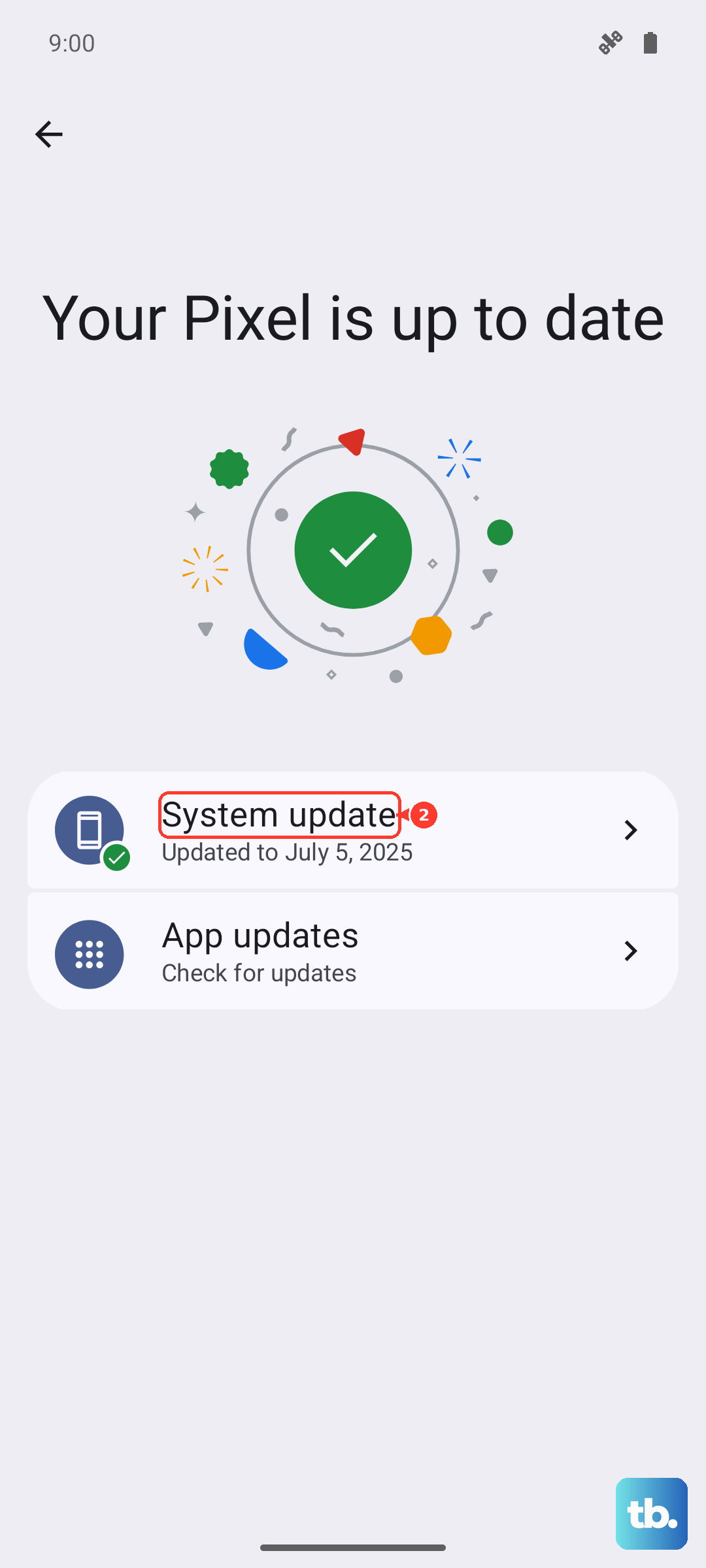
Tap "Check for update." If an update is available, download and install it. The phone will restart during this process. After it boots up, check if your mobile signal has returned.
Check for Carrier Services Updates
This is a key step for Pixel phones. The Carrier Services app handles communication between your device and your mobile network. An outdated version can cause registration failures. Open the Google Play Store app and tap your profile icon in the top right.
Tap Manage apps & device > Manage. Tap the "Installed" filter and change it to "Not installed." Search for "Carrier Services." If it appears in the list, it means it's not on your phone and you should install it. If it's already installed, check if an update is available.
Try a Different SIM Card
At this point, it's worth determining if the problem is with your SIM card or the phone itself. If you can, borrow a known-working SIM card from a friend or family member (on any carrier) and insert it into your Pixel.
If the borrowed SIM card connects to a network (it might show "Emergency calls only" if it's from a different carrier, but it should still register), then your original SIM is likely faulty. You'll need to contact your carrier for a replacement SIM card.
Perform a Factory Reset
This is your last resort before looking at hardware. A factory reset wipes the phone back to its original software state, removing any deeply corrupted system data. You must back up everything important first, as this erases all your apps, photos, and settings.
Once backed up, go to Settings > System > Reset options > Erase all data (factory reset). Follow the prompts to confirm. After the reset is complete, set up the phone as new, without restoring a backup initially, and see if the network error is gone. If the problem persists after a clean factory reset, the issue is likely with the phone's internal modem or antenna hardware.