
When your Google Pixel 10 Pro won't download those photos or videos from a group chat, it can leave you out of the loop. This is usually a quick fix, often tied to your mobile data connection or a simple setting that needs adjusting.
Let's get your MMS working again.
Start With a Phone Restart
A quick reboot can clear out temporary glitches that might be blocking MMS downloads. Press and hold the Power and Volume Up buttons together for about 10 seconds until you see the Google logo appear on the screen.
Once your Pixel 10 Pro finishes restarting, try downloading the stuck message again.
Check Your Mobile Data Connection
MMS requires an active mobile data connection to download, even if you're on Wi-Fi. Swipe down from the top of your screen twice to open the full Quick Settings panel and make sure the Mobile Data icon is turned on.
Also, take a glance at your signal strength. If you're down to one bar, try moving to a different location, as a weak signal can prevent the larger MMS files from coming through.
Verify Your MMS Settings in Google Messages
The default Messages app on your Pixel has a few key settings for multimedia. Open the Google Messages app, tap your profile picture in the top right, and go to Messages settings > Advanced.
Here, make sure "Auto-download MMS" is enabled. If you're traveling, you might also need to turn on "Auto-download MMS when roaming." I've seen these get turned off after a major software update.
Clear the Cache for Carrier Services and Messages
Corrupted temporary data in system apps can interfere. Go to your Pixel's Settings > Apps > See all apps.
First, find and select "Carrier Services." Tap Storage & cache and then Clear cache. Next, go back and find "Messages." Do the same thing: tap Storage & cache and Clear cache.
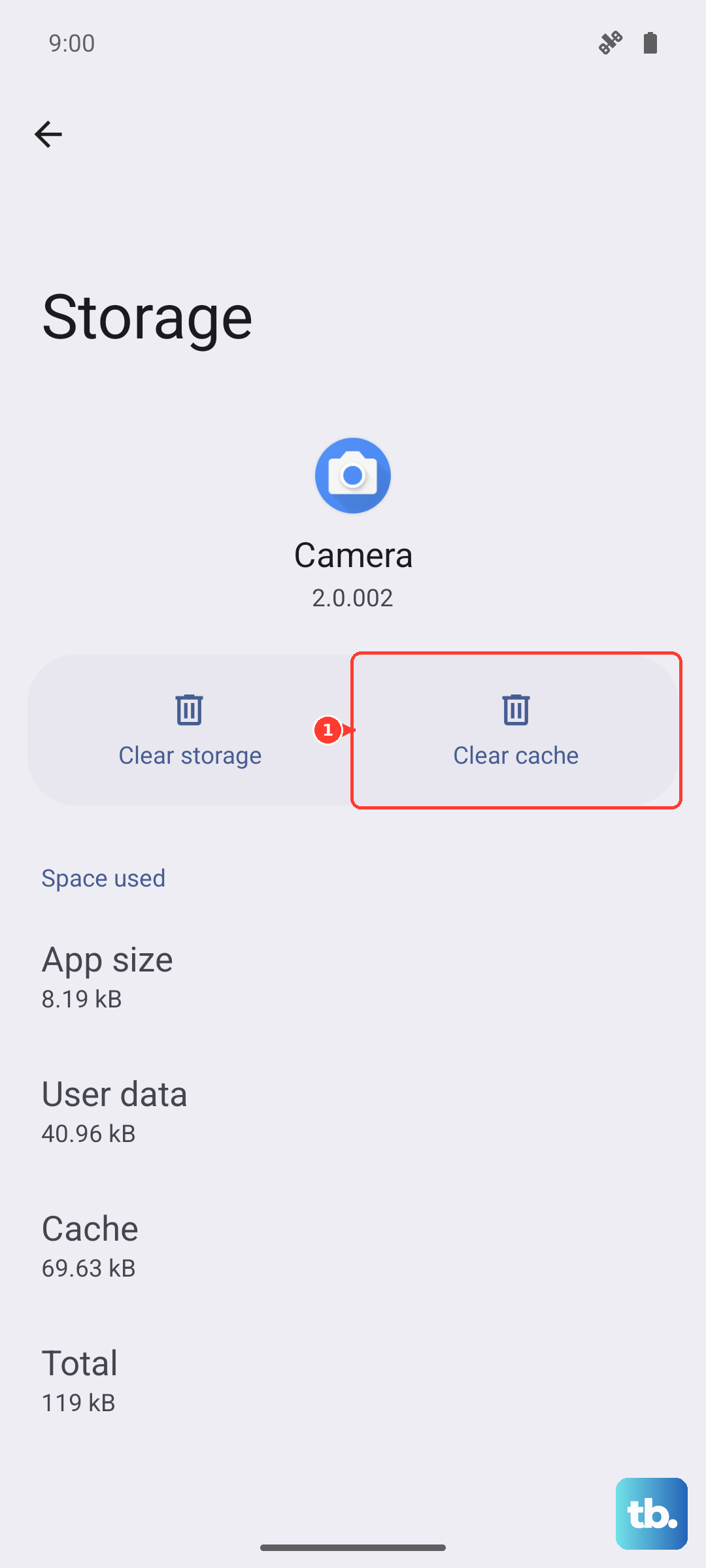
This doesn't delete any of your actual messages or data, it just freshens up the app's temporary files.
Review Your Access Point Name (APN) Settings
Incorrect APN settings are a common culprit for MMS problems. These settings tell your phone how to connect to your carrier's multimedia service. Go to Settings > Network & internet > Internet.
Tap the settings gear icon next to your carrier's name, then tap Access Point Names. You should see a list, with one selected (usually indicated by a filled-in circle). Do not edit these unless you have the correct details from your carrier.
If you're unsure, the safest move is to contact your carrier's support. They can verify the settings or sometimes even push the correct configuration directly to your Pixel 10 Pro.
Reset Your Network Settings
This will wipe all your saved Wi-Fi networks, Bluetooth pairings, and cellular settings back to default, which can resolve deeper configuration conflicts. To do this, navigate to Settings > System > Reset options.
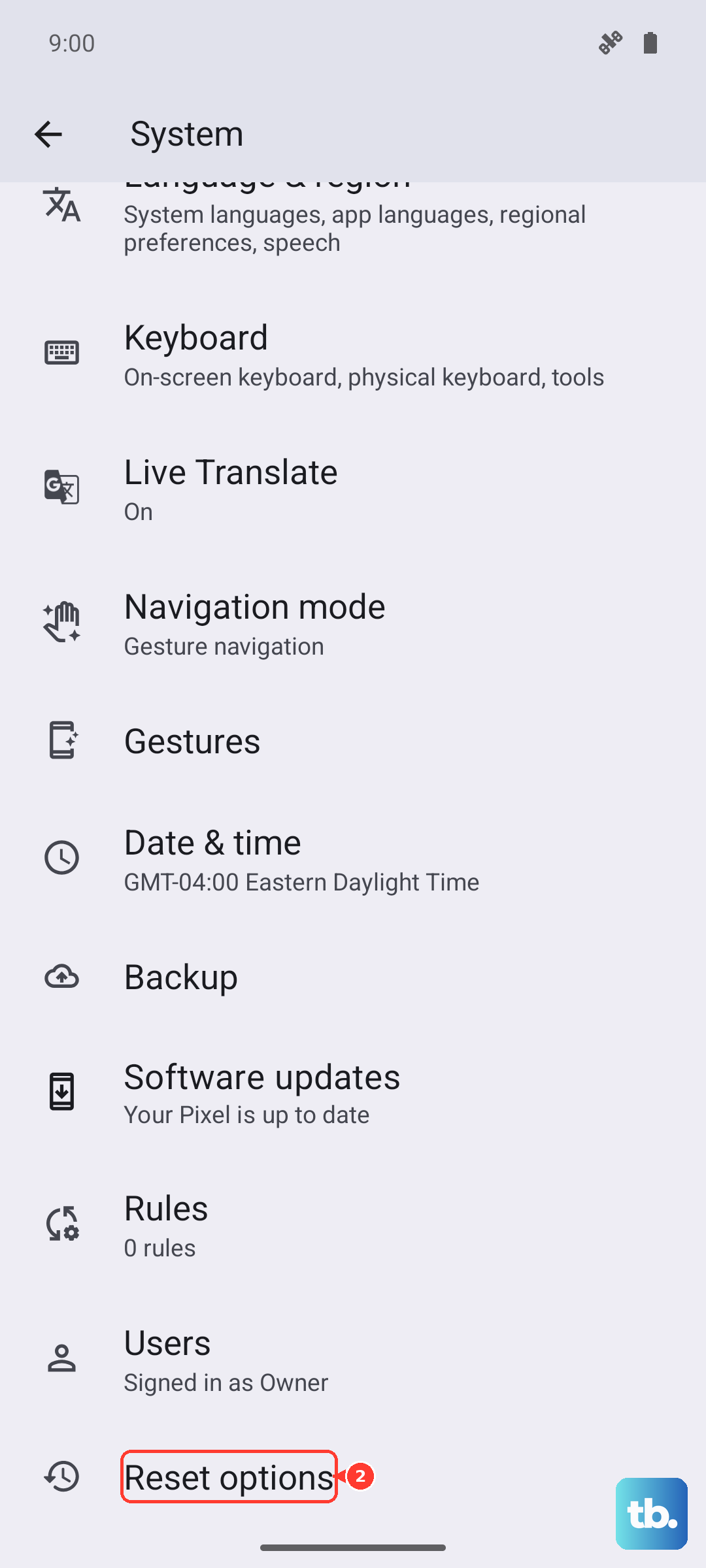
Tap Reset Wi-Fi, mobile & Bluetooth and confirm. After your phone reboots, you'll need to reconnect to Wi-Fi and re-pair Bluetooth devices, but it often clears up persistent MMS issues.
Ensure Your Software Is Up to Date
Running the latest available version of Android can patch bugs that affect messaging. Google is consistently rolling out updates for the Pixel 10 Pro. Check by going to Settings > System > System update.
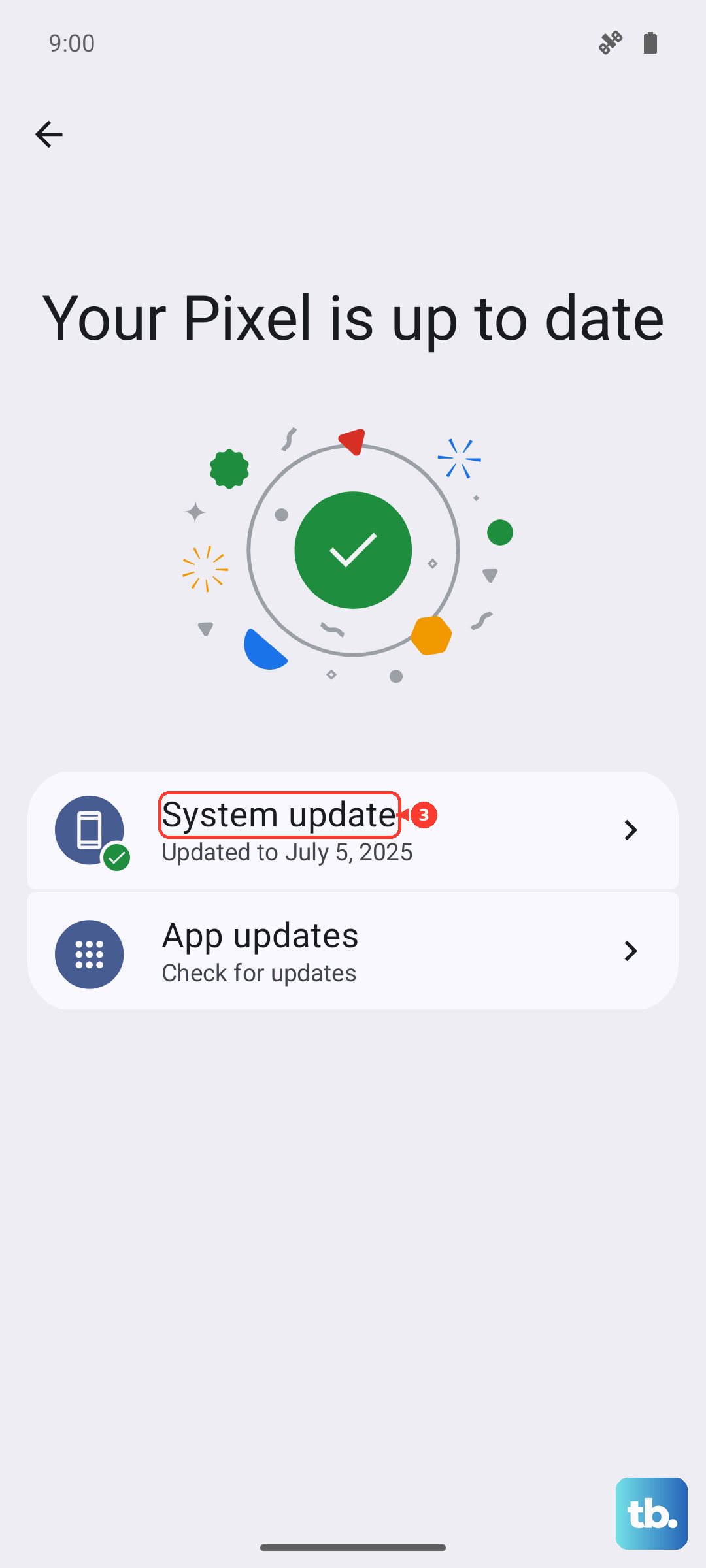
Tap "Check for update." If one is available, install it. It's a good idea to be on a stable Wi-Fi connection and have your phone charged above 50% before starting the update.
Try an Alternative Messaging App
This can help you figure out if the problem is with the Google Messages app itself or with the system. Download a different messaging app like Textra or Pulse from the Play Store and set it as your default.
See if MMS downloads work in the new app. If they do, the issue is likely with the Google Messages app. You could stick with the new app, or try the next step to fix the original one.
Clear Storage for the Google Messages App
If clearing the cache didn't help, a more thorough reset of the app might. Warning: This will delete your entire message history within the Google Messages app. Make sure anything important is backed up if possible.
Go to Settings > Apps > Messages > Storage & cache. This time, tap Clear storage (it might say "Manage space" then "Clear all data"). After confirming, open Messages again. It will be like a fresh install.
Contact Your Mobile Carrier
If you've worked through all these steps and MMS still won't download, the issue might be on your carrier's end. There could be a service outage in your area, or a problem with your specific account provisioning.
Give their technical support a call. They can check your line for any blocks or service issues and often perform a network-side refresh that can solve the problem instantly.