
When your Google Pixel 10 Pro starts restarting on its own, it can be incredibly disruptive. This issue often points to a software hiccup, a misbehaving app, or sometimes a deeper system glitch. I'd start with a simple force restart, as that resolves a lot of these random reboot cycles right away.
Before you begin any of the more involved steps, it's a good idea to make sure your data is backed up. You can use Google One backup or just sync your important photos and files to Google Drive. This protects your information just in case.
Perform a Force Restart
This is your first and fastest step. If the phone is responsive, press and hold the Power and Volume Up buttons for a few seconds, then tap Restart from the power menu.
If the phone is frozen or stuck in a restart loop, use Google's force restart instead: press and hold the Power button for up to 60 seconds, then release it when the phone begins to reboot and the "G" logo appears. This does not erase your data.
Check for App Updates and Conflicts
Outdated or buggy apps are a very common cause of random restarts on Android. Head to the Google Play Store and tap your profile icon in the top right corner. Select "Manage apps & device" and then tap "Updates available."
Go ahead and update everything. After updating, if the restarts began after installing a specific app, try uninstalling that app to see if the problem stops. You can also boot into Safe Mode to check if a third-party app is the culprit.
To enter Safe Mode on a Pixel 6 or later device, press and hold the Power and Volume Up buttons for a few seconds. On the power menu, touch and hold either Power off or Restart, then tap OK. If the phone is stable in Safe Mode, a downloaded app is likely causing the issue. Google notes that Airplane Mode is automatically turned on in Safe Mode, so turn it off if you need Wi-Fi, GPS, or calls while testing.
Install the Latest System Update
Google frequently releases system updates that fix bugs and improve stability. The Pixel 10 Pro launched with Android 16, so do not frame this as an Android 15 issue. Open Settings and go to System > Software update.
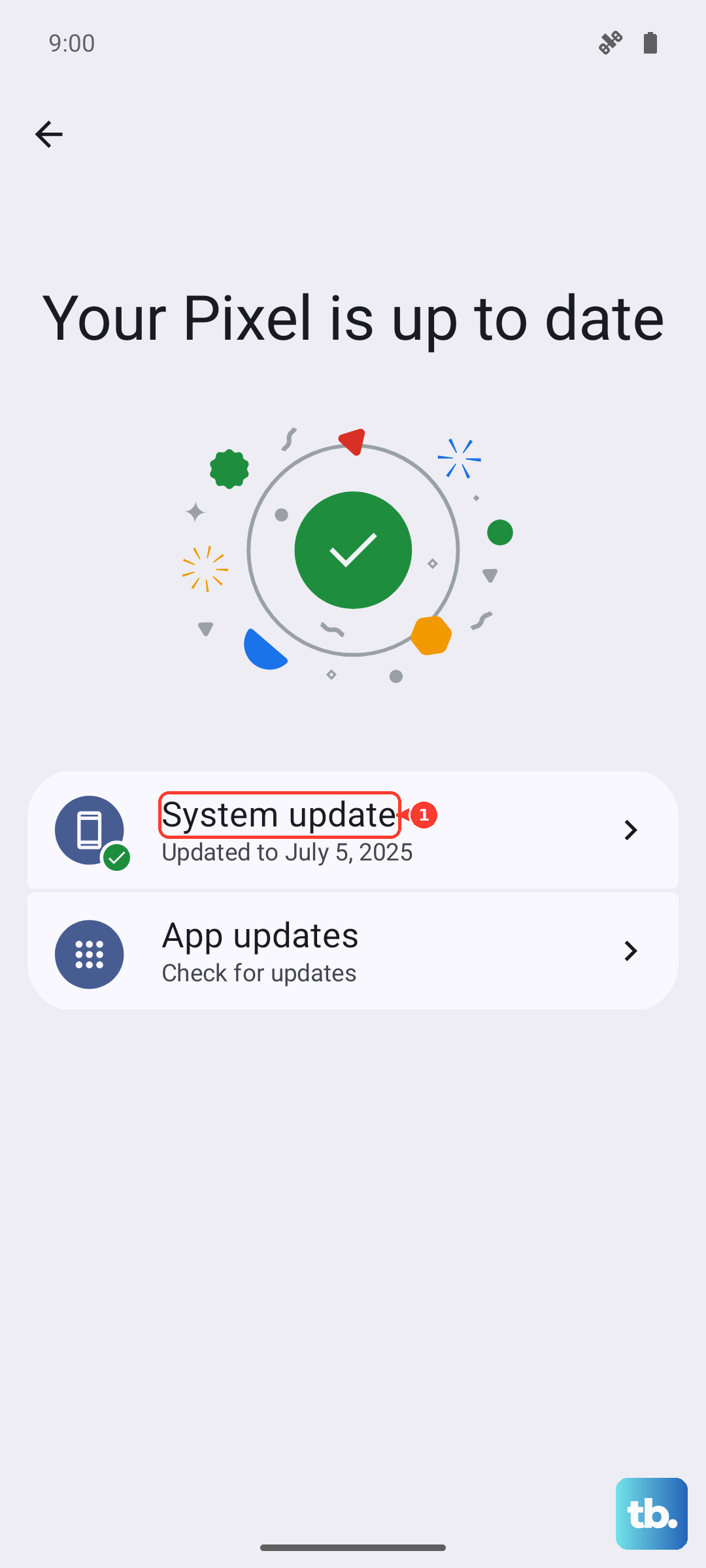
When the update status appears, follow the steps on screen. If an update is available, connect to Wi-Fi and plug in your charger before installing it.
Free Up Storage Space on Your Device
When your phone's internal storage is critically full, the operating system can struggle to function properly, which can lead to crashes and reboots. Go to Settings > Storage to see how much space you have left.
If you're below 10% free space, start cleaning up. The Storage menu will often give you recommendations, like clearing cached data from apps or reviewing large files. Offloading old videos or using Google Photos' "Free up space" tool can help quickly.
Examine Battery and Charging Health
Check the charging hardware without speculating about the cause of the restarts. Use a compatible USB-C PPS charger and cable, confirm the cable is securely connected, and try another cable or power adapter if the problem seems to happen around charging.
Also check that there is nothing in the USB-C port, such as dust or lint. If your Pixel shows a "Liquid or debris in USB port" warning, Google says not to put anything into the USB-C port or cable; hold the port facing downward and gently tap the phone against your hand. If the warning remains or the port looks damaged, contact Google support or an authorized repair partner.
Review System Stability with Device Diagnostics
Your Pixel includes Google's Pixel Repair Diagnostics App, which can check phone performance before or after repair. While connected to the internet, open the Phone app, open the dial pad, dial *#*#7287#*#*, and follow the on-screen instructions. Do not use unrelated diagnostic dial codes.
Follow the diagnostic tool's prompts only. If the tests point to a hardware issue, or if restarts continue after Google's software troubleshooting steps, contact Pixel support or start a repair. Usage & diagnostics is a data-sharing setting, not a place to view app-specific crash reports.
Reset All App Preferences
This is a useful middle-ground step that resets app permissions, default apps, and background restrictions without deleting any of your personal data. It can fix issues caused by a corrupted app setting. Go to Settings > System > Reset options.
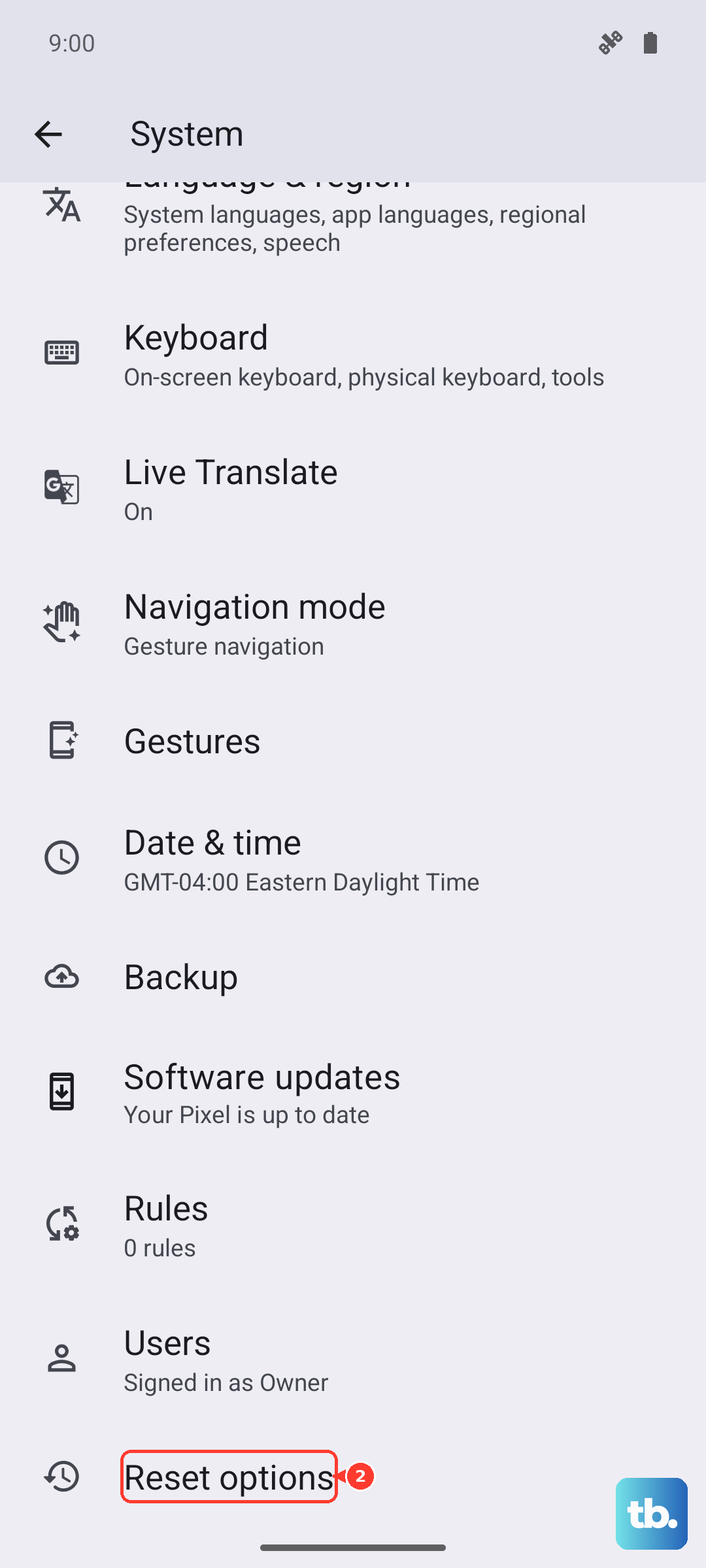
Tap "Reset app preferences" and confirm. You'll need to re-grant permissions to apps when you use them next, but it often clears up strange app-related behavior that leads to restarts.
Perform a Factory Reset
If you've tried everything else and the random restarts continue, a factory reset is the final software step. This will erase all data from your phone and return it to its original out-of-the-box state, so ensure your backup is complete first.
Go to Settings > System > Reset options > Erase all data (factory reset). Follow the prompts, entering your PIN or password. After the reset, set up the phone as new initially to see if the problem is gone, rather than restoring a backup immediately, which could reintroduce the issue.
Consider a Software Flash via Android Flash Tool
If the phone is stuck in a constant reboot loop and you cannot use Settings, use Google's Pixel reset guidance before trying developer flashing workflows. A manual reset from Fastboot mode erases the phone, so back up first if possible.
To enter Fastboot mode on Pixel 6 and later, turn off the phone, then press and hold Volume Down and Power at the same time for up to 30 seconds until the Fastboot mode screen appears. From there, follow Google's Recovery Mode and Wipe data/factory reset steps. Do not present Android Flash Tool as a simple clean install unless the article also explains the bootloader, USB debugging, and data-wipe requirements.