You plug your Google Pixel 10 Pro into its charger, expect that quick top-up, and instead the battery barely moves, or the phone simply will not take a charge at all. Slow or stalled charging on a phone built for Programmable Power Supply (PPS) wired charging and Qi2 wireless charging is frustrating, but it is usually fixable at home. Most cases come down to a loose or dirty connection, the wrong charger, a warm battery, or a setting working exactly as designed. Work through these 10 fixes in order, starting with the quickest and safest, and save the factory reset and support call for last.
Start With the Cable, the Port, and Any Debris
Before you blame the battery, confirm the physical connection is solid. Check that the cable is securely connected to both the power adapter and your phone, since a contact that looks plugged in can still be loose enough to drop to a trickle or stop charging entirely.
Next, inspect the USB-C port itself. Google advises that you "Check that there's nothing in the port of your phone, like dust or lint," because debris packed into the port keeps the connector from seating fully. A loose contact or a lint-clogged port is one of the most common reasons charging looks slow or refuses to start.
Take Off the Case and Anything Attached to the Phone
A case or accessory can physically block charging on both wired and wireless setups. Google recommends you "Remove your phone case to ensure that it doesn't interfere with your charging plug," so pull the case off and try again with a bare phone.
For wireless charging, the fit matters even more. Remove any PopSocket, magnetic attachment, or other accessory so the charging coils can line up, since a thick or magnetic case can block Qi2 and Pixelsnap charging from engaging.
Match the Pixel 10 Pro to a Charger That Can Fast Charge
The Pixel 10 Pro only fast charges over a wire when it gets the right kind of power. Google specifies "Any Programmable Power Supply (PPS) power adapter rated for 30W or more," paired with a USB-C to USB-C cable. If you are charging from a USB-A to USB-C cable, your phone will charge slower by design.
A weak adapter or a USB-A connection is a frequent reason fast charging never kicks in, so switch to a 30W-or-higher PPS adapter with a USB-C to USB-C cable to see full speed. If charging is still off, find out which part of the chain is at fault. Plug the charger into a wall outlet, then "Plug in something else, like a lamp" to confirm the outlet itself has power. From there, swap components one at a time: "Try to charge your phone with another cable or power adapter," and "Try to charge another device with your power adapter and cable." This quickly tells you whether the culprit is a faulty cable, a dead adapter, or the outlet, so you replace only the part that is actually broken.
Let a Warm Phone Cool Down
Heat is a built-in brake on charging. If the phone gets too warm, Google notes "it might pause charging to protect your battery," and charging resumes on its own once the device cools.
To help it cool faster, avoid charging in direct sunlight or hot environments, remove the case, and stop heavy use such as gaming or video while the phone is plugged in. Once the temperature drops back to normal, charging should pick back up.
Check Adaptive Charging and the 80% Limit
Sometimes the phone is charging exactly as you told it to. Open Settings > Battery > Battery health > Charging optimization to see which mode is active.
Adaptive Charging completes the charge right before you normally unplug, and "Limit to 80%" caps the battery on purpose. Either setting can make charging look slow or stop early. If you need a full, faster charge right now, adjust the option here so the phone is not deliberately holding back.
Fix Wireless Charging With the Right Pad and Placement
Wireless charging on this model is selective about the charger. Google states, "For the fastest wireless charging speeds, make sure your wireless charger is Qi2-certified like the Pixelsnap Charger."
A few compatibility rules matter here. The Pixel 10 series will not charge wirelessly on the Pixel Stand 1st gen or 2nd gen, and older Qi1.x chargers still work but only reach up to 5W. For an in-vehicle Qi1 charger that keeps cutting in and out, remove the case and accessories, set the phone back on the center of the pad, or "Use a wired connection for stable charging."
Restart the Phone
A simple restart clears the temporary software glitches that can interrupt charging. Press and hold the Power and Volume up buttons together for a few seconds, then tap Restart.
Once the phone comes back up, reconnect the charger and watch for the charging indicator. This quick reset resolves many one-off charging hiccups without touching any of your data.
Force Restart a Frozen or Unresponsive Pixel
If the screen is frozen or the phone will not respond at all, you need a force restart instead of a normal one. Press and hold the Power button for up to 60 seconds. Then, "Once your phone begins to reboot and the screen displays the 'G' logo, release the Power button."
Give it a moment after the logo appears for the phone to finish booting, then reconnect the charger and watch for the charging indicator. A force restart clears a hung state that a normal restart cannot reach, and it does not erase your data.
Install the Latest Software Update
Software bugs can affect how the phone manages charging, and updates often include the fix. Open Settings > System > Software updates (or System update) and install any available update.
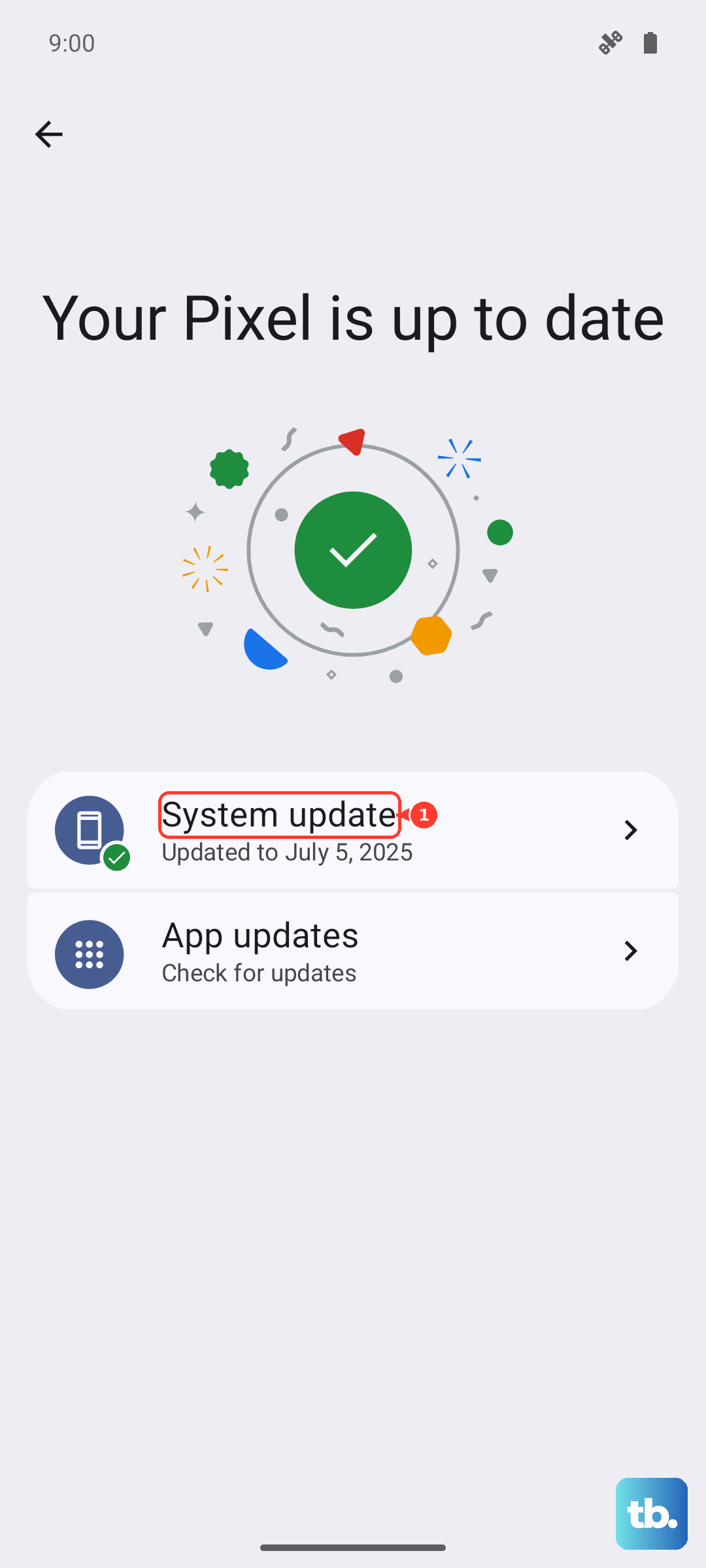
Before you start, connect to Wi-Fi and charge the phone so the update can download and apply without interruption. You can confirm your current build under Settings > About phone > Android version. Once the update finishes, test charging again.
Factory Reset as a Last Resort, Then Contact Google
If nothing above works, a factory reset is the final do-it-yourself step. Back up your data first, then go to Settings > System > Reset options > Erase all data (factory reset).
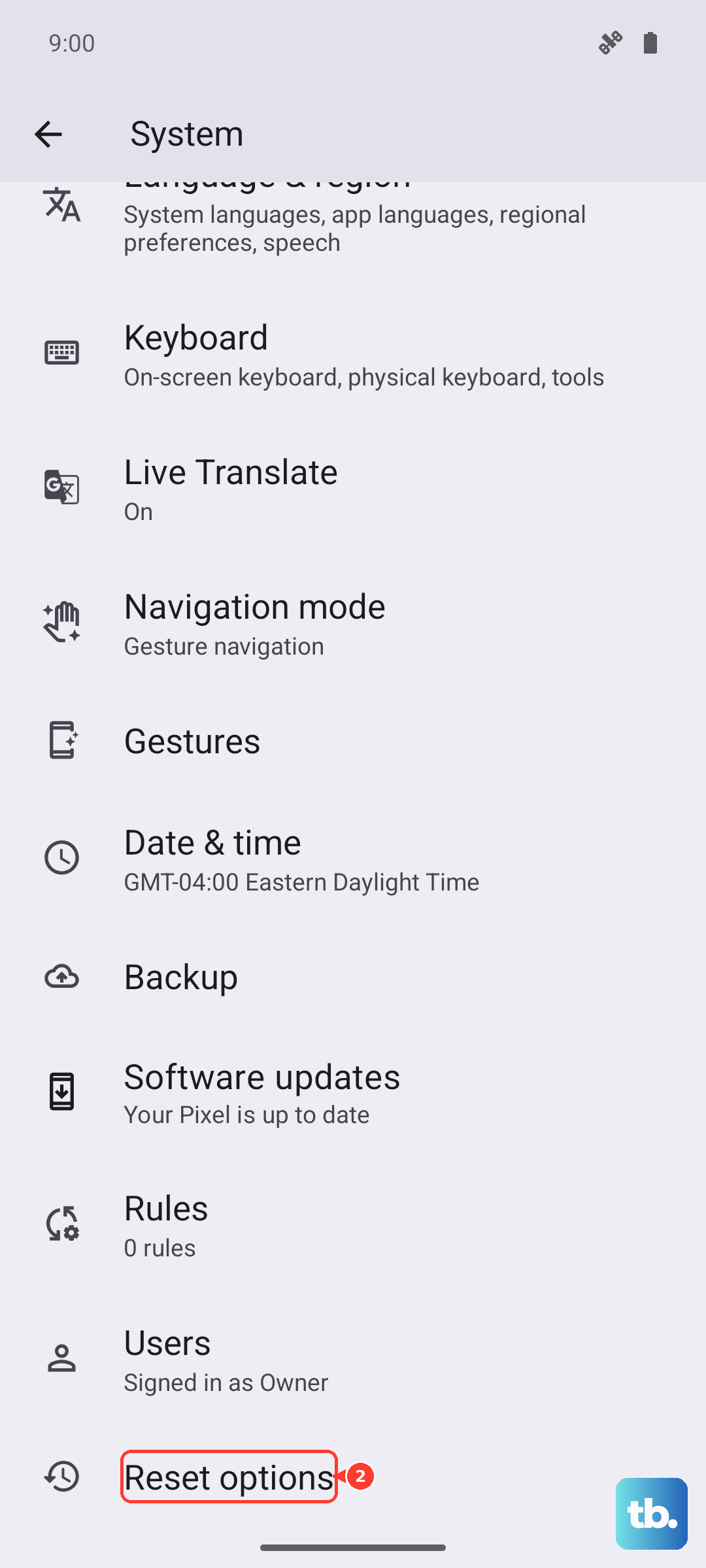
Take the warning seriously. Google states, "A factory reset erases all your data from your phone." Charge to at least 70% and connect to Wi-Fi before you begin. If charging still fails after the reset, the issue is likely hardware, so contact Google Pixel support for repair.
Frequently Asked Questions
Why is my Pixel 10 Pro charging slowly even though it is plugged in
The most common causes are the wrong charger or cable, debris in the USB-C port, or a battery setting holding the charge back. Fast wired charging needs a PPS power adapter rated for 30W or more with a USB-C to USB-C cable, since a USB-A to USB-C cable charges slower. Check Settings > Battery > Battery health > Charging optimization in case Adaptive Charging or the 80% limit is capping the charge.
Will my old Pixel Stand work with the Pixel 10 Pro
No. Google states that the Pixel 10 series will not charge wirelessly with the Pixel Stand 1st gen or 2nd gen. For the fastest wireless charging, use a Qi2-certified charger like the Pixelsnap Charger; older Qi1.x chargers still work but only up to 5W.
Why does my Pixel 10 Pro stop charging when it gets warm
This is a built-in protection. If the phone gets too warm, it might pause charging to protect your battery, and charging resumes once it cools down. Move it out of direct sunlight, remove the case, and stop heavy use while it charges to help it cool faster.
How do I restart my Pixel 10 Pro if the screen is frozen
Press and hold the Power button for up to 60 seconds. Once the phone begins to reboot and the screen displays the "G" logo, release the Power button. This force restart is the correct sequence for an unresponsive Pixel 10 Pro.
What should I do if charging still fails after a factory reset
If your Pixel 10 Pro will not charge even after erasing all data, the problem is most likely hardware rather than software. Contact Google Pixel phone support for repair so they can diagnose the port, battery, or charging components.