
Missing calls on your Google Pixel 10 is a real headache. You check your phone and see a list of missed calls, even though you were right next to it the whole time. The good news is this is almost always a setting that got switched or a minor software hiccup. Let's run through the most effective fixes to get your Pixel ringing loud and clear again.
Check Your Phone's Sound Mode
First, look at the top of your screen. If you see a bell icon with a line through it, your phone is set to vibrate or silent. You can quickly change this by pressing the Volume Up button on the side of the phone. A volume slider will appear on screen, and you should tap the bell icon at the bottom to switch it to ring mode.
You can also check this in your settings. Go to Settings > Sound & vibration. Make sure the "Vibrate for calls" option is set to "Always vibrate" or "Never vibrate" based on your preference, and not silencing the ringer entirely.
Disable Do Not Disturb and Focus Modes
Do Not Disturb and Digital Wellbeing's Focus modes are common culprits. When active, they can silence all calls except from your starred contacts. To check, swipe down from the top of your screen twice to open your full Quick Settings panel.
Look for a moon icon labeled "Do Not Disturb." If it's highlighted, tap it to turn it off. For a deeper check, go to Settings > Digital Wellbeing & parental controls > Focus mode. Review any schedules or active modes here and turn them off.
Increase Your Ringtone Volume
Your media volume and ringtone volume are separate on Android. Even if your videos are loud, your ringer might be turned down. Unlock your phone and press the Volume Up button. When the slider appears, tap the settings gear icon or the three-dot menu.
This will show you individual volume sliders. Drag the "Ring & notification" slider all the way to the right. You can also get here directly by going to Settings > Sound & vibration > Volume.
Change or Test Your Ringtone
A corrupted ringtone file can cause silence. Try switching to a different one to test. Go to Settings > Sound & vibration > Phone ringtone. Pick one of the default Google sounds, like "Pluck" or "Copycat," and then have a friend call you to test it immediately.
This process also helps rule out an issue with a custom ringtone you might have set. If the default tones work, the problem is with your specific audio file.
Disconnect Bluetooth Accessories
If your Pixel 10 is connected to a Bluetooth speaker, headphones, or your car, incoming call audio is often routed there. Your phone itself will stay silent. Go to Settings > Connected devices and review the list.
You can either turn off Bluetooth entirely with the quick toggle, or tap on a connected device and select "Disconnect." After disconnecting, test a call to see if the ringtone now plays through the phone's speaker.
Review Call Blocking and Screening Settings
Google's Call Screen feature is great for filtering spam, but it can sometimes be too aggressive. Go to the Phone app, tap the three-dot menu in the top right, and select Settings > Spam and Call Screen.
Look at the "Call Screen" settings. If it's set to screen "Possible spam" or "All unknown callers," those calls won't ring through immediately. You can set it to "None" temporarily as a test. Also, check Settings > Blocked numbers to ensure you haven't accidentally blocked the person trying to reach you.
Turn Off Call Forwarding
If call forwarding is active on your line, calls are sent to another number before your Pixel 10 even has a chance to ring. Open the Phone app and tap the three-dot menu, then go to Settings > Calls > Call forwarding.
Make sure all forwarding options (like "Always forward" or "When busy") are set to "Turn off" or are using your carrier's default deactivation code. The exact menu can vary slightly by carrier.
Check App-Specific Notification Permissions
This is crucial if you're missing calls from apps like WhatsApp, Facebook Messenger, or Skype. Each app needs explicit permission to make sound. Go to Settings > Apps, then select the app in question (e.g., WhatsApp).
Tap Notifications. Look for a notification category like "Incoming calls" or "Voice calls." Tap into it and ensure the "Sound" toggle is enabled and the importance is set to "Urgent" or "High."
Restart Your Google Pixel 10
A simple restart clears out temporary glitches in the system that could be interfering with the sound service. Press and hold the Power button and Volume Up button together until the power menu appears, then tap "Restart." If your screen is unresponsive, you can force a restart by pressing and holding the Power button and Volume Up button together for about 10 seconds until the Google logo appears.
Update Android and Your Apps
Software bugs are often patched in updates. Make sure your Pixel 10 is running the latest available version of Android. Connect to Wi-Fi, then go to Settings > System > System update to check.
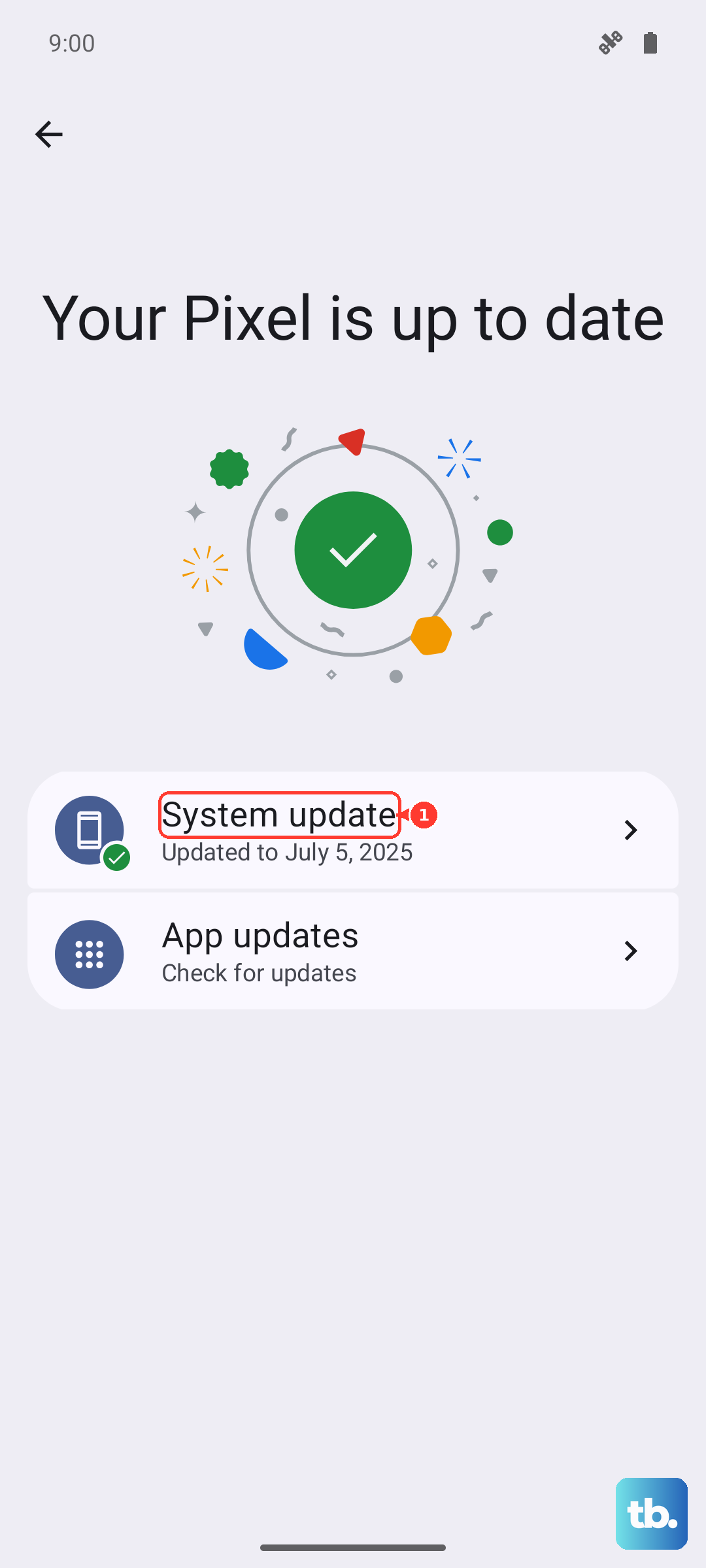
Also, open the Google Play Store, tap your profile icon, and go to Manage apps & device > Updates available. Update all apps, especially your Phone app and any calling apps you use.
Reset App Preferences
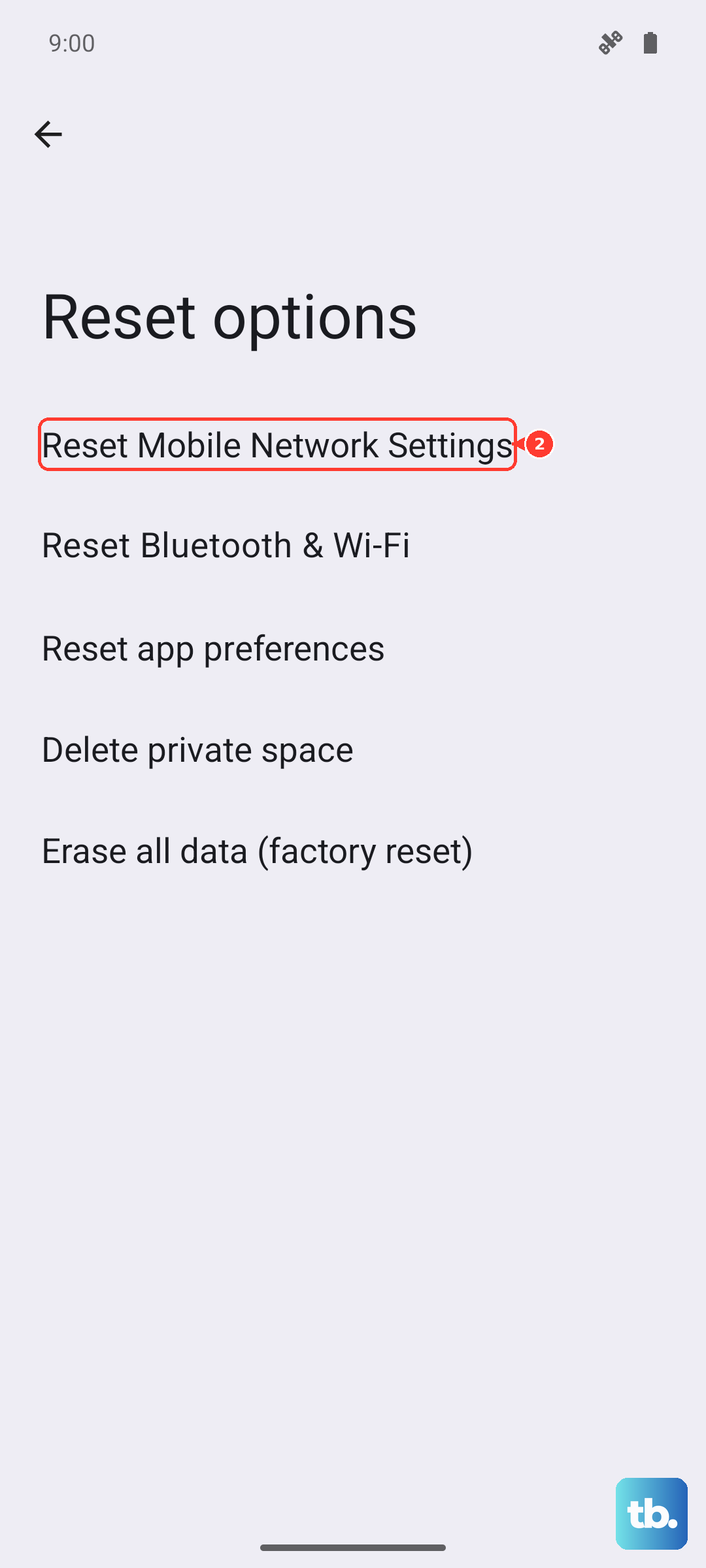
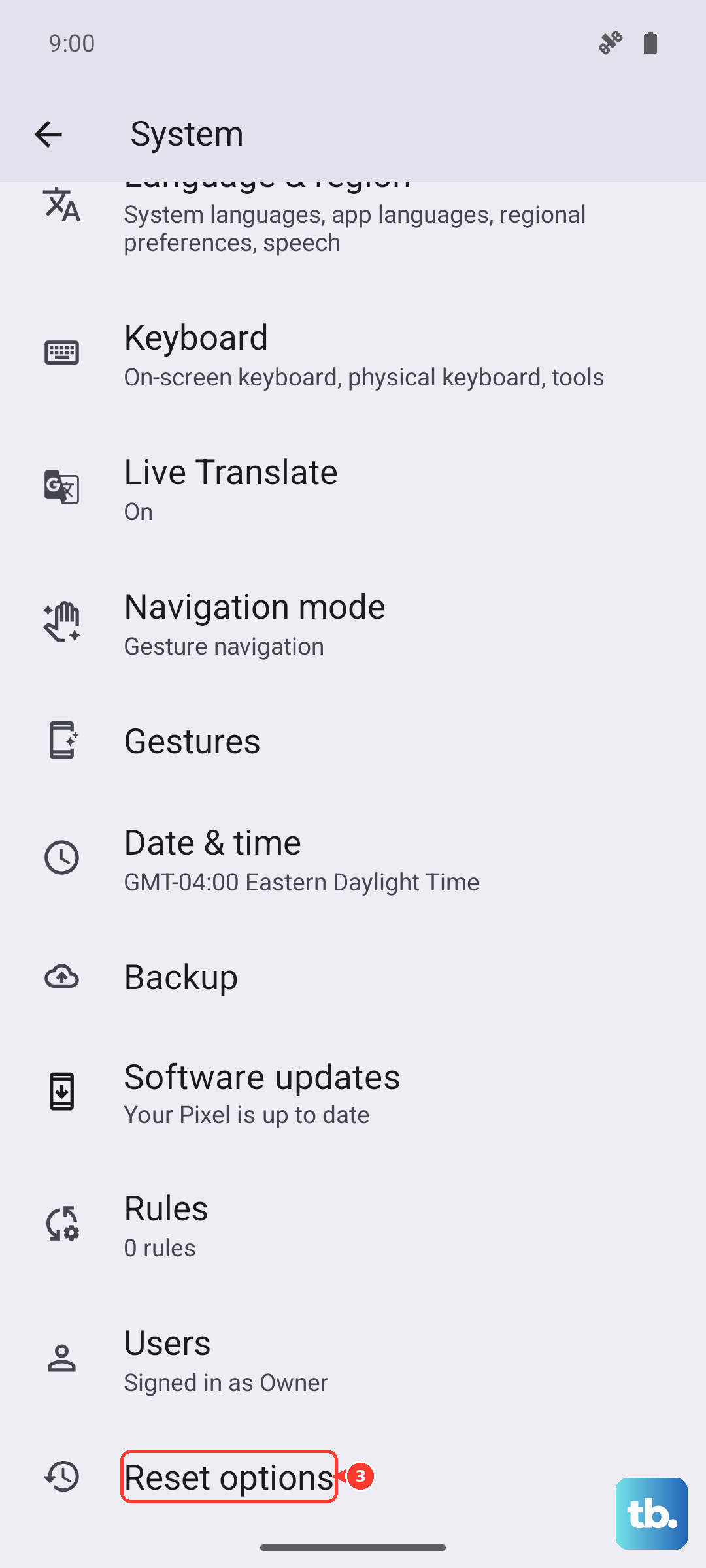
This is a useful, non-destructive reset that returns all app permissions, notification settings, and default apps to their original state without deleting any personal data. Go to Settings > System > Reset options.
Tap Reset app preferences and confirm. Afterward, you'll need to re-grant permissions like microphone access to your calling apps, but it can resolve conflicts causing silent rings.
Check for Network Issues
Sometimes the issue is with the call connection itself, not your phone's ringer. If you're on Wi-Fi Calling and the signal is poor, calls might fail silently. Try turning off Wi-Fi and using cellular data only for a test call.
You can also try resetting your network settings. Go to Settings > System > Reset options > Reset mobile network settings, then Reset Bluetooth & Wi-Fi. Remember, this will erase all saved Wi-Fi networks and paired Bluetooth devices.
Boot Into Safe Mode
Safe Mode temporarily disables all third-party apps. If your phone rings normally in Safe Mode, a recently installed app is likely causing the conflict. To enter Safe Mode, press and hold the Power button and Volume Up button together until the power menu appears.
Then, press and hold the "Power off" option on your screen. A prompt will ask if you want to reboot to Safe Mode. Tap "OK." Test a call in this mode. To exit, just restart your phone normally.
Perform a Factory Reset
This is your last resort before seeking hardware repair. A factory reset will erase everything on your phone, so ensure you have a complete backup. Go to Settings > System > Reset options > Erase all data (factory reset).
Follow the on-screen prompts. After the reset, set up your phone as new initially (don't restore from backup) to test if the ringing works. If it does, the problem was in your software or settings data.