
If your Google Pixel 10 shows a "Not registered on network" error or has no signal at all, you're stuck without calls, texts, or mobile data. This usually means your phone can't complete the handshake with your carrier's cell towers. It's a frustrating roadblock, but it's often something you can fix yourself without a trip to a repair shop.
Before we dive into the steps, it's worth checking a couple of quick things. Make sure you're in an area with known coverage from your carrier. Sometimes, a simple outage or being deep inside a building can be the culprit. Also, if you recently switched carriers or got a new SIM card, the activation might still be pending.
Start With a Simple Restart
It sounds basic, but a full restart clears out temporary software glitches that can interfere with the cellular radio. Hold the power button, tap "Restart" on your screen, and wait for your Pixel to fully boot back up. This forces the phone to re-register with the network from scratch, which often does the trick.
Toggle Airplane Mode On and Off
This is like a quicker, more targeted version of a restart. Swipe down twice from the top of your screen to open the full Quick Settings panel. Tap the Airplane Mode icon to turn it on, wait about 15 seconds, then tap it again to turn it off.
This cycle completely powers down the cellular radio and brings it back up, initiating a fresh connection attempt. I've seen this resolve temporary network hiccups more times than I can count.
Check and Reseat Your SIM Card
A SIM card that's come slightly loose in its tray can cause all sorts of network problems. First, power off your Pixel 10. Then, locate the SIM eject tool (you can use a small paperclip in a pinch) and gently push it into the small hole on the SIM tray.
Pull the tray out and carefully remove the SIM card. Give both the gold contacts on the SIM and the inside of the tray slot a quick visual inspection for any dust or debris. Blow gently on them if needed, then reseat the SIM firmly. Slide the tray back in, power on the phone, and see if it connects.
Verify Your Carrier Account Status
Sometimes the issue isn't with your phone at all. If your prepaid plan has run out of credit or your postpaid account has been suspended due to a billing issue, your carrier will block network access.
Try logging into your carrier's account portal from a computer or another phone, or give their customer service a call. Confirming your account is active and in good standing is a crucial step before spending time on more technical fixes.
Update Your Pixel's Software
Google regularly releases updates for Pixel phones that include bug fixes for connectivity issues. An outdated version of Android 15 could have a known network bug that's already been patched.
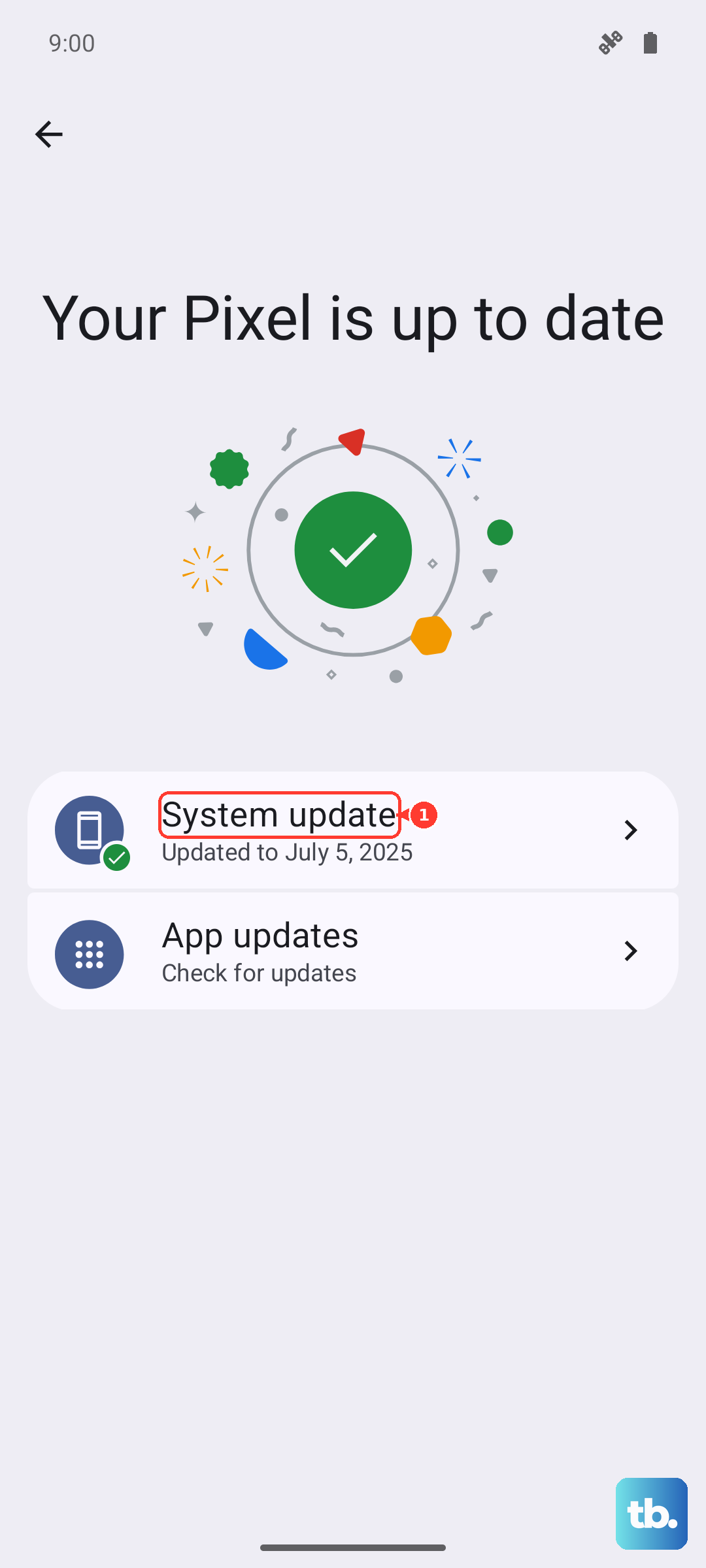
Go to Settings > System > System update and tap "Check for update." If an update is available, install it. Your phone will restart, and it's a good idea to check your network connection immediately after it boots.
Reset Your Network Settings
This step clears all your saved Wi-Fi networks, Bluetooth pairings, and cellular network preferences. It's a great way to wipe out any corrupted configuration data that's preventing a proper registration.
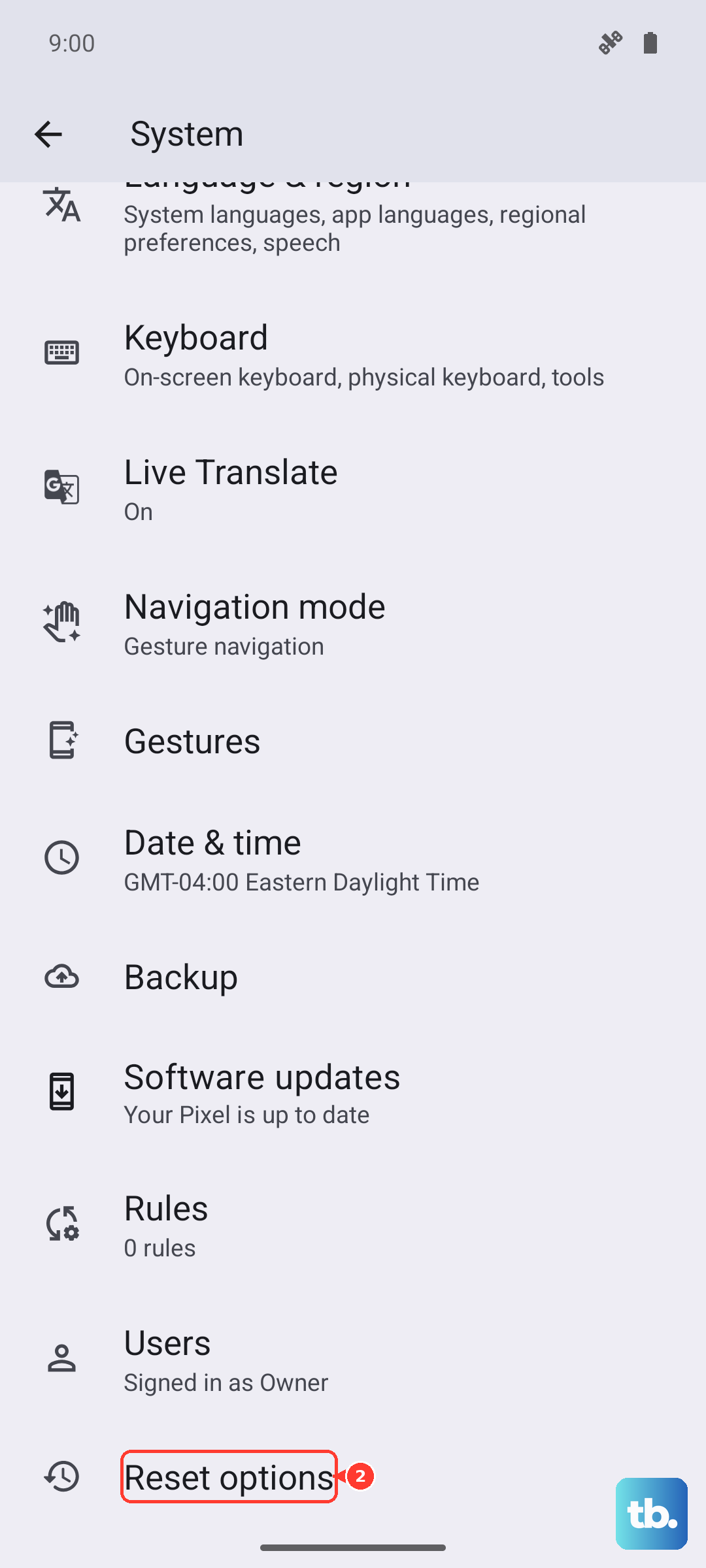
You can find this option by going to Settings > System > Reset options > Reset Wi-Fi, mobile & Bluetooth. Tap to confirm. Your phone will reboot, and you'll need to reconnect to Wi-Fi and re-pair Bluetooth devices, but it often resolves persistent cellular issues.
Manually Select Your Network Operator
Your Pixel might be trying to latch onto a specific network tower or band that's having problems. You can force it to search for and choose a different one. Open Settings > Network & internet > SIMs and tap on your active SIM.
Look for "Automatically select network" and turn that switch off. Your phone will search for available networks. When the list pops up, select your carrier's name from the list. If it connects, you can turn automatic selection back on later.
Try a Different SIM Card
At this point, if you're still not connected, it's time to rule out a faulty SIM card. The plastic chip itself can wear out or get damaged. If you can borrow a working SIM card from a friend or family member (on the same carrier is best), pop it into your Pixel 10.
If their SIM card registers on the network perfectly in your phone, then you know your original SIM is the problem. You'll need to contact your carrier's support to get a replacement SIM sent to you. It's usually a quick and free process.
Perform a Factory Reset
This is the last-resort software fix. A factory reset will erase all data, apps, and settings from your Pixel 10, returning it to its out-of-the-box state. You must back up everything important first using Google One or your preferred method.
To start the process, go to Settings > System > Reset options > Erase all data (factory reset). Follow the on-screen prompts. After the reset is complete, set up the phone as new without restoring a backup immediately. Check if the network error is gone right after the basic setup.
If the "not registered on network" error persists even after a factory reset, the issue is likely hardware-related. This could point to a problem with the phone's internal antenna or cellular modem. At that stage, contacting Google Support or visiting an authorized repair center would be the next step.