
Seeing that "No Service" or "Emergency Calls Only" message on your Google Pixel 10 is incredibly frustrating. It cuts you off from calls, texts, and mobile data, turning a powerful device into a Wi-Fi-only gadget. The good news is that most signal problems have a fix you can do yourself in a few minutes.
I'd start with the simplest solutions first. Often, the issue is a temporary software hiccup or a setting that got toggled by accident.
Restart Your Pixel and Check Airplane Mode
First, give your Pixel 10 a fresh start. On Pixel 6 and later phones, which includes Pixel 10, press and hold the Power and Volume up buttons for a few seconds, then tap Restart. If you have changed Settings > System > Gestures > Press and hold power button to Power menu, holding only the Power button can bring up that menu.
While you're at it, swipe down from the top of the screen twice to open the full Quick Settings panel. Make sure the Airplane Mode icon isn't highlighted. If it is, tap it to turn it off. It's a simple step, but it's one of the most common reasons for sudden signal loss.
Check Your SIM or eSIM
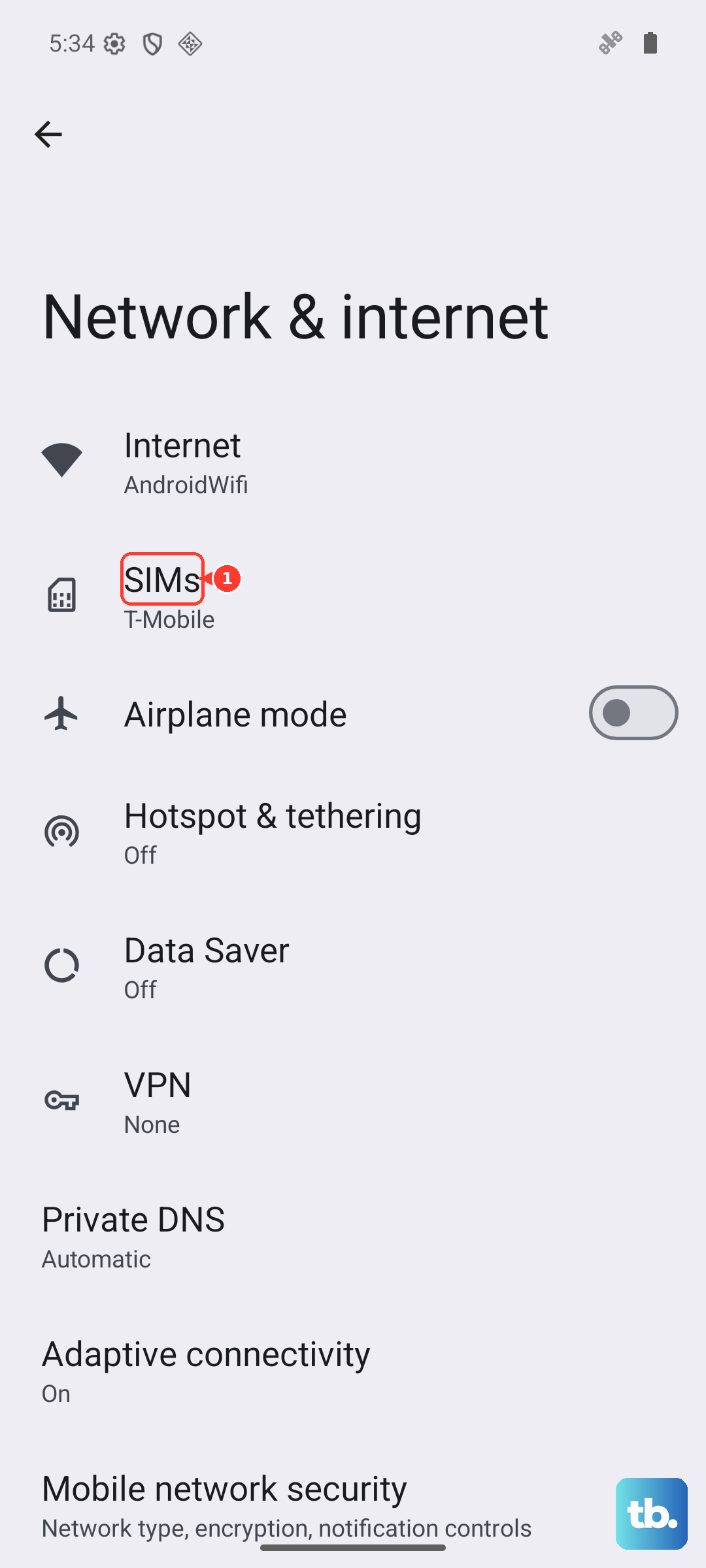
On a US Pixel 10, Google says you cannot use a physical SIM, so there may be no SIM tray to eject. Open Settings > Network & internet > SIMs, select your carrier, and make sure the SIM is active and Use SIM is on.
If your carrier or regional Pixel 10 model uses a physical SIM, inspect it using Google's SIM steps: eject the tray with a SIM tool or small paperclip, check the card for damage or dust, wipe it with a microfiber cloth if needed, and reinsert it. If the issue continues, contact your carrier about replacing the SIM or reactivating the eSIM.
Toggle Mobile Data and Check for Outages
Head into your settings to do a quick network check. Open Settings > Network & internet > SIMs. Make sure Mobile data is on, then tap your carrier's name and make sure Use SIM is on.
While you're troubleshooting, it's worth checking if the problem is even on your end. Visit your carrier's website or their support account on social media. They'll usually post real-time updates if there's a widespread network outage or maintenance in your area.
Reset Your Mobile Network Settings
If the basic steps don't work, reset the cellular settings first. Google lists the mobile-network path as Settings > System > Reset options > Reset mobile network settings.
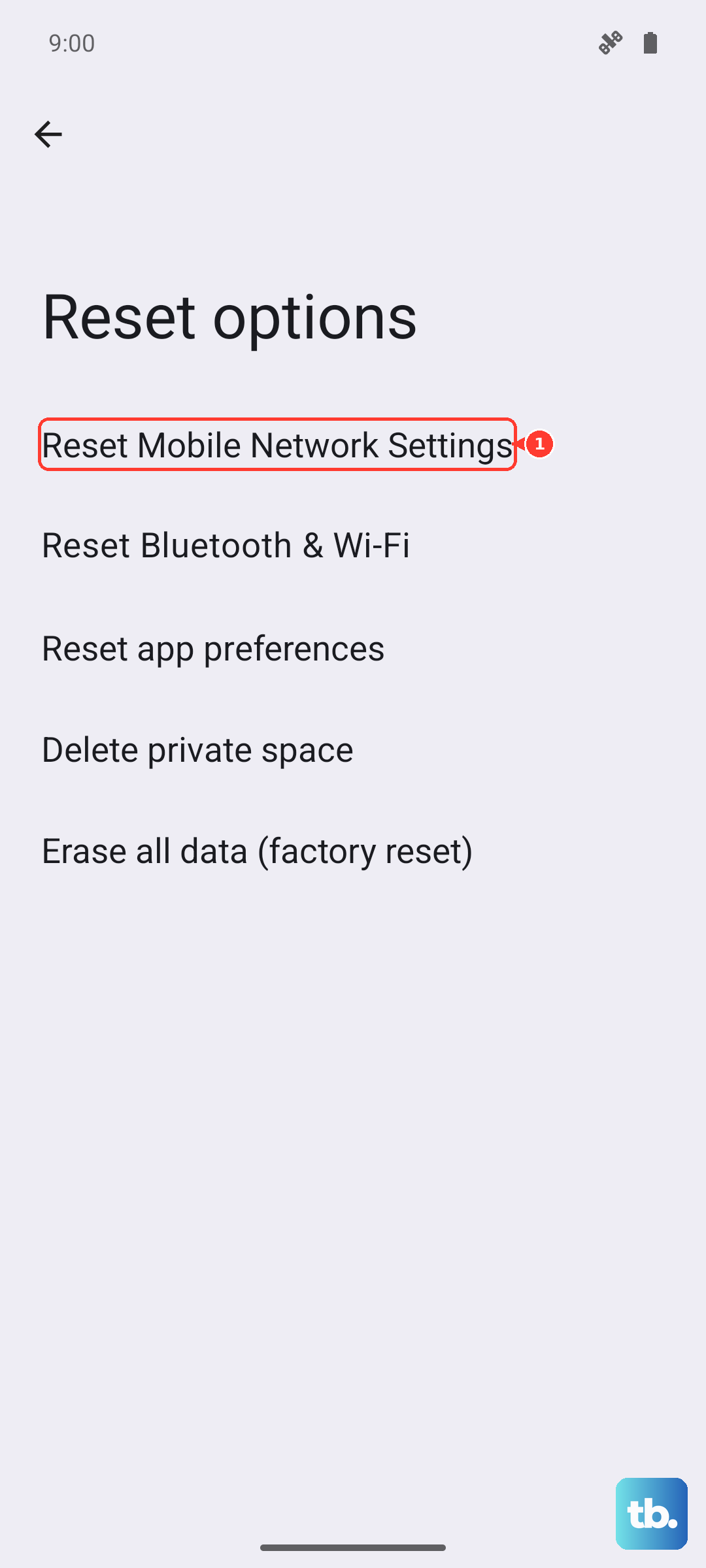
Use the separate Reset Bluetooth & Wi-Fi option only if you're also troubleshooting Wi-Fi or Bluetooth. Google notes that Bluetooth and Wi-Fi reset deletes saved Wi-Fi connections, so it is a broader reset than the mobile-network step.
Update Your Access Point Name (APN)
Your phone needs the correct APN settings, which are like a gateway address to your carrier's network. Sometimes these get corrupted or need updating.
Navigate to Settings > Network & internet > SIMs > [Your Carrier] > Access Point Names. If the list is empty or looks wrong, tap the three-dot menu and select "Reset to default." You can also get the exact settings from your carrier's support site and enter them manually here if needed.
Use the Phone Information Menu
Android has a built-in diagnostic tool that's very useful. Open your Phone app and dial *#*#4636#*#*. This will open the Testing menu. Tap "Phone information."
Look for a dropdown menu labeled "Set preferred network type." Try selecting a different mode, like "LTE/WCDMA" or "NR/LTE/WCDMA" (for 5G), then toggle the "Mobile radio power" off and back on. This forces the radio to re-register on the network with new parameters.
Check Your Preferred Network Type
If you're in an area with spotty 5G, forcing your phone to use 4G LTE can sometimes provide a more stable connection. Go to Settings > Network & internet > SIMs and tap your carrier.
Select "Preferred network type." Try switching from "5G" to "LTE" for a while to see if your signal bars improve. You can always switch it back later.
Disable Any VPN Apps
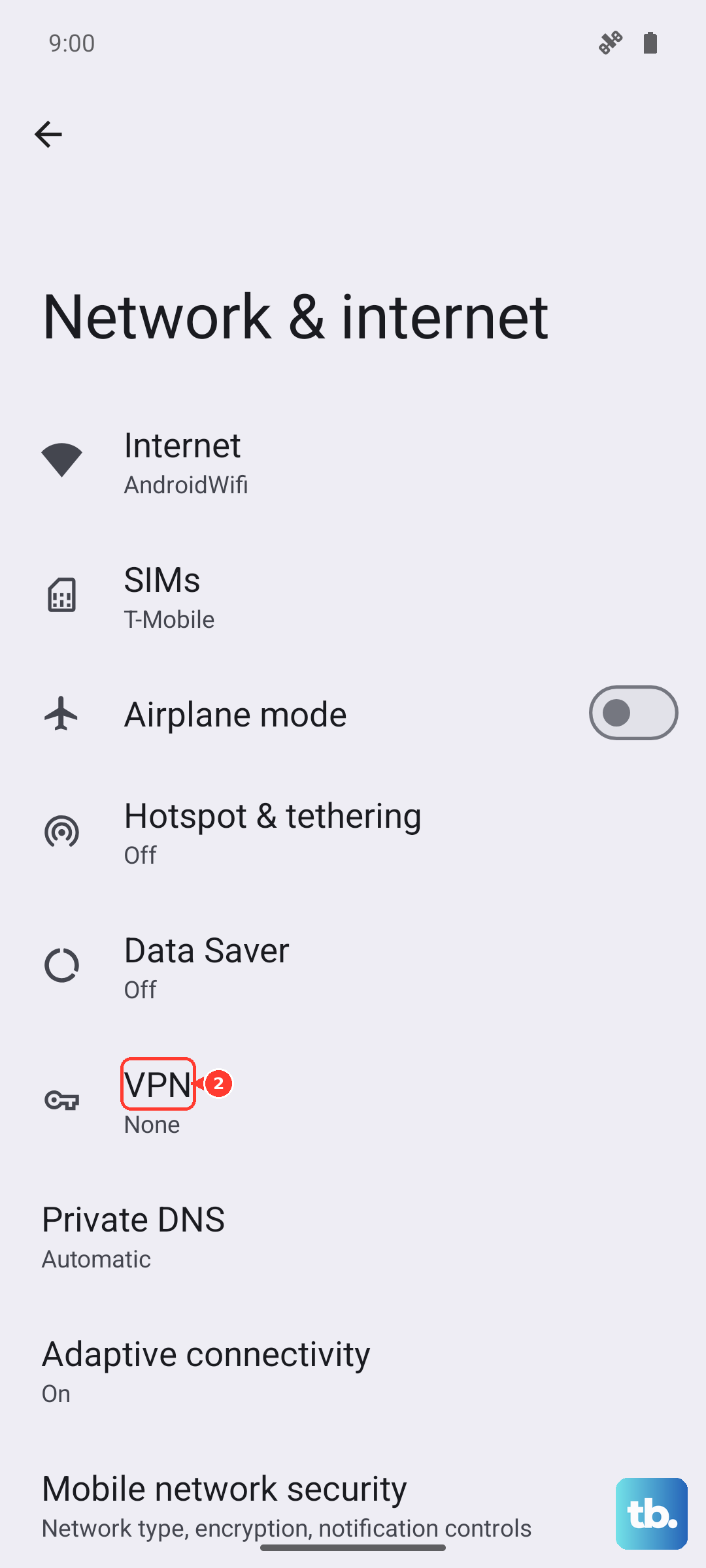
Virtual Private Network apps are great for privacy, but they can sometimes interfere with your direct connection to your mobile carrier. If you have a VPN active, open the VPN app and disconnect from it.
For a more thorough check, go to Settings > Network & internet > VPN. If there are any VPN profiles configured here that you don't recognize or need, you can tap on them and select "Delete."
Update Your Pixel's Software
Google regularly releases system updates that include fixes for connectivity issues. Make sure your Pixel 10 is running the latest version of Android.
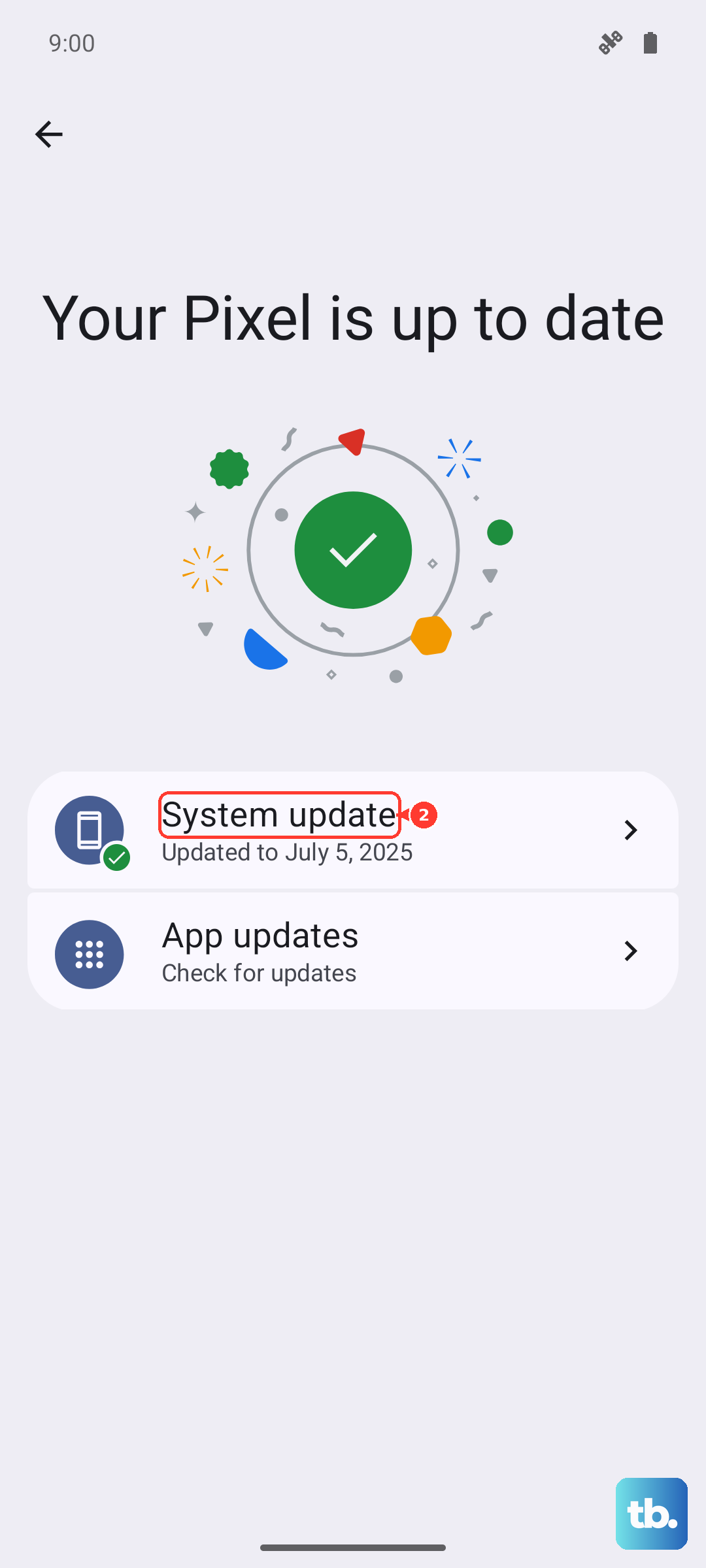
Go to Settings > System > Software updates (Pixel may show System update) and follow the on-screen prompts to check for updates. Google recommends connecting to Wi-Fi and charging the device to at least 75% before updating.
Test Your SIM Card and Contact Your Carrier
If you've worked through all the software fixes, the issue might be with your SIM, eSIM profile, carrier account, or coverage. On a US Pixel 10, Google says you can only use eSIM, so contact your carrier to check activation, the eSIM profile, account status, outages, and plan changes. If you're using a physical SIM on a non-US model or another compatible carrier device, you can test that SIM in another unlocked phone to see whether the issue follows the SIM.
Your carrier can also confirm whether your Pixel 10 is compatible with its 5G network and whether the line needs a replacement SIM or eSIM reactivation.