You reach for your Google Pixel 10 and the screen just sits there, unresponsive to every tap and swipe. Maybe it locked up mid-app, maybe it froze on the home screen, or maybe the display is lit but nothing moves no matter how hard you press. A frozen Pixel 10 is frustrating, but it is almost always fixable without losing a single photo or message, and you usually do not need anyone's help to do it.
The good news is that this is a standard Android phone running Android 16 on Google's Tensor G5 chip, and Google publishes clear, official procedures for exactly this situation. Below are the fixes in order, starting with the safest and easiest that erase nothing and ending with the last-resort options. Work through them from the top and stop as soon as your phone is responsive again.
Force the Frozen Screen to Restart First
When the screen is frozen but still on and the touch input does nothing, a forced restart is your first move. According to the official Google support guidance for a Pixel phone that freezes, you do this with the Power button alone, not with the Volume buttons. It reboots the phone without erasing any of your data.
- 1.Press and hold the Power button for about 30 seconds.
- 2.Keep holding (Google documents holding for up to 60 seconds) until the phone begins to reboot and the "G" logo appears on screen.
- 3.Once the "G" logo displays, release the Power button.
Give the phone a moment to finish booting. This single step resolves the large majority of frozen-screen cases, because it clears whatever process was locking up the system.
Try a Clean Restart While the Screen Still Responds
If your Pixel 10 is sluggish or partly frozen but you can still touch the screen, a normal restart is gentler and clears temporary glitches that lead to freezing. This uses the Power and Volume buttons together to bring up the on-screen menu.
Press and hold the Power button and the Volume up button for a few seconds.
When the menu appears, tap Restart.
A clean restart closes out background tasks and refreshes memory, which is often all it takes if the freezing is occasional rather than total.
Make Sure You Have Enough Free Storage
A phone that is nearly full slows down and can freeze, because the system has no room to manage temporary files. Google warns that your phone can have issues when less than 10% of storage is available, so this is worth checking early.
Go to Settings > Storage to see how much space is free. If you are below that 10% threshold, delete unused apps, old photos, downloads, or large files until you are comfortably back above it. Freeing space gives the system breathing room and frequently stops the freezing on its own.
Install the Latest Android Update
Software bugs are a common cause of freezing, and Google ships fixes through regular updates. Your Pixel 10 is promised seven years of OS, security, and Pixel Drop updates, so keeping it current matters.
Open the Settings app.
Near the bottom, tap System, then Software update.
When the update status appears on your screen, follow the steps to install any available update.
If an update is waiting, installing it often resolves freezing that was caused by a known bug. Let the phone finish and restart fully before testing it again.
Update Your Apps Through the Play Store
An outdated app can crash and drag the whole phone down with it, locking up the screen. Updating your apps keeps them compatible with the current software and patches their own bugs.
Open the Google Play Store app.
Tap the profile icon at the top right.
Tap Manage apps & devices.
Under "Updates available," choose to update all apps or a specific app.
If the freezing tends to happen in or around one particular app, updating that app first is a quick, targeted fix.
Force Stop an App That Is Locking Things Up
Sometimes a single misbehaving app is responsible for the freeze, holding the screen hostage even though the rest of the phone is fine. Force stopping it shuts it down completely so the phone can recover.
Open Settings > Apps > See all apps.
Tap the app you suspect is causing the problem.
Tap Force stop, then tap OK.
After force stopping, reopen the app and see whether the freezing returns. If it does, the steps further down will help you confirm whether that app is truly the culprit.
Use Safe Mode to Find a Bad App
Safe mode temporarily turns off all of your downloaded apps, leaving only the apps the phone came with. It is the cleanest way to learn whether something you installed is causing the freezing.
With the phone on, press and hold the Power and Volume Up buttons for a few seconds.
Tap and hold either the Power off or Restart button.
Tap OK.
If the freezing stops while you are in Safe mode, a downloaded app is the cause. To exit Safe mode, restart normally by holding the Power and Volume up buttons and tapping Restart. Then remove your recently downloaded apps one at a time, restarting after each removal, until the problem disappears.
Strip Off Accessories and Recent Installs
If your Pixel 10 keeps freezing or crashing, the trigger may be something physical or recently added rather than a deep software fault. Cases, external battery packs, and brand-new apps are all worth ruling out.
Take off any case or external battery and see whether the behavior improves. Then remove recently downloaded apps one by one, restarting the phone normally after each removal, until you find the one responsible. Working through these methodically helps you isolate the culprit instead of guessing.
Factory Reset as a Last Resort, Then Get Help
If nothing above works, a factory reset wipes the phone back to its original state and clears whatever software problem has taken hold. This step erases everything, so treat it as a last resort and back up your data first.
Before you begin, charge the phone to at least 70% and connect it to Wi-Fi or a mobile network, since a reset can take up to an hour. Be aware of the official warning: a factory data reset will remove all data from your phone. You can restore any data stored in your Google Account, but all apps and their associated data are uninstalled.
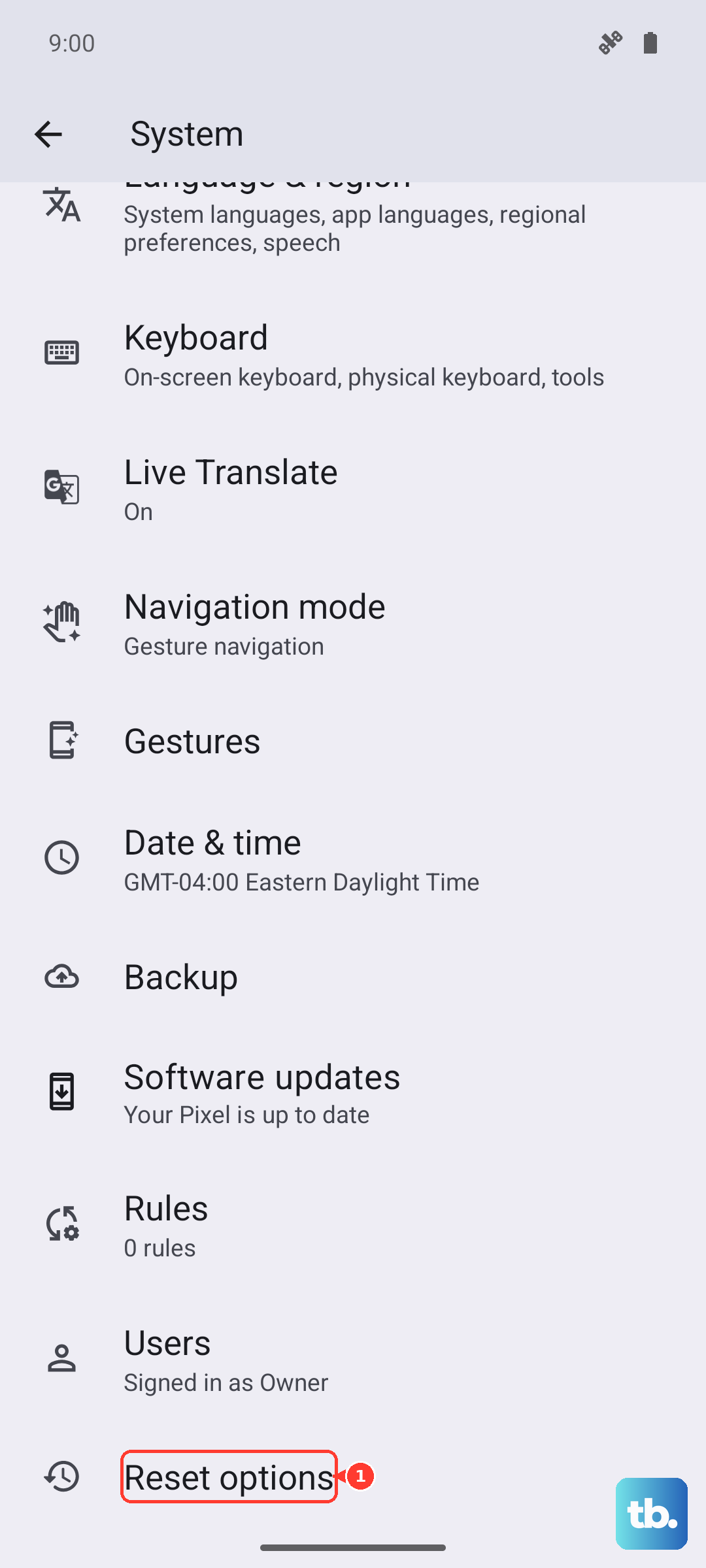
Go to Settings > System > Reset options.
Tap Erase all data (factory reset).
Tap Erase all data, and enter your PIN if prompted.
If the phone still freezes after a reset, or it will not turn on or charge at all, it is time to reach Google. On a Pixel 10, go to Settings > Device health & support > Tips & support > Contact us. From there you can describe the problem and, if it looks like a hardware fault, arrange a repair directly with Google.
Frequently Asked Questions
How do I force restart a frozen Pixel 10?
Press and hold the Power button by itself for about 30 seconds. Keep holding (up to 60 seconds) until the phone reboots and the "G" logo appears, then release. This does not use the Volume buttons and does not erase any data.
Will fixing the freezing erase my data?
No, not until the very last step. Force restarting, restarting normally, clearing storage, updating software and apps, force stopping an app, and using Safe mode all leave your data intact. Only a factory reset erases everything, which is why it is the final option.
How do I know if a downloaded app is causing my Pixel 10 to freeze?
Boot into Safe mode, which temporarily disables all downloaded apps. If the freezing stops in Safe mode, an app you installed is the cause. Restart normally to exit, then remove recently added apps one at a time, restarting after each, until the problem is gone.
What should I do before a factory reset?
Back up your data, charge the phone to at least 70%, and connect to Wi-Fi or a mobile network. The reset can take up to an hour, and it removes all data from the phone; data in your Google Account can be restored, but apps and their associated data are uninstalled.
What if my Pixel 10 still freezes or will not turn on after everything?
Contact Google support directly from the phone at Settings > Device health & support > Tips & support > Contact us. If the issue looks like a hardware fault, such as the phone not turning on or charging, you can use that same contact path to arrange a repair with Google.