You plug your Google Pixel 10 into the charger expecting that quick top-up, but the battery percentage barely moves, the phone feels warm, or it seems to be sipping power instead of pulling the fast charge you paid for. Slow or stalled wired charging on the Pixel 10 is frustrating, especially when you are in a hurry, but most causes come down to the adapter, the cable, the port, or a temporary software hiccup rather than a broken phone. The good news is that the Pixel 10 does support wired fast charging, so when it is set up correctly you should see real speed. Work through the fixes below in order, starting with the easiest and safest, and save the reset and repair path for last.
Start With the Charger and Cable, Because They Cause Most Slow Charging
Fast charging on the Pixel 10 depends entirely on using the right adapter, and the wrong one is the single most common reason the phone trickles instead of speeds. According to Google, the Pixel 10 charges up to 30W or more when paired with a compatible high-wattage USB-C charger. The key term is PPS, short for Programmable Power Supply, which is the standard the phone uses to negotiate its quickest speeds.
Google's charging guidance recommends a power adapter that is compatible with your Pixel phone, specifically a Programmable Power Supply (PPS) power adapter rated for 30W or more, used with the right USB-C cable. These chargers are sold separately. If you are using an older, low-wattage block or a USB-A charger, that is likely your problem. Google notes that USB-A charges your phone slower than a USB-C power adapter with a USB-C cable, so swapping to a proper 30W-or-higher PPS adapter is often the entire fix.
Plug Into a Wall Outlet Instead of a Laptop or Hub
Where you draw power from matters almost as much as the adapter itself. If you have been charging from a laptop USB port, a monitor, a car socket, or a powered hub, the speed is likely being capped by that source rather than by your phone.
Google's advice is direct here. Use a wall outlet, because other power sources like laptops can sometimes charge slower. Move the phone to a known-good wall socket, and if speeds are still poor, confirm the outlet itself works by plugging in another device. A dead or weak outlet can masquerade as a phone fault.
Watch for the Check Charging Accessory Alert
Your Pixel 10 will sometimes tell you directly that the problem is the gear you are using. If charging is slow or it stops unexpectedly, look at your notifications for a specific alert.
According to Google, if you get a "Check charging accessory" notification, it means your cable or USB power adapter may not be supported by your phone or it might be broken. Treat that message as a clear signal to stop troubleshooting the phone and instead swap to a known-good, compatible cable and adapter. A frayed cable or a failing adapter can pass enough current to show a charging icon while never reaching fast-charge speeds.
Check the Case, the Cable Seat, and the Port
A poor physical connection is one of the most overlooked causes of slow or intermittent charging. A bulky or thick case can hold the connector slightly out of the port, a cable that looks plugged in is not always seated all the way, and even a small plug of pocket lint can stop the connector from making full contact.
Google's won't-charge guidance is to remove your phone case to ensure that it doesn't interfere with your charging plug. Then check that the cable is securely connected to the adapter and to your phone, and check that there's nothing in the port of your phone, like dust or lint. Inspect the port in good light, gently clear any debris you find, and press both ends of the cable in firmly until you feel them seat. A clean port and a fully seated cable let the phone negotiate its faster speeds.
Swap the Cable and Adapter to Isolate a Bad Accessory
If the charger looks right and the port is clean but speeds are still slow, the next step is to prove whether the accessory or the phone is at fault. The fastest way to do that is a clean substitution test.
Google advises that you try to charge your phone with another cable or power adapter. Use a known-good USB-C cable together with a 30W or higher PPS adapter, and watch the charging speed. If the phone suddenly charges quickly with the substitute gear, your original cable or adapter was the culprit and should be replaced.
Let a Warm Phone Cool Down
Heat is one of the most common reasons a Pixel 10 deliberately slows its charging, and it is by design to protect the battery. If you have been gaming, navigating, or charging in a hot car or in direct sun, the phone will throttle the power going in.
Google's slow-charging guidance is to let the phone cool off and try again. Keep it out of direct sun and away from heat sources, remove the phone from its case, avoid blocking airflow around it, and keep the screen dark while charging. Once the phone returns to a normal temperature, fast charging should resume on its own.
Why Charging Slows Above 80 Percent on Purpose
Before you assume something is broken, check whether you are looking at expected behavior rather than a fault. The Pixel 10 intentionally slows the final stretch of a long charge to be gentler on the battery.
Google explains that when Adaptive Charging is active, slow charging over 80 percent is expected, and your phone will be fully charged before you wake up. This applies to long or overnight charging sessions, so if the phone races to 80 percent and then crawls the rest of the way overnight, that is normal and not a defect.
Restart the Phone to Clear a Software Glitch
A temporary software hiccup can interfere with charging, and a simple restart often clears it. If the phone refuses to charge at all, Google's first suggestion is to press and hold your phone's Power button for 5 to 7 seconds. For a standard restart, use the normal sequence first.
- 1.Press and hold the Power button and Volume up button for a few seconds.
- 2.Tap Restart.
If the phone is frozen and will not respond, you can force a restart instead. Press and hold the Power button for up to 60 seconds. Once your phone begins to reboot and the screen displays the "G" logo, release the Power button.
Install the Latest Software Update
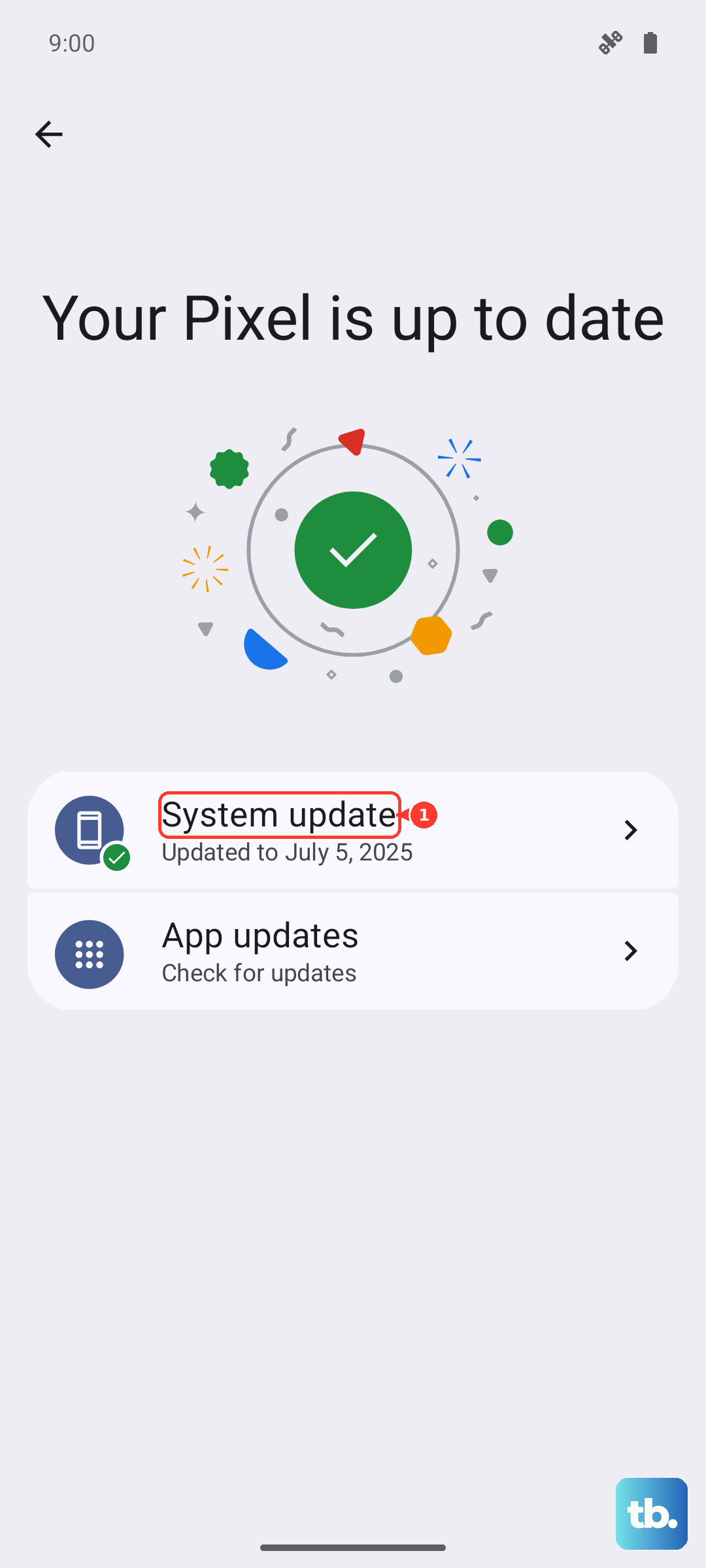
Software updates can fix charging bugs, so it is worth making sure your Pixel 10 is current. Updates are handled entirely in the built-in Settings app, with no separate companion app needed.
- 1.Open the Settings app.
- 2.Tap System, then Software updates.
- 3.Follow the on-screen instructions.
Google notes that a Pixel shows either Software updates or System update depending on the device, so tap whichever you see. To confirm your current build, you can open Settings, tap About phone, then Android version.
When Nothing Else Works, Reset and Then Contact Support
If charging is still broken after everything above, a factory reset is the final software step before you treat the issue as hardware. This is a destructive action, so read the warning carefully first.
Google states clearly that a factory reset erases all your data from your phone. Before you reset, back up anything you want to keep, charge your phone to at least 70 percent, and connect your phone to Wi-Fi or your mobile network. Be patient, because Google notes a factory reset can take up to an hour.
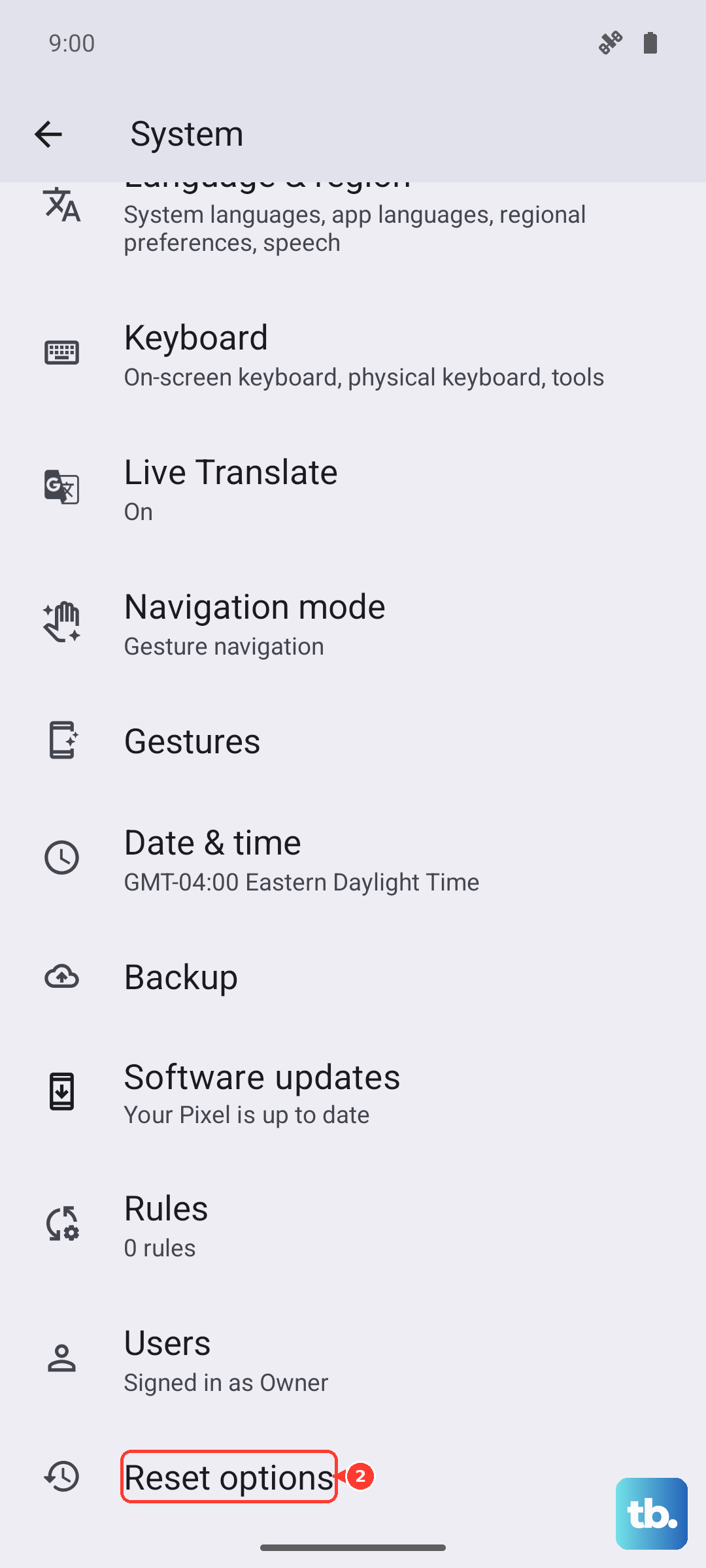
When you are ready, the path is Settings, then System, then Reset options, then Erase all data (factory reset), and follow the prompts. If fast charging is still broken after the reset, the problem is most likely hardware. At that point, contact Google support or request a repair.
Frequently Asked Questions
What charger do I need for the fastest charging on the Pixel 10?
Google recommends a Programmable Power Supply (PPS) power adapter rated for 30W or more, used with a compatible USB-C cable. The Pixel 10 charges up to 30W or more with the right adapter. These chargers are sold separately, so a low-wattage block or a USB-A charger will charge the phone more slowly.
Why does my Pixel 10 charge slower when plugged into my laptop?
Other power sources like laptops can sometimes charge slower than a wall outlet, according to Google. For the best speed, plug the phone into a known-good wall socket using a compatible USB-C PPS adapter rather than charging from a computer, hub, or other low-power source.
Is it normal for my Pixel 10 to slow down after 80 percent overnight?
Yes. Google explains that when Adaptive Charging is active, slow charging over 80 percent is expected, and your phone will be fully charged before you wake up. This applies to long or overnight charging sessions and is intentional rather than a fault.
What does the Check charging accessory notification mean?
Google says that if you get a "Check charging accessory" notification, it means your cable or USB power adapter may not be supported by your phone or it might be broken. The fix is to switch to a known-good, compatible cable and adapter.
Will a factory reset fix Pixel 10 charging problems?
It can resolve a deep software issue, but it should be a last resort because a factory reset erases all your data from your phone. Before resetting, back up your data, charge to at least 70 percent, and connect to Wi-Fi or your mobile network, then go to Settings, System, Reset options, Erase all data (factory reset). If charging is still broken after the reset, the cause is likely hardware, so contact Google support or request a repair.