
The Galaxy S26 Ultra's hardware Privacy Display has become the Ultra's biggest single complaint.
Owners report fuzzy text, slight flicker, and eye strain after long use. Some say they get headaches or mild nausea within an hour.
The cause is a mix of two real things: a low PWM dimming rate of 480 Hz that bothers PWM-sensitive users, and the Privacy Display's pixel-level light direction control that interacts oddly with low brightness. Some of the fixes are software toggles you can flip right now, and some have to wait for Samsung's firmware patch.
Here is the full set, in order of how much they actually help.
What Is Causing the Eye Strain
Two separate effects stack on top of each other on the S26 Ultra. The first is PWM dimming, which is how OLED screens dim themselves at lower brightness by flickering very fast. The S26 Ultra dims at 480 Hz, well below the 3,840 Hz and higher rates that some competitors like Honor advertise, and that low frequency can trigger eye strain in PWM-sensitive users.
The second is the Privacy Display itself. Samsung calls the underlying technology Flex Magic Pixel, and it works at the pixel level by using a mix of Narrow and Wide pixels to control how light disperses. When privacy mode is active, the wide pixels are dialled back to limit side-angle visibility, and in low brightness that pixel-level redirection creates a faint shimmer that the eye can read as flicker.
Most users feel one of these two things, not both. The fixes below address each separately.
Turn Off Privacy Display Unless You Actually Need It
This is the single biggest improvement most users report. Privacy Display is on by default in some Samsung regions, and many owners didn't realize it was active.
To turn it off completely, go to Settings > Display > Privacy display and toggle it off. The screen will look noticeably cleaner immediately. Text sharpens, the faint shimmer disappears, and most eye strain stops within a few minutes of using the phone without it.
If you want some privacy protection but not all the time, open Settings > Display > Privacy display > Conditions for turning on. From there you can scope Privacy display to apply only inside specific apps (banking, password manager), when you enter a PIN/pattern/password, or when notifications appear, so day-to-day browsing stays on the normal display.
Lower the Refresh Rate to 60 Hz
The S26 Ultra runs at 120 Hz by default. Dropping to 60 Hz reduces the PWM flicker frequency interaction and helps PWM-sensitive users almost as much as turning off Privacy Display.
Go to Settings > Display > Motion smoothness and select Standard (60 Hz). You'll lose some scrolling smoothness in apps, but the eye strain typically drops within minutes.
If 60 Hz feels too slow after a few days, try toggling it back to 120 Hz and see if your eyes have adapted.
Turn On Eye Comfort Shield
Eye Comfort Shield warms the screen's color temperature, reducing the harsh blue light that contributes to fatigue.
Go to Settings > Display > Eye comfort shield and toggle it on. Set it to Adaptive so it automatically warms toward evening. The change is subtle but adds up over a long day of use.
Pair this with Extra dim at night (Settings > Accessibility > Visibility enhancements > Extra dim). Extra dim bypasses the PWM dimming entirely below the normal minimum brightness, which helps in bed or dim rooms where the standard brightness floor is still too bright.
Install the April Firmware Update
Samsung acknowledged the display issues in late March and committed to addressing them through firmware. The April 2026 update, build S948BXXS2AZCL, is the first patch reported to retune the display alongside the unrelated 3x zoom camera fix.
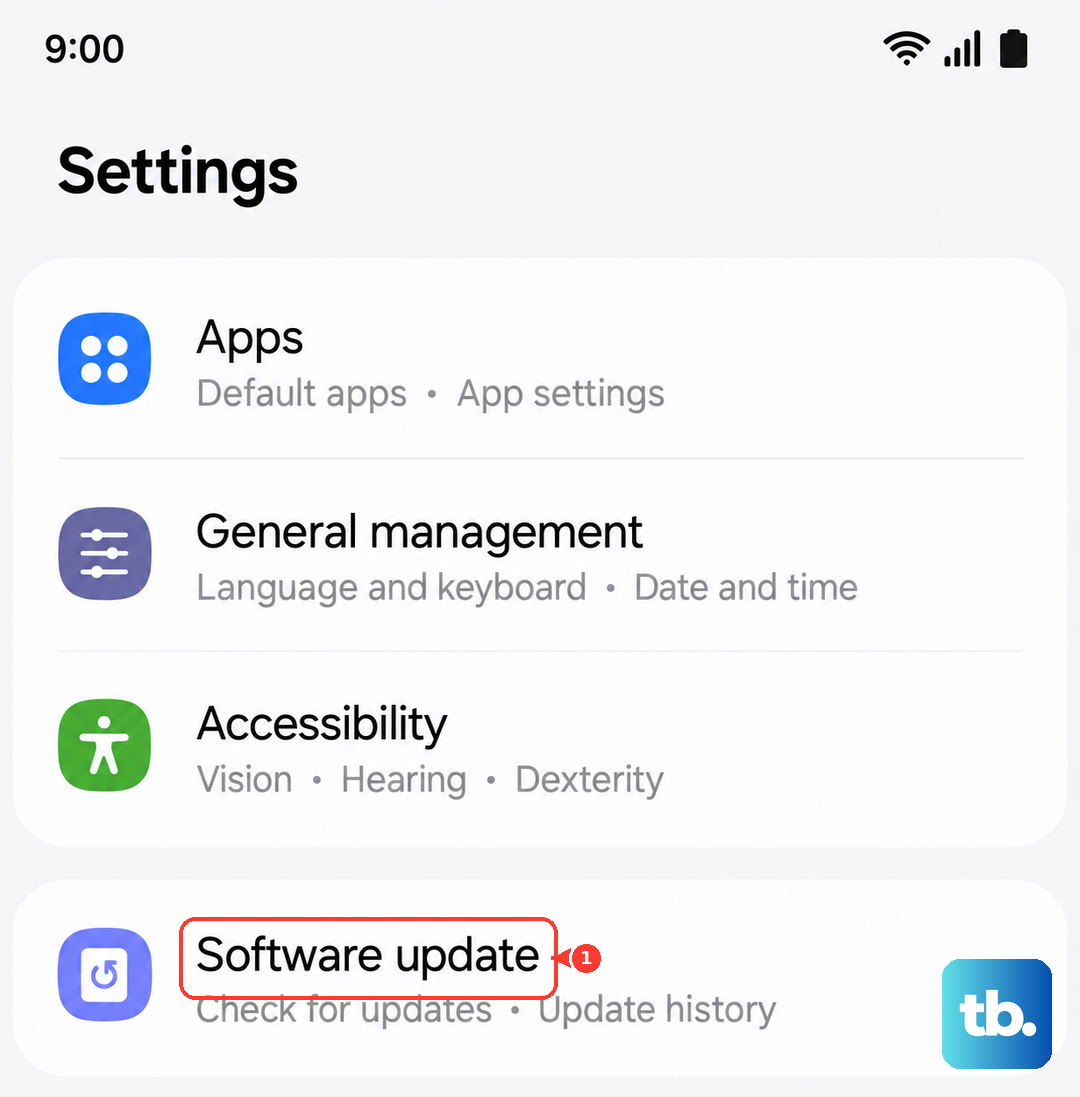
Install it via Settings > Software update > Download and install.
The update does not fully remove the Privacy Display shimmer (that's a function of the hardware), and Samsung has not committed to adding a separate anti-flicker or DC dimming toggle. What it does is retune the brightness curve so the panel sits in less flicker-prone ranges by default. Reports after installing the patch describe a moderate improvement on top of the software toggles above.
If You're Still Uncomfortable
If the combination of disabling Privacy Display, dropping to 60 Hz, and installing the April patch doesn't get you to comfortable use, you may be one of the more PWM-sensitive users.
One approach is to use the phone at higher brightness. PWM dimming is most aggressive at low brightness, so keeping the screen above 50 percent brightness whenever possible reduces flicker dramatically. Indoors during the day this is easy; at night you can fight it with Extra dim.
Some users find that pairing the phone with reading glasses or blue-light glasses for extended use helps. This is anecdotal but commonly reported.
If none of that gets you comfortable, request a return or exchange. Return windows vary by carrier and country (typically 14 to 30 days in the US, longer in parts of the EU), so check your retailer's policy. PWM sensitivity is a real medical condition; if the S26 Ultra triggers it for you, the Galaxy S26+ or S26 (different display panels) may be a better fit. Cite display discomfort when you initiate the return; most retailers will accept it as a valid reason within the return window.
What Doesn't Help
A few common suggestions floating around forums don't actually help much on the S26 Ultra specifically.
Screen protectors do not reduce PWM flicker. They sit on top of the display layer that creates the flicker, so they cannot block it. They may slightly diffuse the Privacy Display shimmer but at the cost of overall sharpness.
Dark mode doesn't reduce PWM flicker either. The screen still uses the same dimming behavior; only the content color changes. Some users find dark mode psychologically easier on the eyes for other reasons, but it doesn't address the underlying issue.
Third-party apps that claim to flicker-free your screen work by overlaying a translucent layer on top of the display. They can help slightly but they cannot bypass the hardware dimming, and most introduce input lag.