
When your Dell Inspiron 16 shows a "USB Device Not Recognized" error or simply doesn't power or detect a connected device, it's a frustrating roadblock. The problem could be with the port, the device you're plugging in, a driver conflict, or a system setting. Let's get it working again.
Restart Your Inspiron 16
This is the quickest fix for a lot of USB problems. A full restart reloads the USB drivers and resets the controller chip on the motherboard. Make sure you select "Restart" from the Start menu, not just close the lid to put it to sleep.
I've seen this clear up temporary glitches more often than not. If the USB device was working before and suddenly stopped, this is the first thing I'd try.
Test a Different USB Port
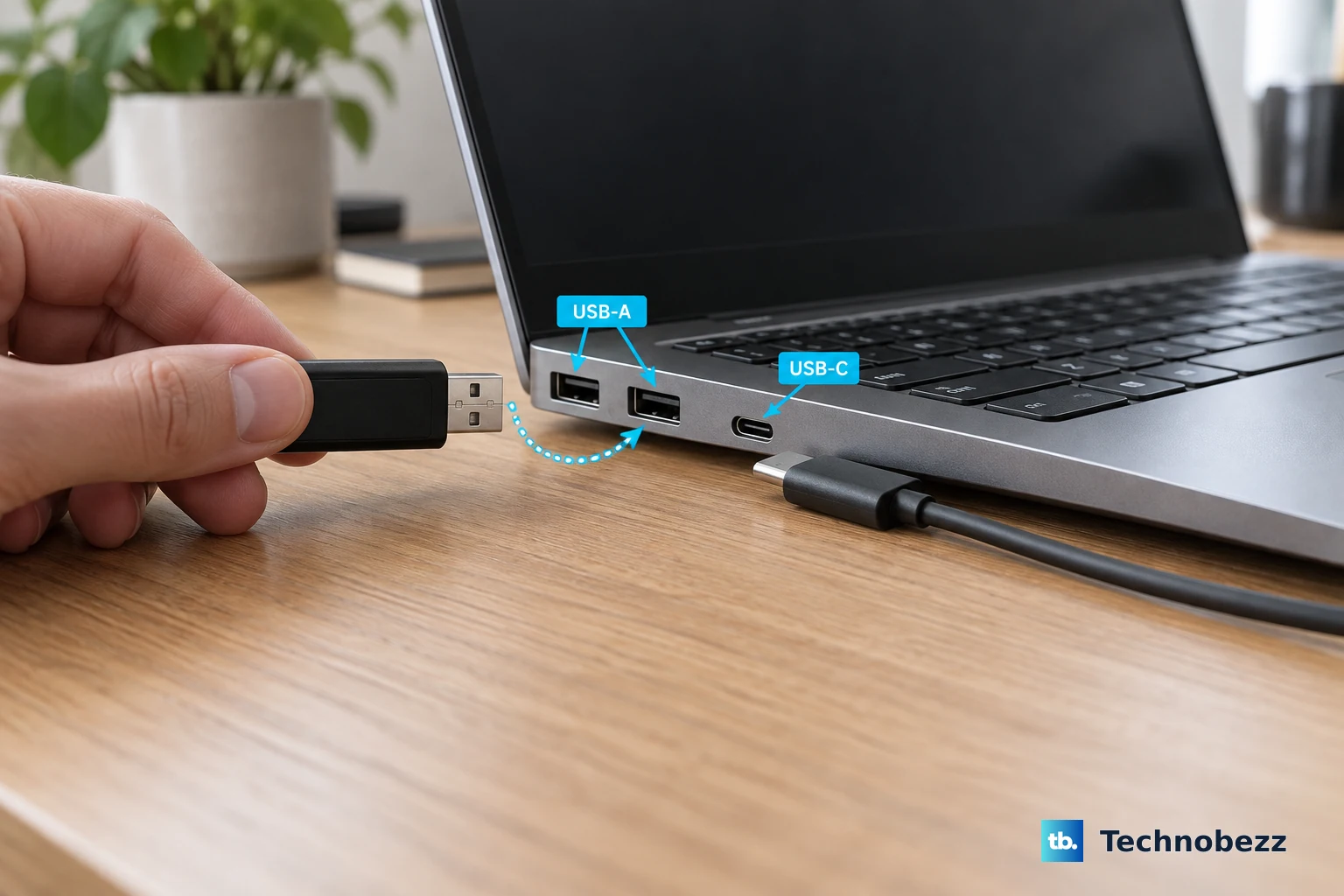
Unplug your device and try it in another USB port on your laptop. The Inspiron 16 typically has a mix of USB-A and USB-C ports. If your mouse, drive, or phone works in a different port, the issue is likely with the original port itself.
It could be physically damaged, disabled in software, or have a loose connection internally. Testing all your ports helps narrow down the problem.
Check the Device and Cable on Another Computer
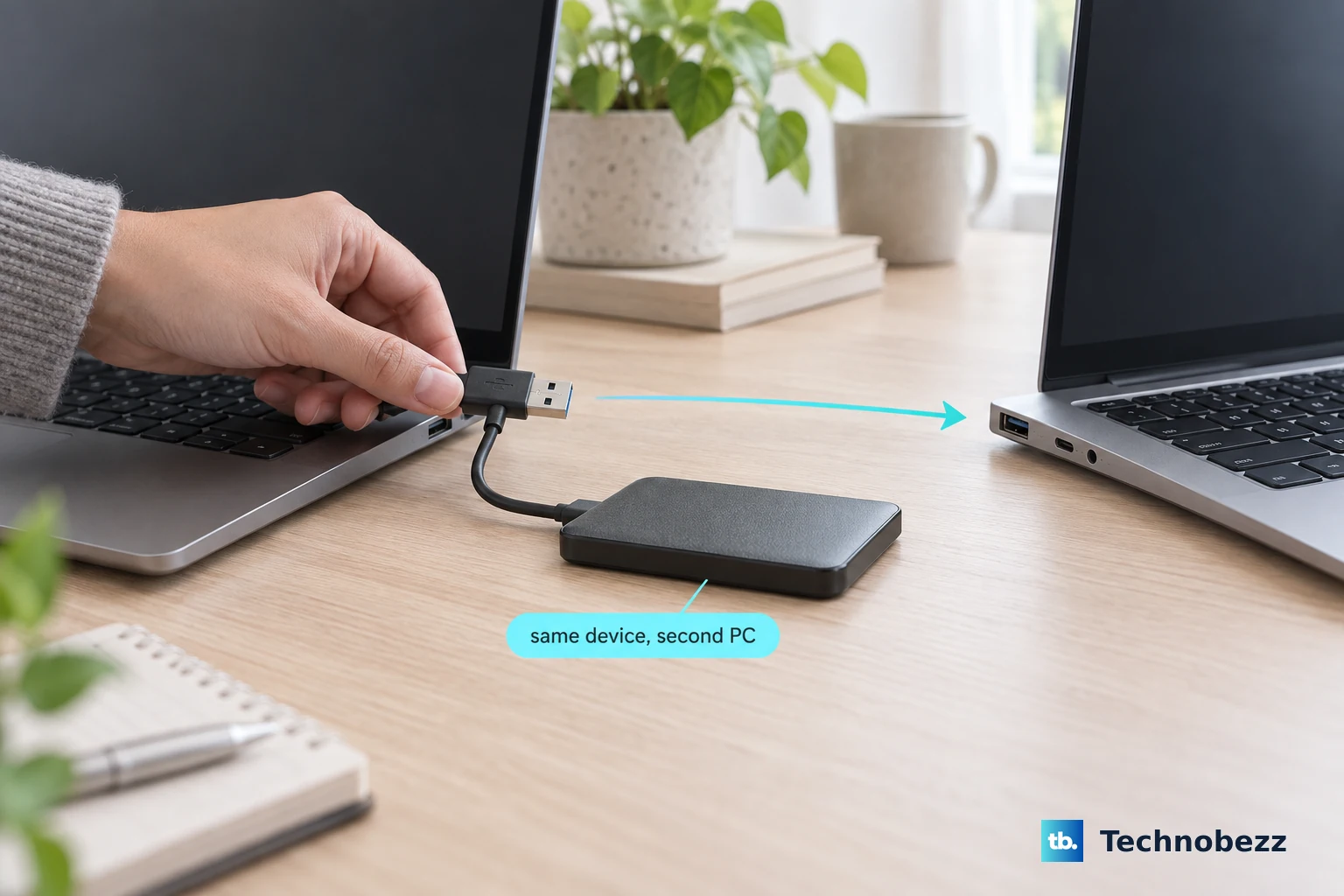
To rule out the accessory itself, connect it to a different computer. If it doesn't work there either, the USB flash drive, external hard drive, or cable is probably faulty.
If it works perfectly on another machine, then the issue is isolated to your Inspiron's configuration. This is a crucial step before diving into deeper system fixes.
Update or Reinstall USB Drivers
Press the Windows key, type "Device Manager," and open it. Look for the section called Universal Serial Bus controllers and expand it. Keep an eye out for any entries with a small yellow warning icon.
Right-click on the USB controller drivers (like "USB Root Hub" or "Generic USB Hub") and choose Update driver. Select "Search automatically for drivers." For a more thorough fix, you can right-click and choose Uninstall device, then restart your laptop. Windows will automatically reinstall fresh drivers upon reboot.
Run Dell SupportAssist
Your Inspiron 16 comes with Dell SupportAssist, which is great for automated troubleshooting. Open the SupportAssist app and run a hardware scan. It can often detect issues with USB controllers and other components, and it might even offer a driver update or fix automatically.
This is a handy tool that checks things specific to Dell hardware, which a generic Windows troubleshooter might miss.
Disable USB Selective Suspend
Windows has a power-saving feature that can turn off USB ports when it thinks they're not in use, and it can sometimes be too aggressive. To turn it off, go to Control Panel > Hardware and Sound > Power Options.
Click Change plan settings next to your selected plan, then Change advanced power settings. In the new window, scroll down and expand USB settings, then expand USB selective suspend setting. Set both "On battery" and "Plugged in" to Disabled.
Check for Windows and Driver Updates
Head to Settings > Windows Update and click "Check for updates." Install all available updates. After the main updates are done, click Advanced options and then Optional updates.
There may be driver updates listed here specifically for your system hardware, including chipset drivers that manage USB functionality. Installing these can resolve compatibility issues.
Run the Built-in Hardware Diagnostics
Dell laptops have a pre-boot diagnostic tool that tests the physical hardware. Restart your Inspiron 16 and tap the F12 key repeatedly as it boots up to enter the boot menu.
Use the arrow keys to select Diagnostics and press Enter. The system will run a series of tests, including checks on the USB subsystem. If it finds a hardware failure, it will provide an error code you can reference.
Reset the BIOS/UEFI Settings to Default
In rare cases, a BIOS setting can affect USB port operation. To reset them, restart your laptop and tap the F2 key repeatedly at startup to enter the BIOS setup. Look for an option like "Restore Settings" or "Load Defaults."
It's often on the main page or under an "Exit" menu. Confirm that you want to load default settings, then save and exit. Your laptop will reboot. This won't affect your personal files, but it will reset any custom BIOS configurations.