
A non-responsive touchpad on your ROG Zephyrus G16 turns a powerful gaming laptop into a desktop. Whether the cursor is frozen, taps don't register, or multi-finger gestures fail, the issue is usually software-related and fixable.
Toggle the Touchpad with the Function Key
On the Zephyrus G16, you can quickly disable the touchpad, often by accident. Look for the function key with a touchpad icon, which is typically F10 or F11 on ASUS laptops. Press Fn + that key to toggle it back on. You should see a notification pop up on screen confirming the change.
Perform a Full Restart
If the touchpad stopped working after waking from sleep or a game, a full restart is the fastest fix. It reloads all drivers, including the one for your touchpad. Use your keyboard to navigate: press the Windows key, then use the arrow keys to highlight the power icon, press Enter, and select Restart.
Disconnect Any External Mouse
Windows has a setting that can automatically disable the internal touchpad when an external mouse is connected. Unplug any USB mouse or disconnect your Bluetooth mouse. If the touchpad springs back to life, you can change the setting in Settings > Bluetooth & devices > Touchpad and look for the option to keep it on when a mouse is connected.
Update or Reinstall the Touchpad Driver
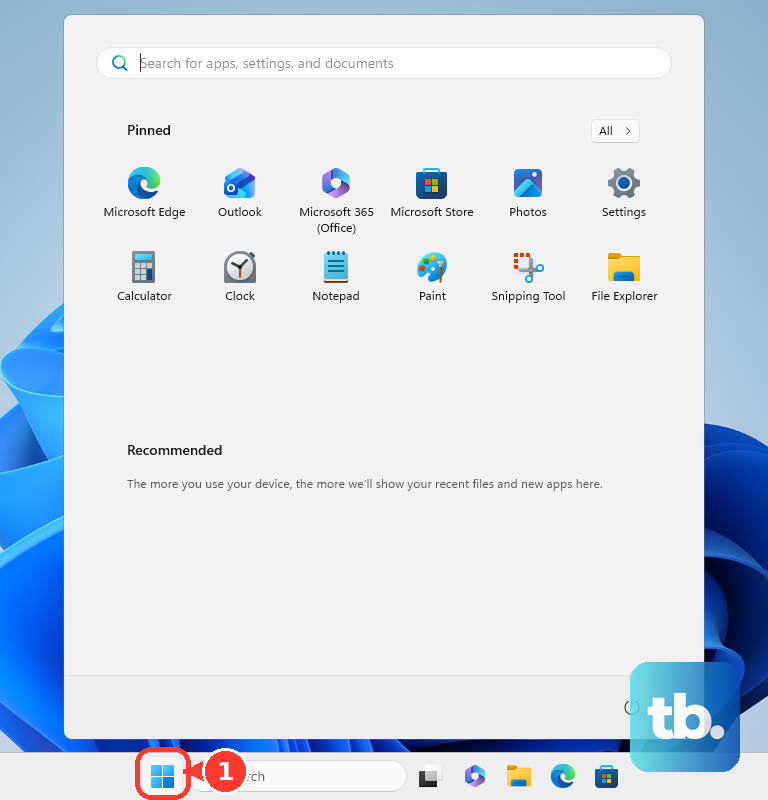
Open the Start Menu, type "Device Manager," and open it. Expand the Mice and other pointing devices section. Right-click on the device listed (it might be called an ASUS Precision Touchpad, ELAN, or Synaptics device) and select Update driver. For a cleaner fix, choose Uninstall device, restart your laptop, and let Windows reinstall a fresh driver. I'd then grab the latest official driver from the ASUS support page for your specific G16 model for full gesture support.
Check Armoury Crate for Conflicts
Since the Zephyrus G16 is heavily integrated with Armoury Crate for system control, it's worth checking there. Open Armoury Crate and look for any device settings or profiles that might affect input. Occasionally, an update to Aura Sync (the RGB control software bundled with it) can cause conflicts with other system inputs, so ensure all Armoury Crate components are updated through the app itself.
Clean the Touchpad Surface
Gaming sessions can leave oils, sweat, or crumbs on the touchpad surface, which can interfere with its capacitive sensors. Power off the laptop, then gently wipe the touchpad with a microfiber cloth slightly dampened with water. Make sure it's completely dry before turning the laptop back on.
Verify the Setting in BIOS
Restart your Zephyrus G16 and press F2 repeatedly as it boots to enter the BIOS. Use the arrow keys to navigate to the Advanced tab. Look for an option related to the internal pointing device or touchpad and ensure it is set to Enabled. Save and exit (usually F10).
Run Windows System File Checker
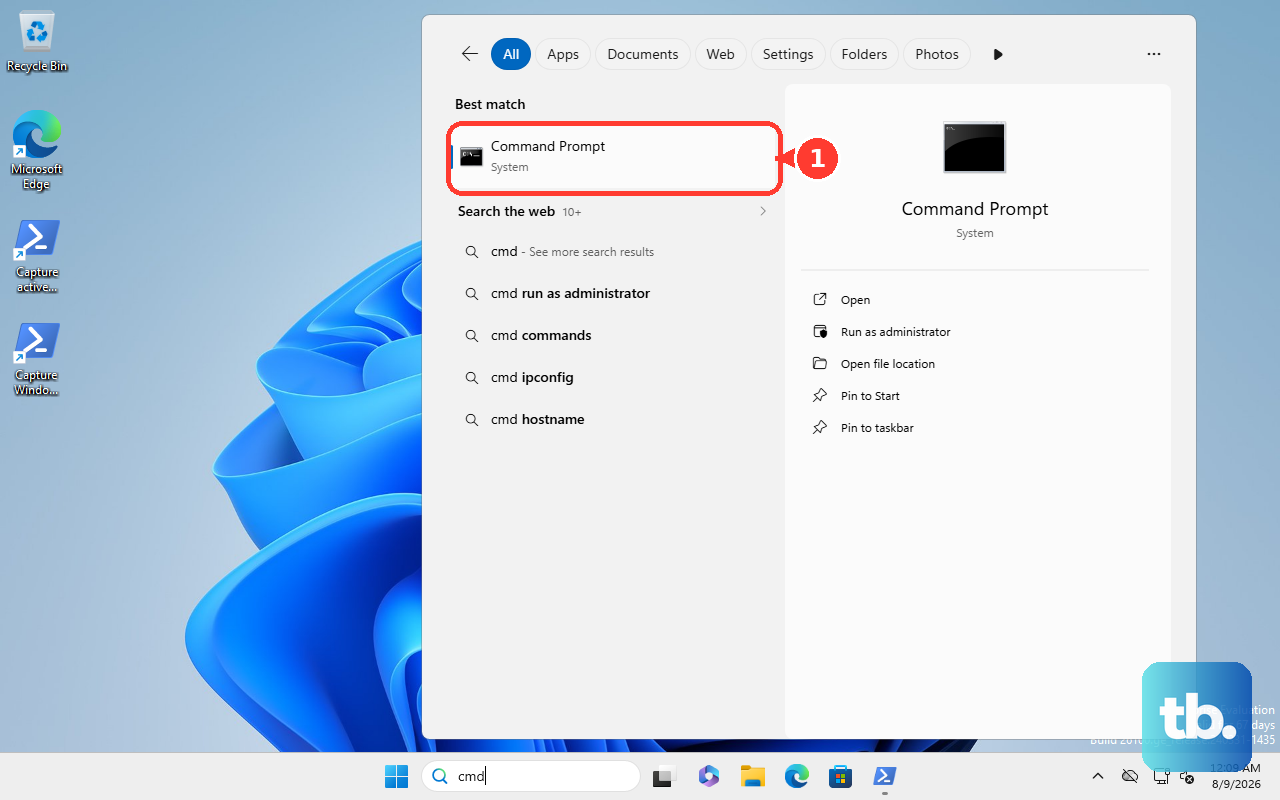
Corrupted Windows system files can sometimes break hardware inputs. Right-click the Start button and select Terminal (Admin) or Command Prompt (Admin). Type the command sfc /scannow and press Enter. Let the scan complete and repair any files it finds, then restart your laptop.
Consider a Windows Reset or Hardware Check
If the touchpad is still dead after all these steps, you can try a Windows reset while keeping your files. Go to Settings > System > Recovery and choose Reset this PC. If the touchpad doesn't work even in the BIOS menu or a Windows installation USB, the issue is likely physical. It could be a loose internal ribbon cable, which is a common issue after travel or if the laptop was recently opened for an SSD upgrade or liquid metal maintenance.