Your Apple Watch Series 9 is supposed to last all day, but if you keep glancing down to find the battery already deep into the red by mid-afternoon, something is pulling more power than it should. Apple rates Series 9 for roughly 18-hour all-day battery life, so a watch that needs a midday charge after months of dependable service usually points to a setting, a software hiccup, or a battery that has simply aged.
The good news is that most fast-drain problems on Series 9 come down to features you can adjust in a couple of taps. Work through the fixes below in order, starting with the safest and easiest, and only move to the resets and service options near the end if the drain refuses to budge.
Start With Connectivity and Where Your iPhone Is
One of the most overlooked battery drains is your watch hunting for a signal. Apple advises keeping your Apple Watch and iPhone within range of each other so the watch can offload work to the phone instead of doing it all itself. When the two devices are close, your Series 9 leans on the iPhone for some tasks and uses less of its own power.
Network choice matters too. Where you can, stay on Wi-Fi rather than cellular, because Wi-Fi uses less battery power than cellular networks. This is especially relevant on the GPS + Cellular (LTE) model, which can keep an LTE/UMTS connection alive even when your phone is nearby.
Weak coverage is a quiet battery killer. In areas with a poor signal, your watch constantly searches for a connection, which burns power fast. Connect to a strong network when you can, or turn on Airplane Mode to stop the watch from endlessly scanning.
Switch On Low Power Mode for Instant Relief
Low Power Mode is the fastest way to stretch a fading battery. It turns off or changes power-hungry features such as the Always On display and some background measurements, so your watch sips power instead of gulping it. To enable it:
- 1.Press the side button to open Control Center.
- 2.Tap the battery percentage.
- 3.Turn on Low Power Mode.
- 4.To confirm your choice, scroll down, then tap Turn On.
If you want it to stay on past today, tap Turn On For and pick On for 1 Day, 2 Days, or 3 Days. This is handy on travel days or when you know you won't reach a charger for a while.
Turn Off the Always On Display
Keeping the screen lit at all times is one of the bigger ongoing drains on Series 9. If you can live with raising your wrist to wake the watch, disabling Always On can noticeably reduce battery use.
On your Apple Watch, open Settings. Next, tap Display & Brightness, then scroll down and tap Always On. Turn off the feature.
The screen still lights up when you raise your wrist or tap it, so you lose very little day to day while saving meaningful power.
Stop Apps From Refreshing in the Background
Apps that quietly update in the background can chip away at your battery throughout the day. Turning off Background App Refresh stops them from doing that work when you aren't using them.
On your watch, open the Settings app. After that, tap General, then tap Background App Refresh. Turn off Background App Refresh to prevent all apps from refreshing, or scroll down and turn off refresh for individual apps.
One thing to keep in mind, apps with complications on your current watch face will continue to refresh regardless, since they need fresh data to show on screen. If a particular complication-heavy face is draining you, switching to a simpler face can help.
Tame Long Workouts and Audio Playback
If your battery plummets during exercise, the constant GPS and heart rate sampling is usually the culprit. Series 9 (on watchOS 9.1 or later, on supported models) offers a setting that eases that load.
To turn it on, open Settings. From there, tap Workout. Turn on Fewer GPS and Heart Rate Readings.
Audio is another hidden drain. Playing music or podcasts through the watch's built-in speaker uses more power than streaming to AirPods or another Bluetooth audio device, so route media to a Bluetooth accessory when you can.
Install the Latest watchOS Update
Software updates often include fixes that improve battery performance, so running the latest watchOS is worth doing before you assume your hardware is at fault. Series 9 is supported up to watchOS 11.
You can update directly on the watch or through your iPhone. To update on the watch, go to Settings > General > Software Update and tap Install if an update is available. To update from your iPhone, open the Apple Watch app, then go to My Watch > General > Software Update > Download and Install.
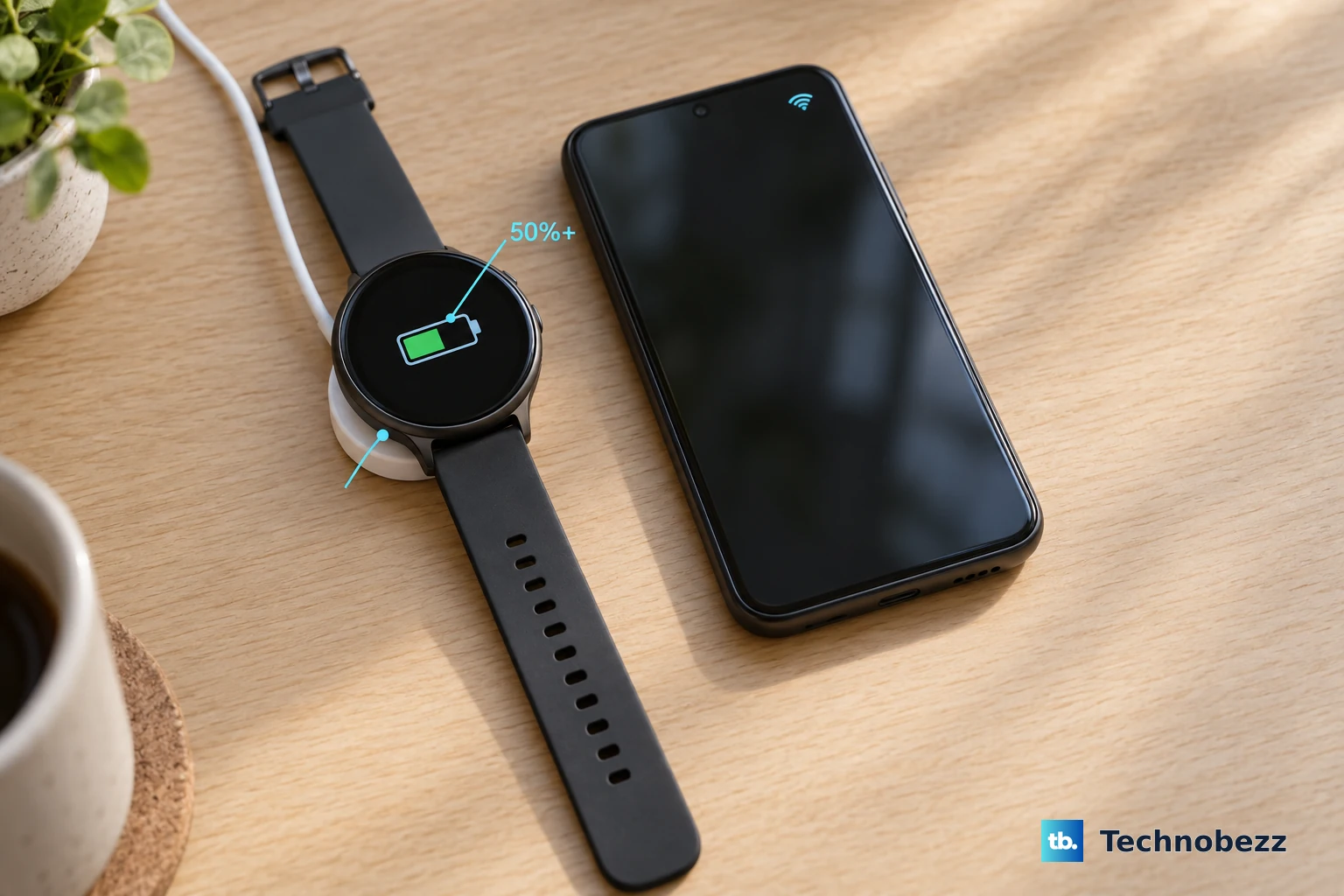
For either method, keep the watch at least 50% charged and on its charger, and make sure your iPhone is on Wi-Fi. After installing an update, wait several days before judging battery life, because the watch reindexes data behind the scenes and can use extra power temporarily during that period.
Check Your Battery's Maximum Capacity
Every rechargeable battery is a consumable that holds less charge as it chemically ages, so a Series 9 that once lasted all day will naturally run shorter over time. Checking Maximum Capacity tells you whether age is the real issue.
On the watch, go to Settings > Battery > Battery Health. Look at Maximum Capacity. A lower maximum capacity means shorter runtime, and there is no setting that reverses chemical aging.
If Maximum Capacity has dropped low or Battery Health indicates the battery should be serviced, that is your sign the battery itself needs attention from Apple rather than further tweaking.
Temporarily Adjust Optimized Charge Limit
Series 9 has a built-in charging caveat worth understanding. Optimized Battery Charging is always on for Apple Watch Series 9 and cannot be disabled, so you won't find a toggle for it.
What you can adjust is Optimized Charge Limit, and only temporarily. To do that, open Settings, scroll down and tap Battery. Then tap Battery Health, turn off Optimized Charge Limit, and choose Turn Off Until Tomorrow or Turn Off.
Be deliberate here. Apple warns that turning off Optimized Charge Limit can increase wear on your battery and reduce its lifespan, so use it only when you genuinely need a fuller charge for the day, then re-enable it afterward to protect long-term battery health.
Force Restart a Frozen or Misbehaving Watch
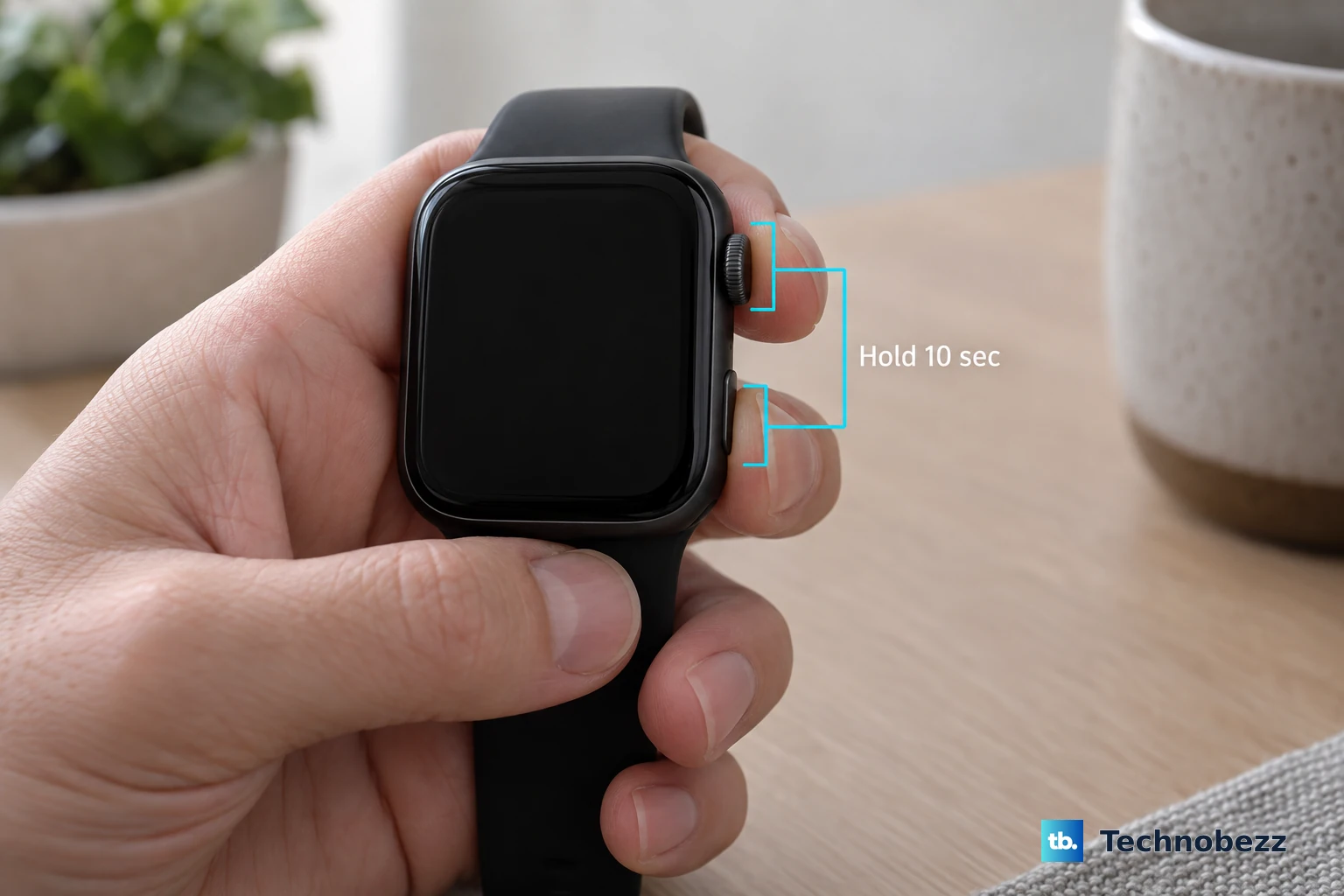
If your battery use is clearly abnormal and the watch feels frozen or unresponsive, a force restart can clear a stuck process that a normal restart can't reach. Hold down the side button and the Digital Crown at the same time for at least 10 seconds, until the Apple logo appears. Reserve this for when the watch is genuinely unresponsive.
If the watch is working but you simply want to restart it, press and hold the side button until the sliders appear, tap the Power Button, then drag the Power Off slider to the right; to turn it back on, hold down the side button until the Apple logo appears. Note that you cannot restart the watch while it is charging.
Unpair and Re-Pair as a Last Resort
If the drain persists after everything above, unpairing and re-pairing gives your Series 9 a clean software slate. Before you start, know that this erases the watch. A backup of its contents is created on your iPhone first, so you can restore your data afterward, but do confirm that backup exists before relying on it.
Keep the watch and iPhone together. Open the Apple Watch app on your iPhone. Next, tap My Watch > All Watches, then tap the info button next to your watch. Tap Unpair Apple Watch, then confirm.
Unpairing this way also removes Activation Lock. Once it finishes, set the watch up again and choose Restore from Backup to bring your settings and data back.
If you ever erase the watch directly on the device instead (Settings > General > Reset > Erase All Content and Settings), be aware that method also erases everything on the watch and restores factory settings, but it does not remove Activation Lock.
When to Bring in Apple Support
Some battery problems are hardware, not habits. If Maximum Capacity has fallen low, if Battery Health indicates the battery should be serviced, or if the drain continues after you have worked through every fix above, it's time to contact Apple Support.
They can check the watch and, if needed, arrange a battery service or repair, which is the right path once a chemically aged battery is the limiting factor.
Frequently Asked Questions
How long should the Apple Watch Series 9 battery last on a charge?
Apple rates the Series 9 for all-day 18-hour battery life, and up to 36 hours when you use Low Power Mode. Real-world results vary with workouts, the Always On display, connectivity, and how chemically aged your battery is.
Can I turn off Optimized Battery Charging on my Series 9?
No. On Apple Watch Series 9, Optimized Battery Charging is always on and cannot be disabled. You can only turn off Optimized Charge Limit, and only temporarily, by choosing Turn Off Until Tomorrow or Turn Off in Settings > Battery > Battery Health.
Why did my battery get worse right after a watchOS update?
Updates can temporarily affect battery life because the watch reindexes data in the background after installing. Wait several days before judging battery performance, and only then decide whether the drain is genuinely worse.
Does the cellular Series 9 use more battery than the GPS model?
Cellular connections use more power than Wi-Fi, so staying on Wi-Fi where possible helps. The GPS + Cellular Series 9 connects over LTE/UMTS, and in weak-coverage areas it can drain faster as it searches for signal, so turning on Airplane Mode or joining a strong network reduces that load.
What should I do if my battery health is low?
If Maximum Capacity has dropped or Battery Health indicates the battery needs service, that points to a battery that has aged to the point where settings changes won't help much. Contact Apple Support to have the watch checked and, if needed, arrange a battery service or repair.