Maybe your contacts are texting to ask why you sent them a strange link. Maybe you keep getting bumped offline, or your inbox suddenly went quiet. Whatever tipped you off, you want to know one thing fast: did someone actually get into your AOL account, and how do you lock them out?
When you reset credentials, use a random password generator rather than inventing a variation of the old password. Random passwords generated locally in the browser are far harder to crack or guess.
This guide walks you through it in order, quickest and most-common checks first. You will confirm whether you were truly hacked (or just spoofed, which is a different problem), then secure the account step by step across the web, the AOL mobile app, and native mail apps like Apple Mail and Outlook.
Work through the steps in sequence. The early ones take seconds and rule out false alarms; the later ones close the doors an attacker leaves open.
Confirm It Is a Hack, Not Spoofing
Before you change anything, open your Sent folder in AOL Mail. This single check tells you which problem you actually have.
Per AOL, your account has been compromised when you find email in your Sent folder that you did NOT send. If you do not find any strange email there, your account has most likely been spoofed instead.
Spoofing means someone sends emails that look like they came from your address, using a non-AOL server, without ever accessing your account. The tells are: contacts receiving emails you did not send, spam arriving from your own address, and MAILER-DAEMON bounce messages that do not match anything you sent.
For pure spoofing, you do not need to reset your password. Report the messages as spam and move on. Only continue with the security steps below if there are messages in Sent you did not write.
Recognize the Other Signs of a Hacked Account
A strange Sent folder is the clearest signal, but AOL lists several others worth checking:
- You are not receiving any emails.
- Your AOL Mail is sending spam to your contacts.
- You keep getting bumped offline while signed in.
- You see logins from unexpected locations on your recent activity page.
- Your account info or mail settings changed without your knowledge.
- Your inbox is full of MAILER-DAEMON notices for messages you did not send.
- Your Address Book contacts were erased, or there are new contacts you did not add.
Change Your Password Immediately
If you can still sign in, change the password first. In a desktop or mobile browser, go to your AOL Account security page, click Change password, enter the new password, and click Continue.
From the AOL mobile app, tap the Menu icon, then Manage Accounts > Account info > Security settings, enter your security code, tap Change password, and enter the new one. If the in-app steps do not work, AOL says to use the mobile browser method instead.
Choose a strong password you have not used anywhere else. Reused passwords are a primary way accounts get taken over in the first place.
Recover Access If You Are Locked Out
If an attacker already changed your password, use the Sign-in Helper at the AOL forgot-password page. Enter one of your recovery items, a recovery mobile number or an alternate email address, then follow the instructions it gives you.
Be aware of AOL's stated limitation: if your recovery info is wrong or inaccessible, you may not be able to regain access. An attacker who changed both your recovery phone and email can lock you out for good if you have no other verification. AOL offers paid live help through AOL Customer Care, and the last resort is creating a new account and keeping its recovery info current.
One caution: many top search results for AOL recovery are third-party "support" sites, not AOL. AOL never asks for your password by email or phone. Start only from AOL's official help pages.
Delete App Passwords You Do Not Recognize
This is the step most people miss, and it is the one that matters most. App passwords remain active even after you change your main account password. To cut off an attacker (or a rogue app) connected through one, you must delete it.
Sign in to your AOL Account Security page, click Generate and manage app passwords, click Delete next to any app password you do not recognize, then click Delete again to confirm.
Changing your password alone does NOT lock out an attacker using an app password. Review the full list and remove anything unfamiliar before moving on.
Review Recent Activity and Connected Apps
In a desktop or mobile browser, sign in and open the Recent activity page. Three sections matter here:
- 1.Recent activity: devices or browsers that recently signed in.
- 2.Apps connected to your account: apps you have given permission to access your info.
- 3.Recent account changes: the last 3 password changes; click show all to see every change.
Click any entry to see its IP address and the date and time it was collected. For anything you do not recognize, click Sign out or Remove, then change your password again immediately.
Do not panic over an unfamiliar location alone. AOL notes these can come from your mobile device detecting the wrong location or an internet provider using a proxy server. Verify the IP and timing before assuming the worst.
Revert Mail Settings the Attacker Changed
After getting in, attackers quietly change settings to intercept or hide your mail. In a desktop browser, sign in to AOL Mail, click the Settings gear icon, then More Settings. Audit each of these for changes you did not make:
- General Settings: your Sender Name Display (display name) and the Mail Away message.
- Compose Settings: your email signature.
- Security: blocked and unwanted senders.
Check Filters for Hidden Mail Rules
A single malicious filter can silently send your incoming mail, including password-reset emails, to Trash or another folder. From More Settings, click Filters.
AOL Mail supports up to 500 filters and applies them top-down by priority, so a hidden rule can sit among legitimate ones. Review the entire list, the target folder for each filter, and the order. To remove a bad one, select it and click the Delete icon. To fix one, select it, correct the rules or folder, and click Save.
Turn Off Any Unexpected Vacation Response
An attacker-set auto-reply can leak an "I'm away" message or push a scam reply to everyone who writes you. From More settings, go to Vacation response and toggle Enable vacation response off if you did not set it.
Update Your Recovery Options
Make sure your recovery email and phone are yours, and remove any an attacker added. In a browser, go to your Account Security page and scroll to the bottom.
To add, click Add email or Add phone number and follow the prompts to verify. To replace an entry, add the new one first, then click remove next to the old one. To delete an attacker's entry, click Remove next to it and confirm. AOL also advises replacing security questions with email or phone recovery options.
Enable Two-Step Verification
Two-step verification adds a code on top of your password, so a stolen password alone is no longer enough. On your Account Security page, next to 2-Step Verification, click Turn on, select Phone number, and follow the prompts. After that, each sign-in asks for the code sent to your phone.
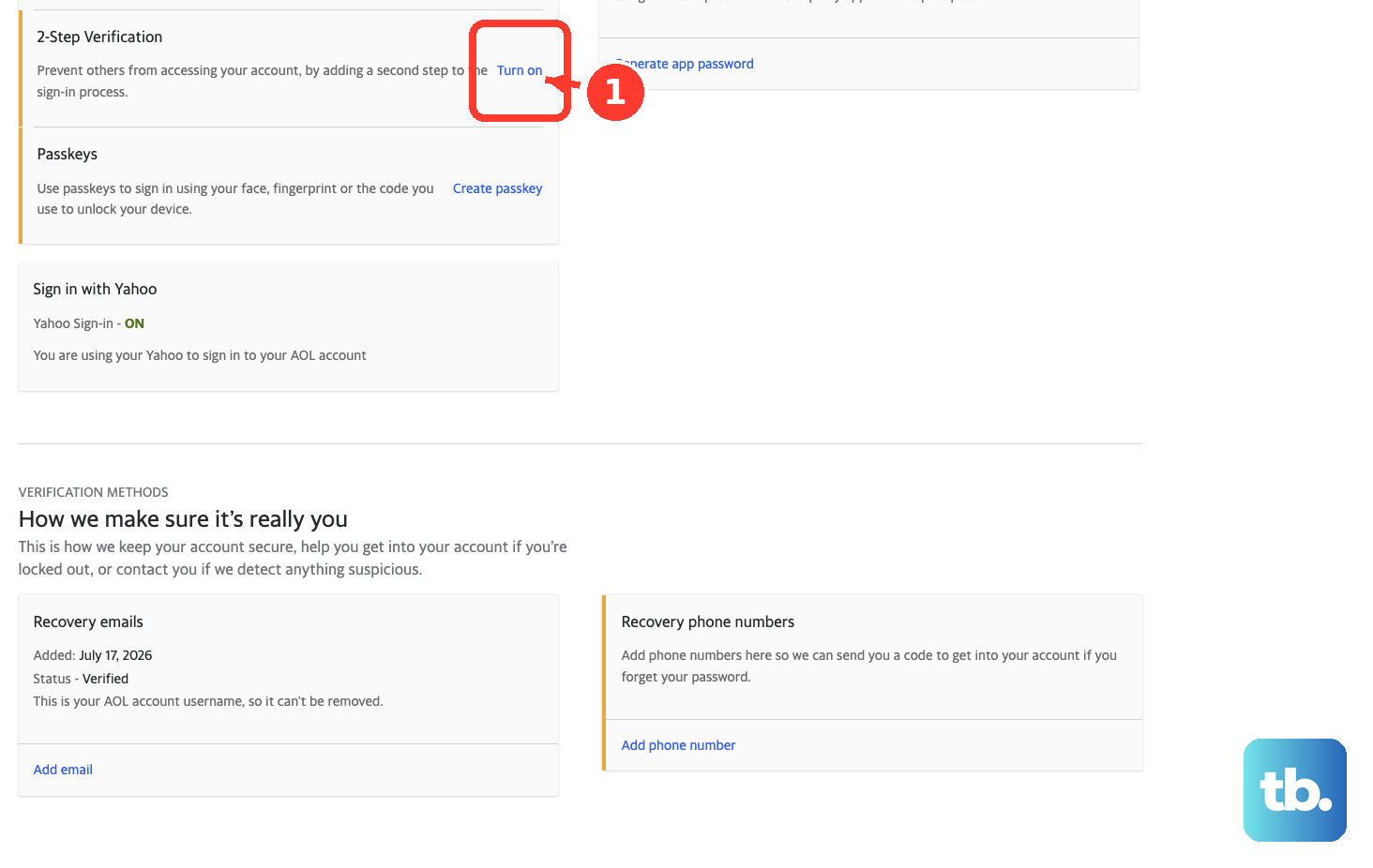
To use an authenticator app instead (Google Authenticator, Microsoft Authenticator, LastPass Authenticator, or Authy), you need at least 2 recovery methods on the account. Click Turn on 2SV > Get started, select Authenticator app, scan the QR code, enter the code, and click Done. The authenticator option may not yet be available for all accounts, so phone-based verification is the reliable fallback.
Run Antivirus and Lock Down Everything Else
Info-stealer malware is a common entry path, so make sure reputable, updated antivirus software is installed and scan your devices. Then treat the breach as bigger than one account.
AOL calls changing all your passwords mandatory, because if one account is hacked there is no way to know the others are safe. Prioritize any account that shared your AOL password. Review financial accounts (even rarely-used ones) and request new card numbers or PINs if anything looks off. Check your credit reports for accounts opened in your name, enable two-factor authentication wherever it is offered, and notify your contacts so they can ignore fraudulent messages from your address.
Re-add the Account in Your Mail Apps
After a password change, native mail apps keep failing until you enter the new password in each one.
In Apple Mail on Mac, open Mail > Settings, choose your AOL Mail account, open the Server Settings tab, delete and re-enter your password in both the Incoming and Outgoing sections, and click Save. If the settings are not editable, remove and re-add the account.
On iPhone or iPad, the path depends on your iOS version. On iOS 17, go to Settings > Mail > Accounts, select your AOL Mail account, tap Re-enter Password, enter your username and password, and if prompted enter the verification code and tap Next, then tap Continue > Done > Agree. On iOS 18, go to Settings > Apps > Mail > Mail Accounts, select the account, tap Re-enter Password, enter your credentials, and if prompted enter the code and tap Next, then tap Save.
In Outlook for Windows, open File > Account Settings > Manage Profiles > Email Accounts, double-click your AOL account, remove and re-enter your password, wait for the Completed status, and click Close. If you use an app password, you may need to delete the old one and generate a new one from your AOL security page.
Frequently Asked Questions
I changed my password but the hacker still seems to have access. Why?
Almost certainly an app password. These stay active even after you change your main password, so an attacker or rogue app can keep reading your mail. Go to your Account Security page, open Generate and manage app passwords, and delete any you do not recognize.
My contacts got spam from me, but my Sent folder is empty. Was I hacked?
Most likely not. An empty Sent folder points to spoofing, where someone forges your address from a non-AOL server without touching your account. Resetting your password will not stop it. Report the messages as spam instead.
An unfamiliar location showed up in my recent activity. Does that mean I was hacked?
Not on its own. AOL says unfamiliar locations can come from your mobile device detecting the wrong location or an internet provider using a proxy server. Click the entry to check the IP address, date, and time before assuming a breach.
What if the attacker changed my recovery email and phone and I cannot get back in?
Use the Sign-in Helper with any recovery item you still control. If your recovery info is wrong or inaccessible, AOL warns you may not be able to regain access. You can try AOL's paid live support, and as a last resort create a new account and keep its recovery details current.
How would someone get into my account in the first place?
The common paths are a weak or reused password, a phishing message that tricked you into entering your credentials, or info-stealer malware on your device. AOL never asks for your password by email or phone, so treat any such request as a scam.
Why generate app passwords in a browser I use regularly instead of Incognito?
AOL advises generating app passwords in a browser you have signed into AOL Mail with for several days in a row, and avoiding Incognito mode, or the generation may fail. Do this only after deleting any unrecognized app passwords.