You set your AirPods Max (USB-C) down in the rain, got caught in a sudden downpour, or watched a drink splash across the headband, and now you are staring at a damp pair of premium headphones wondering whether they are ruined. Because the AirPods Max with USB-C are not waterproof or water resistant, what you do in the next few minutes matters far more than the water itself. The biggest mistakes are usually the ones people make trying to "help," like charging immediately or reaching for heat, so this guide walks you through exactly what Apple's official guidance supports and nothing it warns against.
A browser based headphone test makes this easy to confirm. If both sides play test tones correctly there, the headphones are fine and the problem is in the device or app.
Work through these fixes in order. The first steps are the safest and most important, and the later ones only come into play once your headphones are completely dry. If your pair still will not behave after drying, the final section covers the official reset and the service path.
Stop everything and unplug them right away
The single most important move is to stop using your AirPods Max the moment they get wet. They and the Smart Case are not waterproof or water resistant, so continuing to listen or charging through a wet headphone risks the device. Apple's guidance is direct: "Don't attempt to use them until they're completely dry."
If the USB-C cable is plugged in, disconnect it. Try to avoid pressing the Digital Crown or the listening mode button while moisture may still be present, since you do not want to drive liquid deeper into the device or send power through a wet circuit.
Wipe the headphones down with a dry microfiber cloth
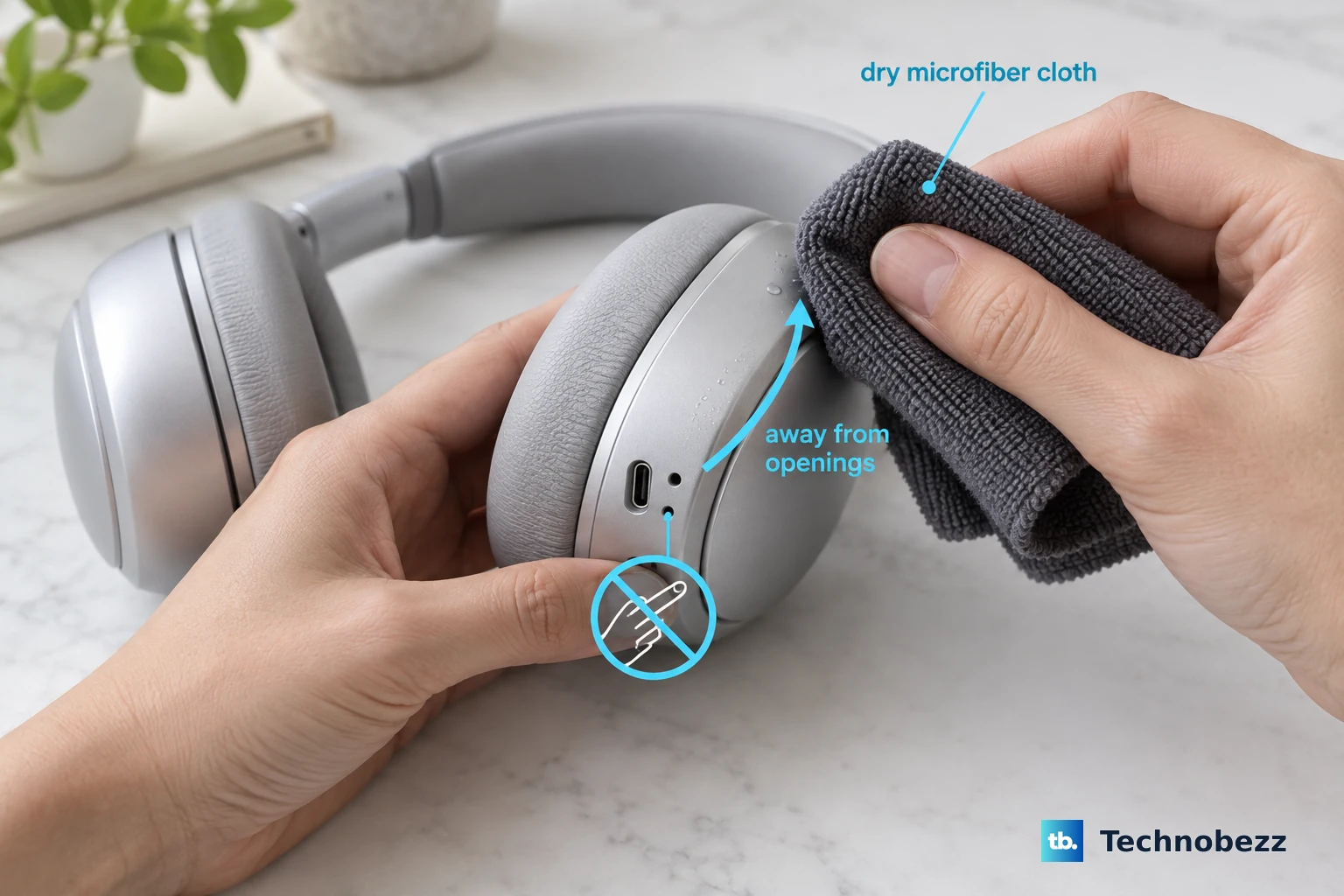
Once you have stopped using them, dry the outside gently. Apple's official cleaning guidance for liquid contact is clear: "If your AirPods Max or Smart Case come in contact with liquid, wipe them down with a dry microfiber cloth."
Be deliberate about where the moisture goes. The headphones are not waterproof or water resistant, so be careful not to get moisture in any openings, including the microphone ports, the charging port, and the mesh. Blot and wipe rather than rubbing liquid toward those openings, and resist the urge to poke anything into the ports to "dry" them.
Keep them off the charger until they are completely dry
This is the rule that saves the most headphones. Do not connect the USB-C cable to a damp pair under any circumstances. Apple's safety guidance warns that "Using damaged cables or chargers, or charging when moisture is present, can cause fire, electric shock, injury, or damage to AirPods, the charging case, or other property."
Keep the USB-C cable out of the bottom-right earphone until the headphones are completely dry. It can be tempting to plug in just to "check if they still work," but that single act is exactly what the safety warning is about, so wait it out instead.
One more thing to skip. Apple does not endorse rice or any heat or blow-dry method, so do not use them. There is no shortcut that beats patient air-drying, and heat or forced air can do more harm than the water did.
Lay them flat and let them air-dry for at least a day
Air-drying is the only Apple-sanctioned drying method, and it asks for patience. Apple's official drying instruction is specific: "Lay your AirPods Max flat to dry for at least a day before you reattach the cushions and use them again."
So remove or set aside the ear cushions if they came off, lay the headphones flat in a dry spot, and give them at least a full day. Wait until they are completely dry before you power them on, connect them, or charge them. Rushing this step is how a recoverable splash turns into permanent damage.
Restart, then reset to factory settings if they still misbehave
Once your AirPods Max are completely dry, it is finally safe to try powering them up. If they will not turn on, connect, or charge, start with the gentlest recovery step. First, charge them to at least 50 percent before you restart or reset.
To restart (the lighter step), work on the right headphone. Press and hold the Digital Crown and the listening mode button at the same time until the status light next to the charging port flashes amber (around 10 seconds), then immediately release the buttons. Timing matters here, because holding past about 10 seconds proceeds to a factory reset, so release as soon as you see the amber flash if you only want a restart.
If problems persist after a restart, you can reset to factory settings. Note that this clears your settings on the headphones, so use it only when a restart did not help. The official sequence is: "Press and hold the listening mode button and the Digital Crown for 15 seconds, until the LED flashes amber, then white." Watch for that full amber-then-white pattern, which confirms the reset completed.
- 1.Charge your AirPods Max to at least 50 percent.
- 2.On the right headphone, press and hold the Digital Crown and the listening mode button at the same time until the status light next to the charging port flashes amber (around 10 seconds), then immediately release the buttons.
- 3.If issues continue, press and hold the listening mode button and the Digital Crown for 15 seconds, until the LED flashes amber, then white, to reset to factory settings.
Forget the device, re-pair, and refresh the firmware
Sometimes the headphones power up fine after drying but the audio or connection is glitchy. In that case, on your iPhone or iPad go to the Settings app, tap the name of your AirPods near the top of the screen, then tap Forget This Device, and re-pair them. Keep in mind what Apple says about this action: "This removes the AirPods from all the devices where you're signed in to the same Apple Account." After forgetting them, put them back into pairing range to re-pair and use them again.
It is also worth confirming the firmware is current, since a clean pairing plus up-to-date firmware clears up many post-drying quirks. To check the version, go to Settings, then Bluetooth, then tap the Info button next to your AirPods, then scroll down to the About section to find the firmware version. You do not install firmware manually, because updates are delivered automatically while your AirPods are charging and in Bluetooth range of an iPhone, iPad, or Mac that is connected to Wi-Fi.
If you specifically want lossless audio over USB-C, note the system requirement. Lossless audio over USB-C requires iOS 18.4, iPadOS 18.4, or macOS Sequoia 15.4 or later, plus the latest AirPods firmware.
When drying is not enough, order a replacement or arrange service
If your AirPods Max are still damaged after they have completely dried, the water may have caused harm that drying and resetting cannot fix. Apple addresses this directly: "If your AirPods Max become damaged after they get wet, you can order a replacement."
Be aware of the warranty situation before you reach out. Liquid damage typically is not covered by the Apple Limited Warranty, but you may be able to replace your headphones for an out-of-warranty fee, or use repair or Express Replacement Service. Apple's service options for AirPods Max include mail-in repair with a prepaid shipping box, in-person service at a Genius Bar or an Apple Authorized Service Provider, and Express Replacement Service.
To get started, contact Apple Support with your serial number ready. Having the serial number on hand makes it faster for an advisor to check your options and quote any out-of-warranty cost.
Frequently Asked Questions
Are the AirPods Max (USB-C) waterproof or water resistant?
No. The AirPods Max with USB-C are explicitly not waterproof or water resistant, and the Smart Case is not either. There is no submersion or rinse tolerance to rely on, so any liquid contact should be treated as a drying-and-recovery situation, not something the headphones are built to shrug off.
How long should I wait before charging my AirPods Max after they get wet?
Wait until they are completely dry. Apple's guidance is to lay your AirPods Max flat to dry for at least a day before you reattach the cushions and use them again, and never to charge while moisture is present. Charging when moisture is present can cause fire, electric shock, injury, or damage, so the USB-C cable should stay out of the bottom-right earphone until the headphones are fully dry.
Can I use rice or a hairdryer to dry them faster?
No. Apple does not endorse rice or any heat or blow-dry method, so avoid them. Air-drying is the only Apple-sanctioned drying method, so wipe the headphones with a dry microfiber cloth, then lay them flat to dry for at least a day.
What is the difference between restarting and resetting my AirPods Max?
A restart is the lighter step. On the right headphone, press and hold the Digital Crown and the listening mode button until the status light flashes amber (around 10 seconds), then release immediately. A factory reset goes further and clears your settings, so press and hold the listening mode button and the Digital Crown for 15 seconds, until the LED flashes amber, then white. Because holding past about 10 seconds proceeds to a reset, release promptly if you only intended to restart. Charge to at least 50 percent before doing either.
Will water damage be covered by my warranty?
Liquid damage typically is not covered by the Apple Limited Warranty. You may still be able to replace your headphones for an out-of-warranty fee, or use repair or Express Replacement Service. Contact Apple Support with your serial number ready to see your options.