
Screen flickering on your Acer Swift Go 14 is incredibly distracting, turning a simple task into a frustrating ordeal. The display might flash, show horizontal lines, or have intermittent blackouts. Let's get it fixed.
If the fault comes and goes, an online monitor test helps you reproduce it on demand with solid colors and gradient patterns.
I'd start by checking the Acer Care Center software that came pre-installed on your laptop. Open it and run a system checkup. It can often identify and update outdated or corrupted drivers, including display drivers, which are a very common culprit for flickering screens.
Update Your Graphics Drivers
For the most reliable fix, get your drivers straight from the source. If your Swift Go 14 has an Intel Arc GPU, visit Intel's driver website. For models with NVIDIA graphics, go to NVIDIA's site. Download and install the latest driver package for your specific model.
Using the manufacturer's driver is usually better than relying on Windows Update for graphics. After installing, restart your laptop to see if the flickering has been resolved. This step fixes the issue a majority of the time.
Check Your Refresh Rate Settings
Right-click on your desktop and select Display settings. Scroll down and click on Advanced display. Look at the refresh rate listed for your display. The Swift Go 14 often has a high refresh rate panel.
Try switching the refresh rate to a different option. If it's set to 120Hz, try 60Hz. Sometimes a mismatch between the panel, driver, and Windows setting can cause persistent flickering or screen tearing.
Boot Into Safe Mode to Isolate the Problem
If the flickering is constant, restart your laptop. As soon as the Acer logo appears, press and hold the power button for about 10 seconds to force it off. Turn it on again, and when the logo appears, force it off once more.
Do this one more time. On the next startup, Windows will enter the Automatic Repair environment. From there, you can navigate to Troubleshoot > Advanced options > Startup Settings and restart to enable Safe Mode. If the screen is stable in Safe Mode, a third-party app or driver is causing the problem.
Disable Hardware Acceleration in Apps
Some applications, particularly web browsers like Chrome or Edge, can cause flickering when they try to handle graphics independently. In Chrome, go to Settings > System and turn off Use hardware acceleration when available.
Other apps like Discord, Slack, or streaming software have similar settings in their preferences. Disabling this feature forces the app to use standard Windows rendering, which can eliminate app-specific screen issues.
Inspect Your Thunderbolt or USB-C Connections
The Swift Go 14's Thunderbolt 4 port is powerful, but compatibility with some docks and monitors can be finicky. If you're using an external monitor and it's flickering, the issue is likely with the dock or cable.
Try connecting the monitor directly to the laptop's HDMI port if it has one, or use a different USB-C to HDMI/DisplayPort adapter. Also, ensure any external dock has its own power supply connected, as insufficient power can cause display instability.
Roll Back a Recent Display Driver Update
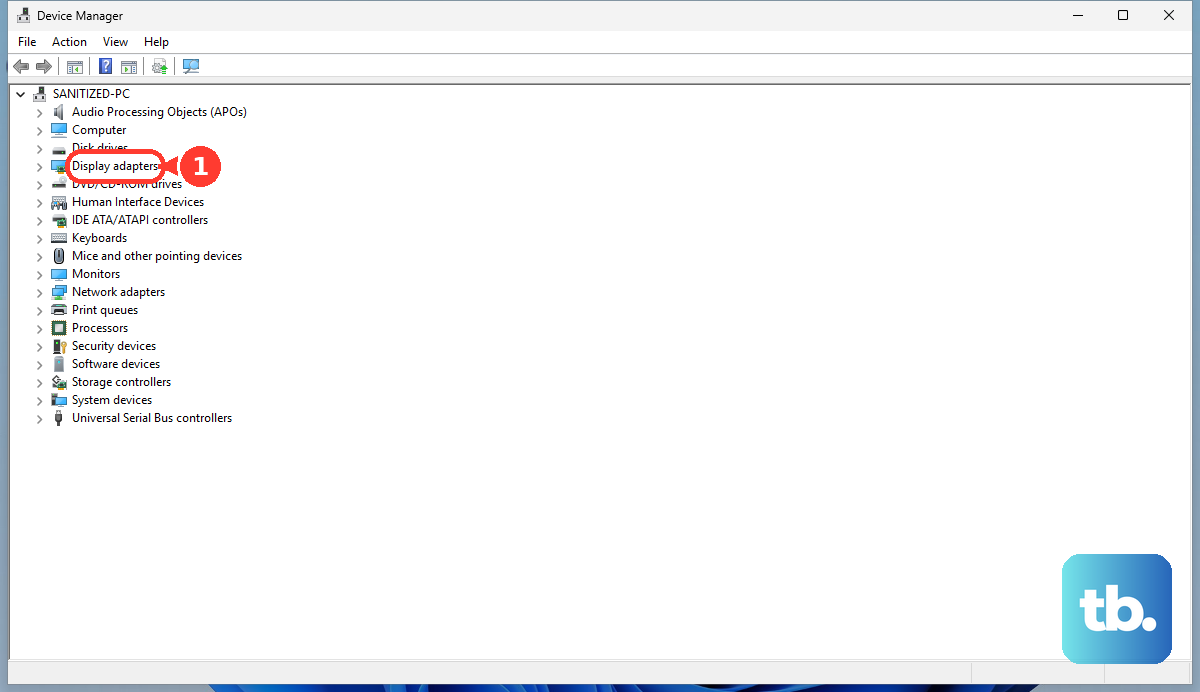
If the flickering started right after a Windows Update or a driver you installed, rolling back can help. Press the Windows key + X and select Device Manager. Expand Display adapters, right-click your GPU, and select Properties.
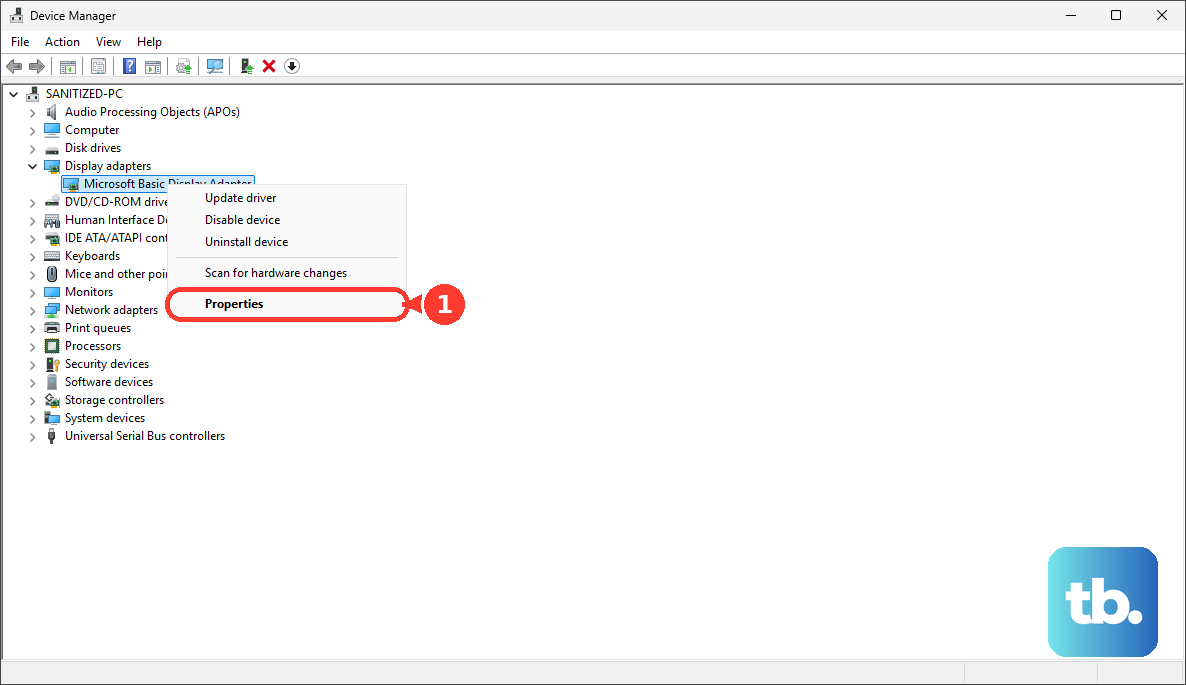
Go to the Driver tab and click Roll Back Driver. If the option is grayed out, Windows doesn't have a previous version stored. After rolling back, restart your laptop to see if the previous driver was more stable.
Run a Windows Memory Diagnostic
While less common, faulty system memory (RAM) can sometimes cause graphical glitches and screen artifacts. Press the Windows key, type "Windows Memory Diagnostic", and open the tool. Choose to restart now and check for problems.
The test will run as your laptop boots. It takes a few minutes. If it reports any memory errors, that could be contributing to your display problems and would require a hardware repair.
Check for Physical Display Issues
Pay attention to when the flickering happens. Does it change when you gently flex the laptop base or adjust the screen angle? If so, there might be a loose internal display cable or a connection issue with the OLED panel itself.
This is a hardware problem. Since the Swift Go 14 is a modern thin-and-light laptop, internal components are tightly integrated. Diagnosing and repairing a loose cable or panel issue typically requires opening the chassis, which is best left to a professional technician.
Make sure your Windows installation is completely up to date. Go to Settings > Windows Update and click Check for updates. Install all available updates, including optional driver updates. Microsoft frequently releases patches that can resolve compatibility issues causing display problems.