
When your Acer Swift Go 14 suddenly goes silent, it's usually a quick software setting or driver issue. The first thing I'd check is the most obvious one, as it's often the culprit.
A browser based speaker test helps narrow this down fast. If test tones play clearly, the speakers work and the problem lives in an app or setting.
Check the Volume and Output
Click the speaker icon in your taskbar and make sure the volume slider isn't all the way down or muted. Also, click the arrow next to the slider to see which output device is selected. If you recently unplugged headphones, Windows might still be trying to send audio to them. Select "Speakers" from that list.
Restart Your Laptop
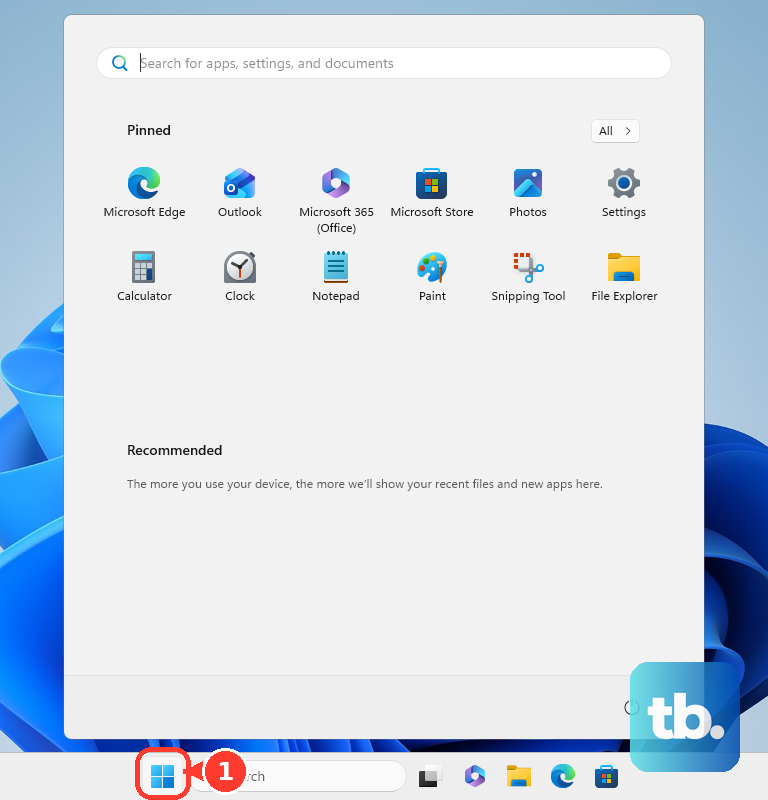
This simple step reloads all your audio drivers and clears any stuck processes. Click Start, then the power icon, and choose Restart. It's a surprisingly effective fix, especially if the sound stopped working after the laptop woke from sleep.
Run the Windows Audio Troubleshooter
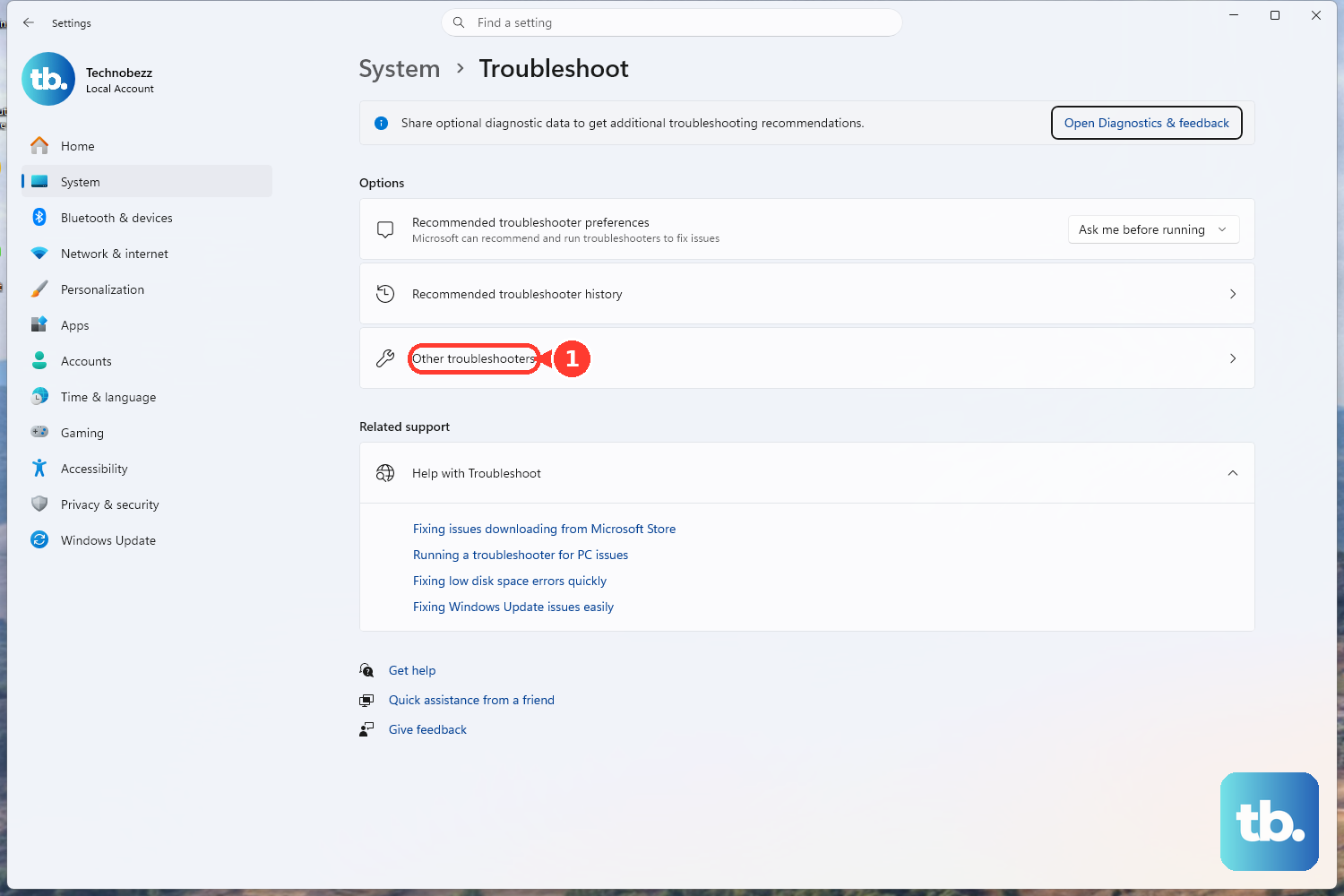
Go to Settings > System > Troubleshoot > Other troubleshooters. Find "Playing Audio" and click the Run button. This built-in tool will scan for common configuration problems, like disabled services or incorrect default devices, and can often fix them automatically.
Update Your Audio Drivers
Outdated or corrupted drivers are a common cause. Press Windows + X and select Device Manager. Expand "Sound, video and game controllers." Right-click your audio device (it might be listed as Realtek Audio) and choose "Update driver," then "Search automatically for drivers."
If that doesn't work, you can try a clean reinstall. Right-click the audio device again, select "Uninstall device," and check the box that says "Attempt to remove the driver for this device." Restart your Swift Go, and Windows will install a fresh driver.
Use Acer Care Center
Your Acer Swift Go 14 comes with a useful tool called Acer Care Center. Open it and look for a system checkup or driver update section. It can automatically find and install the correct, Acer-certified drivers for your specific model, which is sometimes more reliable than Windows Update.
Check the App Volume Mixer
Sometimes, the system volume is fine, but a specific app is muted. Right-click the speaker icon in the taskbar and select "Open Volume mixer." You'll see individual volume sliders for each open application. Make sure the app you're using isn't set to zero.
Disable Audio Enhancements
Audio processing features can sometimes conflict and cause no sound. Go to Settings > System > Sound. Click your speakers under Output, then scroll down to "Audio enhancements." Set this dropdown menu to "Off" and test your sound.
Restart the Windows Audio Service
Press Windows + R, type services.msc, and hit Enter. In the list, find "Windows Audio." Right-click it and select Restart. Do the same for the "Windows Audio Endpoint Builder" service. This forces the core audio components to reset.
Check for Physical Speaker Blockage
Take a quick look at the speaker grilles on your Swift Go 14, usually located along the sides or near the keyboard. Gently use a can of compressed air to blow out any dust or debris that might be physically blocking the sound. Be careful not to press the nozzle too close to the grille.
Perform a System Restore
If the sound stopped working after a recent Windows update or software installation, you can roll your system back. Type "Create a restore point" in the Windows search bar, open the System Properties window, and click "System Restore." Follow the prompts to choose a restore point from before the audio issue started.
For a more complete reset, you can use Acer's recovery. Restart your laptop and press Alt + F10 at the Acer logo to boot into the recovery environment, where you can choose to refresh Windows without deleting your files.