
Seeing a blue screen on your Acer Swift Go 14 right after an update is a jarring experience. It's Windows hitting the emergency brake because something went critically wrong, often due to a driver conflict or corrupted file introduced by the update process itself. The good news is you can almost always get things back on track with a few targeted steps.
Restart and See if It Happens Again
The first thing to do is a simple restart. Sometimes a driver fails to load correctly just once. If your Swift Go boots normally to the desktop and runs fine, it was likely a one-time glitch. If the blue screen reappears immediately or within a few minutes of logging in, you have a recurring issue that needs fixing.
Boot Into Safe Mode to Isolate the Problem
If the crashes prevent a normal startup, you need to get into Safe Mode. From the sign-in screen, hold down the Shift key on your keyboard and click the power icon, then select Restart. After the reboot, navigate to Troubleshoot > Advanced options > Startup Settings > Restart. When your laptop restarts again, press the 4 key to enable Safe Mode. This loads Windows with minimal drivers, which can bypass the faulty one causing the crash.
Uninstall the Problematic Update
Since this started after an update, that's your prime suspect. From Safe Mode or a stable boot, go to Settings > Windows Update > Update history > Uninstall updates. Look at the "Microsoft Windows" section and uninstall the most recent quality update or feature update listed. I'd start with the latest one and work backward if needed. Windows will remove it and restart.
Update Your Drivers Through Acer Care Center
Outdated drivers, especially for the Intel Iris Xe graphics or chipset, are a classic cause of post-update blue screens. Your Swift Go comes with a useful tool called Acer Care Center. Open it and run the system checkup, then use its update function to get the latest Acer-validated drivers. This is often safer than Windows Update for critical drivers.
For the graphics driver, you might also check Intel's website directly with their Driver & Support Assistant. Sometimes a generic Windows update installs a newer, but incompatible, driver that clashes with your laptop's specific hardware configuration.
Run the System File Checker
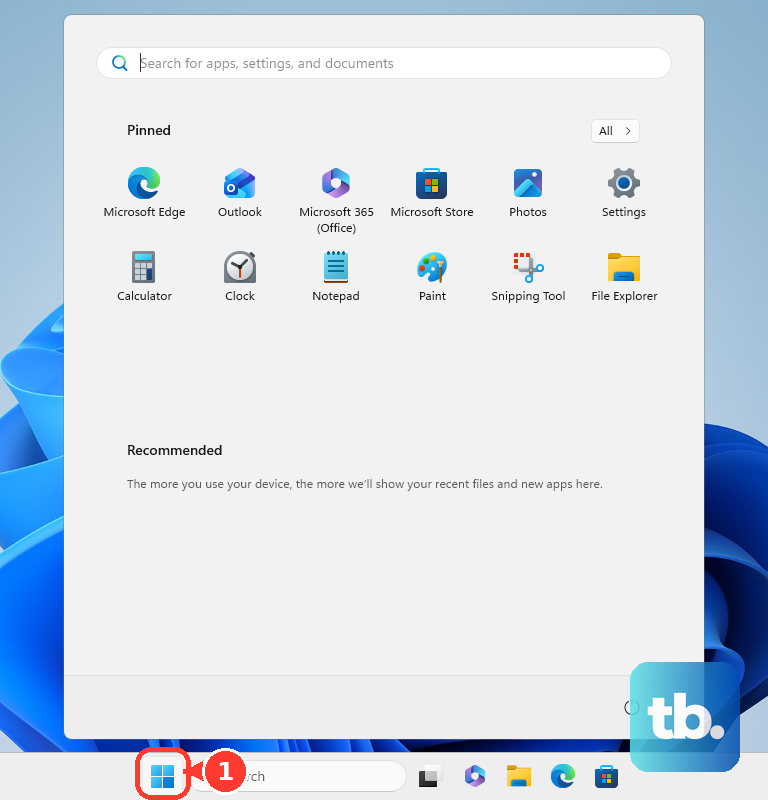
A Windows update can sometimes corrupt core system files. To check and repair them, open the Start menu, type cmd, right-click on Command Prompt, and select Run as administrator. In the black window, type sfc /scannow and press Enter. Let it run through; it will automatically replace any corrupted files it finds with a cached copy.
Check for Memory Issues
Faulty RAM can cause random crashes that seem tied to updates. Search for Windows Memory Diagnostic in the Start menu and run it. Choose Restart now and check for problems. Your laptop will reboot and run a comprehensive memory test before Windows loads. Any errors reported here mean you likely have a hardware problem with the RAM.
Scan Your SSD for Errors
To rule out storage problems, open an Administrator Command Prompt again. Type chkdsk C: /f /r and press Enter. It will schedule a disk check for the next restart. Type Y to confirm, then restart your laptop. The check will run on the blue screen before Windows boots, looking for and repairing file system errors or bad sectors on the SSD.
Use Acer Recovery Management
If software fixes aren't stopping the crashes, you can use Acer's built-in recovery tool. Restart your laptop and repeatedly press Alt + F10 during boot (right when the Acer logo appears). This launches the Acer Recovery Management environment. From here, you can choose to Restore Windows while keeping your files, which reinstalls Windows and Acer software without touching your personal data.
Check Your BIOS Settings
In rare cases, an update can change a system setting. Restart your Swift Go and press F2 repeatedly at startup to enter the BIOS. Look for any settings related to virtualization (VT-x) or Thunderbolt that may have been altered. A simple step is to find the option to Load Setup Defaults, save, and exit. This resets the BIOS to factory-safe settings.
Perform a Clean Windows Installation
If all else fails, a clean install is the nuclear option that guarantees any software-related cause is eliminated. You'll need a USB drive with the Windows Media Creation Tool. Back up everything first, as this erases all data. Boot from the USB, delete all partitions on the main drive during setup, and install a fresh copy of Windows. Afterwards, get your drivers from the Acer support website for your specific Swift Go 14 model.