
Seeing a Blue Screen of Death (BSOD) or "Stop Error" on your Acer Nitro V 15 is Windows hitting a critical fault it can't recover from. This is often a driver conflict, a hardware issue like overheating, or a corrupted system file. The specific error code on the blue screen points to the cause, but the general fixes below work for most common crashes.
Write Down the Stop Code
When the blue screen appears, look for the all-caps error code, such as DRIVER_IRQL_NOT_LESS_OR_EQUAL or SYSTEM_SERVICE_EXCEPTION. This is your biggest clue. You can search this exact code online later, but starting with the universal troubleshooting steps often resolves it without needing the specifics.
Perform a Full Restart
A single, random BSOD can sometimes be a fluke. Hold the power button down until the laptop turns off completely, wait 10 seconds, then power it back on. If it boots to Windows normally and runs fine, it might have been a temporary glitch. If the blue screen returns quickly or happens under the same conditions, you have a recurring problem to solve.
Boot into Safe Mode
If the laptop crashes before you can log in, you'll need to get into Safe Mode. From the sign-in screen, hold the Shift key and click the power icon, then select Restart. After it reboots to a blue menu, go to Troubleshoot > Advanced options > Startup Settings > Restart. When it restarts again, press the 4 key to enable Safe Mode. This loads Windows with minimal drivers, which can help you undo recent changes.
Undo Recent Software Changes
Think about what changed just before the crashes started. If you recently installed a new game, utility, or hardware driver, uninstall it from Safe Mode or normal Windows. For Windows updates, go to Settings > Windows Update > Update history > Uninstall updates and remove the most recent quality update or feature update. I've seen recent GPU driver updates cause instability on some gaming laptops, so rolling back can be a quick fix.
Update Your Drivers Properly
Outdated or buggy drivers are a top cause of BSODs, especially on a gaming machine. Don't just rely on Windows Update. Visit the official Acer support page for your Nitro V 15 model and download the latest chipset, audio, and network drivers. For your graphics card (NVIDIA or AMD), get the driver directly from the manufacturer's website. Using the generic driver from Windows Update often misses important optimizations.
Use the NitroSense App for Thermal Issues
The Nitro V 15 can run hot under sustained load, which may lead to thermal throttling or even a crash. Open the NitroSense app that came with your laptop. For the best cooling during intense gaming sessions, switch the fan profile to Max. This keeps your CPU and GPU temperatures in check and can prevent overheating-related stop errors.
Scan for Corrupted System Files
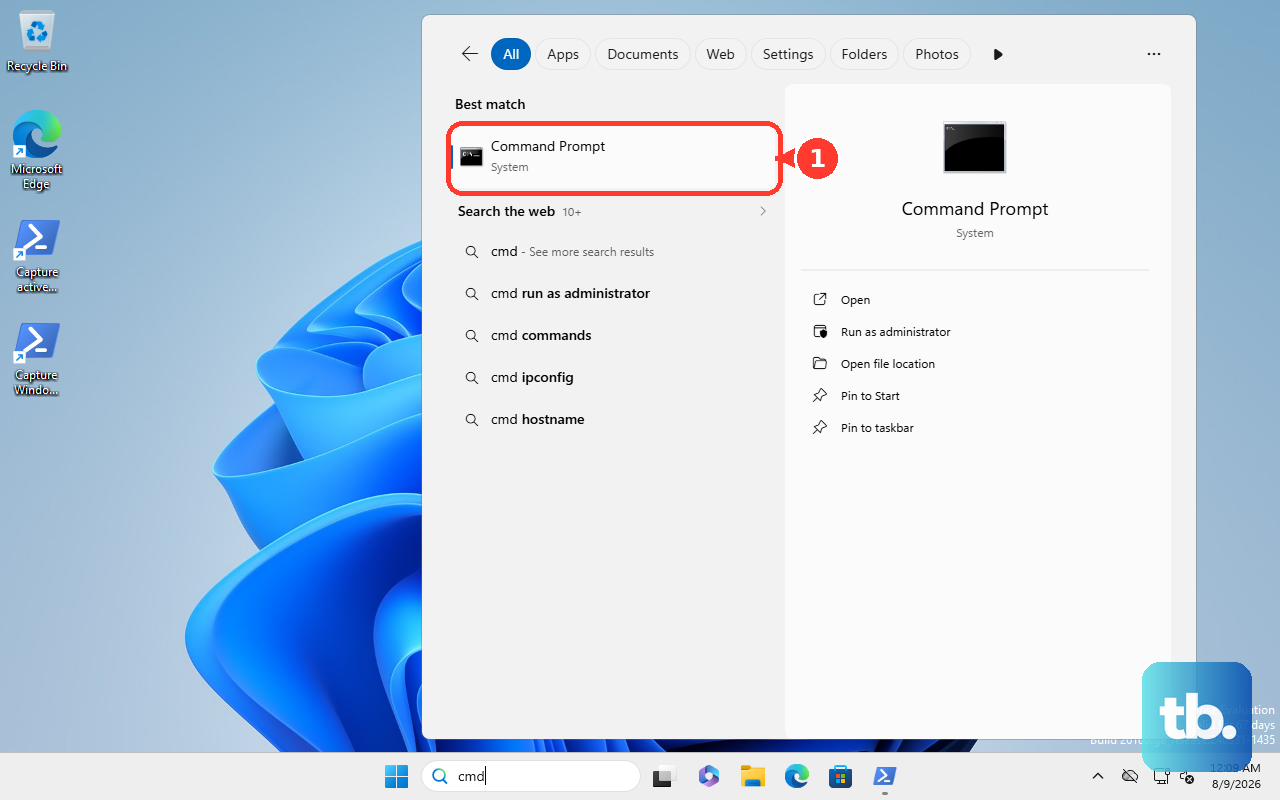
Corrupted Windows files can trigger all sorts of crashes. Right-click the Start button and select Terminal (Admin) or Command Prompt (Admin). Type sfc /scannow and press Enter. Let it scan and repair files. If it finds issues it can't fix, run this command first: DISM /Online /Cleanup-Image /RestoreHealth. After it completes, run the sfc command again.
Test Your RAM with Windows Memory Diagnostic
Faulty memory is a classic culprit for random blue screens. Type "Windows Memory Diagnostic" into the Start menu and run it. Choose Restart now and check for problems. Your laptop will reboot and run a test before Windows loads. Any errors reported here mean you likely have a bad RAM stick that needs reseating or replacing.
Check Your Storage Drive for Errors
Open an Administrator Command Prompt again. To check your main drive (usually C:), type chkdsk C: /f /r and press Enter. It will schedule the check for the next restart. Say yes, restart your laptop, and let it run. This scan looks for bad sectors on your SSD. If it finds a large number, it could indicate a failing drive.
Reset Your PC as a Last Resort
If you're still facing persistent blue screens and can't pinpoint the cause, a Windows reset can clear out deep-seated software conflicts. Go to Settings > System > Recovery and click Reset this PC. Choose Keep my files to reinstall Windows while preserving your personal documents, games, and apps. This is a nuclear option, but it often works when other fixes don't.