
When Bluetooth stops working on your Acer Aspire 5 15, it can leave your wireless mouse, headphones, or speakers useless. You might see the Bluetooth toggle missing, devices refusing to pair, or connections that keep dropping. Here's how to get it working again.
Toggle Bluetooth On and Off
First, click the notification icon in your taskbar and make sure the Bluetooth tile is turned on. If it's not there, open Settings > Bluetooth & devices and flip the main Bluetooth switch off, wait a moment, and turn it back on. This simple reset clears the pairing state and often fixes immediate connection problems.
Restart Your Acer Aspire 5
A full restart is one of the most effective fixes for Bluetooth issues on this laptop. It reloads the Bluetooth driver and service, which can get stuck, especially after the laptop wakes from sleep. I'd start with this one before trying anything more complicated.
Forget and Re-Pair Your Device
Go to Settings > Bluetooth & devices and find the problematic device in the list. Click the three dots next to it and select Remove device. Then, put your Bluetooth accessory into pairing mode and click Add device to pair it fresh. A corrupted pairing profile is a very common culprit.
Run the Windows Bluetooth Troubleshooter
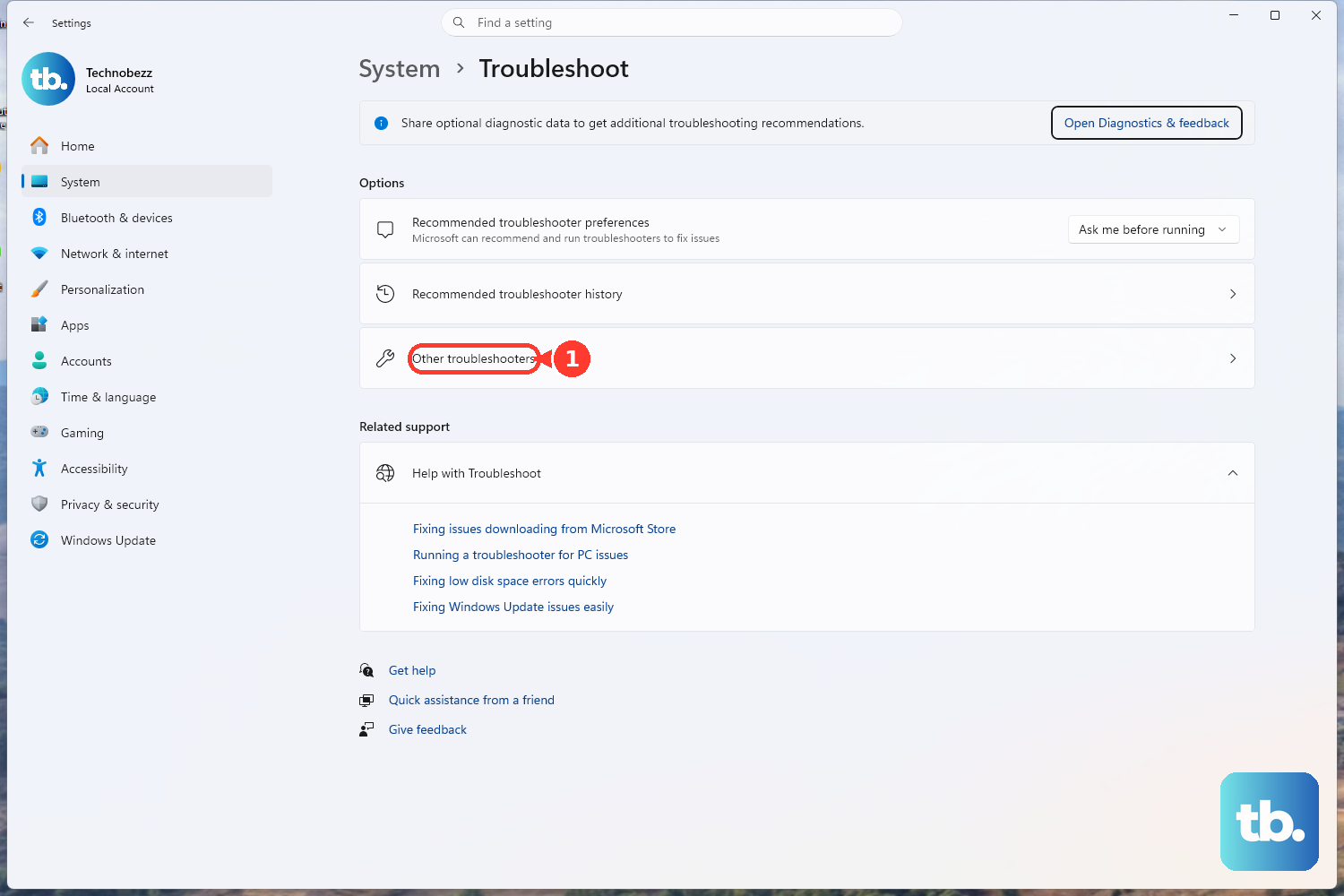
Windows has a built-in tool for this. Go to Settings > System > Troubleshoot > Other troubleshooters. Find the Bluetooth entry and click Run. The troubleshooter will scan for common configuration problems and attempt to fix them automatically.
Update Your Bluetooth Drivers
Outdated drivers are a frequent source of trouble. Press the Windows key + X and select Device Manager. Expand the Bluetooth section, right-click your Bluetooth adapter (it might be listed as Intel or Realtek), and choose Update driver > Search automatically for drivers. For the best results, you can also use the Acer Care Center app, which is pre-installed, to check for driver updates specific to your model.
Check for Windows Updates
Microsoft regularly patches Bluetooth bugs. Head to Settings > Windows Update and click Check for updates. Install any available updates, including optional driver updates if they appear. This ensures your system has the latest fixes for connectivity and audio issues.
Restart the Bluetooth Support Service
If the Bluetooth service has stopped, the radio won't work. Press Windows key + R, type services.msc, and hit Enter. Scroll down to find Bluetooth Support Service, right-click it, and select Restart. Also, double-click it to open its properties and ensure the Startup type is set to Automatic.
Reinstall the Bluetooth Adapter
This gives you a completely clean driver installation. In Device Manager, right-click your Bluetooth adapter and select Uninstall device. Check the box that says "Attempt to remove the driver for this device" if it appears. After uninstalling, restart your Acer Aspire 5. Windows will automatically detect the hardware on boot and install a fresh driver.
Check for Interference and Distance
Bluetooth shares the 2.4 GHz band with WiFi and other devices. On the Aspire 5, the internal WiFi/Bluetooth card antennas are near the screen hinges. Try moving your Bluetooth device closer to the laptop. Also, unplug any USB 3.0 devices, as they can sometimes cause radio interference that disrupts Bluetooth signals.
Use Acer's Recovery Options if Needed
If you've tried everything and Bluetooth is still broken, you can use Acer's recovery partition to refresh Windows without deleting your files. Restart the laptop and press Alt + F10 repeatedly as it boots to launch Acer Recovery Management. Choose the option to restore your system while keeping personal files. This will reinstall Windows and Acer drivers, which should resolve any deep-seated software corruption.