Adding symbols and special characters to your Instagram display name is one of the quickest ways to make your profile stand out. The right symbol or stylized font draws the eye to your name and helps you express a bit of personality without changing anything about your @username.
The catch is that Instagram does not include a symbol picker, and some characters get stripped when you save. This guide covers what is actually allowed, where to get symbols that stick, and the exact steps for both phone and computer in 2026.
Name Versus Username
Your Instagram profile has two separate text fields, and only one of them accepts symbols. The username is your @handle, used for tagging, mentions, and your profile link. It must be unique and is limited to letters, numbers, periods, and underscores, so symbols and emojis are not allowed there.
Your display name is the bold text shown at the top of your profile. It does not have to be unique, and it accepts spaces, emojis, and most Unicode symbols and fancy fonts. This is the field you will edit to add decorative characters.
Both fields are capped at 30 characters, so plan your symbols within that budget. Keep in mind that emojis and some stylized characters can count as more than one character each.
Where to Get Symbols and Fancy Fonts
Instagram does not generate symbols for you, so you copy them from another source and paste them into the name field. Free symbol and font sites let you browse hundreds of options or type your name and instantly see it in different styles.
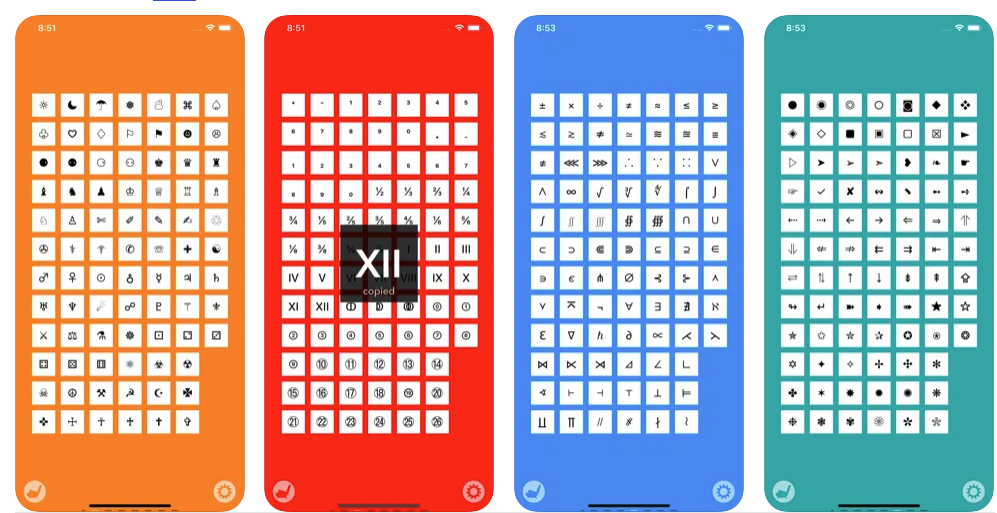
Useful tools include coolsymbol.com for individual symbols, plus font generators like igfonts.info and instanamestyle.com that convert plain text into stylized Unicode lettering. On a phone, a symbol keyboard app such as Character Pad puts special characters one tap away.
Whatever the source, the workflow is the same. Find the symbol or styled text you want, copy it, then paste it into your Instagram name. The fonts that look fancy are really just Unicode characters, so they travel by copy and paste exactly like a normal letter.
Adding Symbols on Mobile
On iPhone or Android, copy your symbol or styled name first, then switch to Instagram to paste it. Having it on your clipboard before you open the editor makes the process smooth.
Open the Instagram app and tap your profile picture in the bottom right, then tap Edit Profile. Tap the Name field, position the cursor where you want the symbol, then press and hold until the paste option appears and tap Paste.
Profile > Edit Profile > Name
When the name looks right, tap Done on iPhone or the checkmark on Android to save. The updated name appears on your profile right away, and your @username and profile link stay exactly the same.
Adding Symbols on Desktop
The browser version works well because copying and pasting is easy with a mouse and keyboard. Open a font or symbol site in one tab and your Instagram profile in another.
On the symbol site, click the character or styled name and copy it with Ctrl+C on Windows or Cmd+C on Mac. Then go to Instagram, open Settings, click See more in Accounts Center, choose Profiles, and select your account.
Settings > Accounts Center > Profiles > Name
Click the Name field, paste with Ctrl+V or Cmd+V, and save your changes. If you prefer, you can also tap Edit Profile from your profile page and update the Name field there.
When Symbols Will Not Save
Sometimes a pasted symbol vanishes, gets replaced with a blank box, or the name reverts after you save. Instagram filters and trims certain characters, especially whitespace and Unicode characters it does not support, so not every symbol survives.
If a character disappears, try a different symbol or a different font style, since some Unicode ranges render and save more reliably than others. Standard spaces at the start or end of the name are also trimmed automatically.
You can also hit a cooldown. Instagram lets you change your display name twice within 14 days, so if a save will not stick, you may need to wait before trying again.
Keep It Readable
Symbols make a profile memorable, but a name buried in decoration is hard to read and harder to search for. A heavily stylized font can also be skipped by screen readers, which hurts accessibility.
A good rule is to keep your actual name in plain or lightly styled text and add a symbol or emoji as an accent rather than a replacement. One or two well placed characters usually look better than a name made entirely of fancy glyphs.
Because your display name is the first thing visitors see, a clean, legible name with a tasteful symbol makes the strongest impression while still standing out.
Frequently Asked Questions
Can I add symbols to my Instagram username
No. The @username only allows letters, numbers, periods, and underscores, so symbols and emojis are not permitted. You can only add symbols and special characters to the display name field.
Why does my symbol disappear when I save
Instagram filters out certain unsupported Unicode characters and trims extra spaces, so some pasted symbols do not survive the save. Try a different symbol or font style, since some render more reliably than others.
How many characters can my Instagram name have
The display name is limited to 30 characters. Emojis and some stylized characters can count as more than one, so a symbol-heavy name fills that limit faster than plain text.
How often can I change my Instagram name
You can change your display name twice within a 14 day window. After that you have to wait before changing it again, which is separate from the username change limit.
Do I need an app to add symbols on my phone
No. You can copy symbols from a free website and paste them into the Name field, though a symbol keyboard app makes the characters faster to reach on a phone.
Will adding symbols change my profile link or @handle
No. Editing the display name does not affect your username or profile URL, so your tags, mentions, and links keep working exactly as before.
First published October 17, 2025. Last updated June 4, 2026.