When your iPhone starts restarting on its own, it can be frustrating and disruptive. This issue can stem from software glitches, problematic apps, or even hardware problems. The good news is there are several troubleshooting steps you can try before seeking professional help.
Before starting any fixes, make sure you have a recent backup of your data through iCloud or your computer. This protects your information in case you need to reset your device.
Read more - iPhone Won't Turn On? Here's What to Do
Force Restart Your iPhone
A force restart is often the quickest way to resolve minor software glitches that cause random restarts. The method varies by iPhone model:
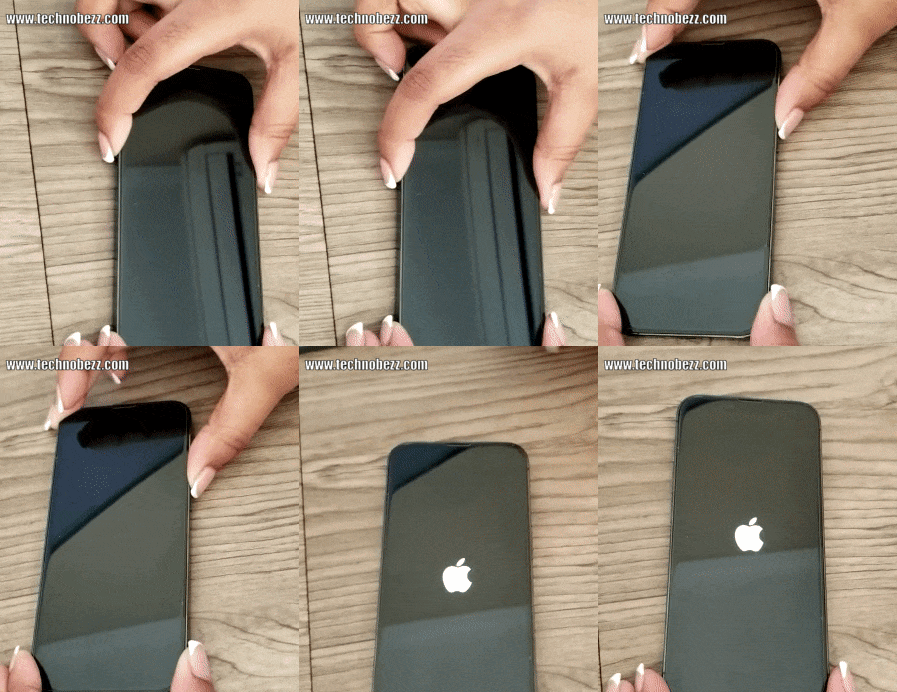
For iPhones with Face ID (iPhone X and newer):
- 1.Quickly press and release the volume up button
- 2.Quickly press and release the volume down button
- 3.Press and hold the side button until the Apple logo appears
For iPhone 8, iPhone SE (2nd generation and later):
Press and quickly release the volume up button. Next, press and quickly release the volume down button. Then press and hold the side button until the Apple logo appears.
For iPhone 7 and iPhone 7 Plus:
Press and hold the volume down button and the sleep/wake button together. Release both buttons when the Apple logo appears.
For iPhone 6s, iPhone SE (1st generation), and older:
Press and hold the home button and sleep/wake button together. Release both buttons when the Apple logo appears.
Check for Problematic Apps
Third-party apps are common culprits for restart issues. Start by closing all open apps: Swipe up from the bottom of the screen and pause in the middle. Swipe up on each app preview to close it.
Next, disable Background App Refresh to prevent apps from running in the background. Go to Settings > General > Background App Refresh. Toggle it off or select specific apps to disable.
Update Apps and iOS
Outdated software can cause compatibility issues leading to restarts. Update all your apps: Open the App Store. Tap your profile icon in the top right. Scroll down and tap "Update All".

Also check for iOS updates. Go to Settings > General > Software Update. Download and install any available updates.

Review iPhone Error Logs
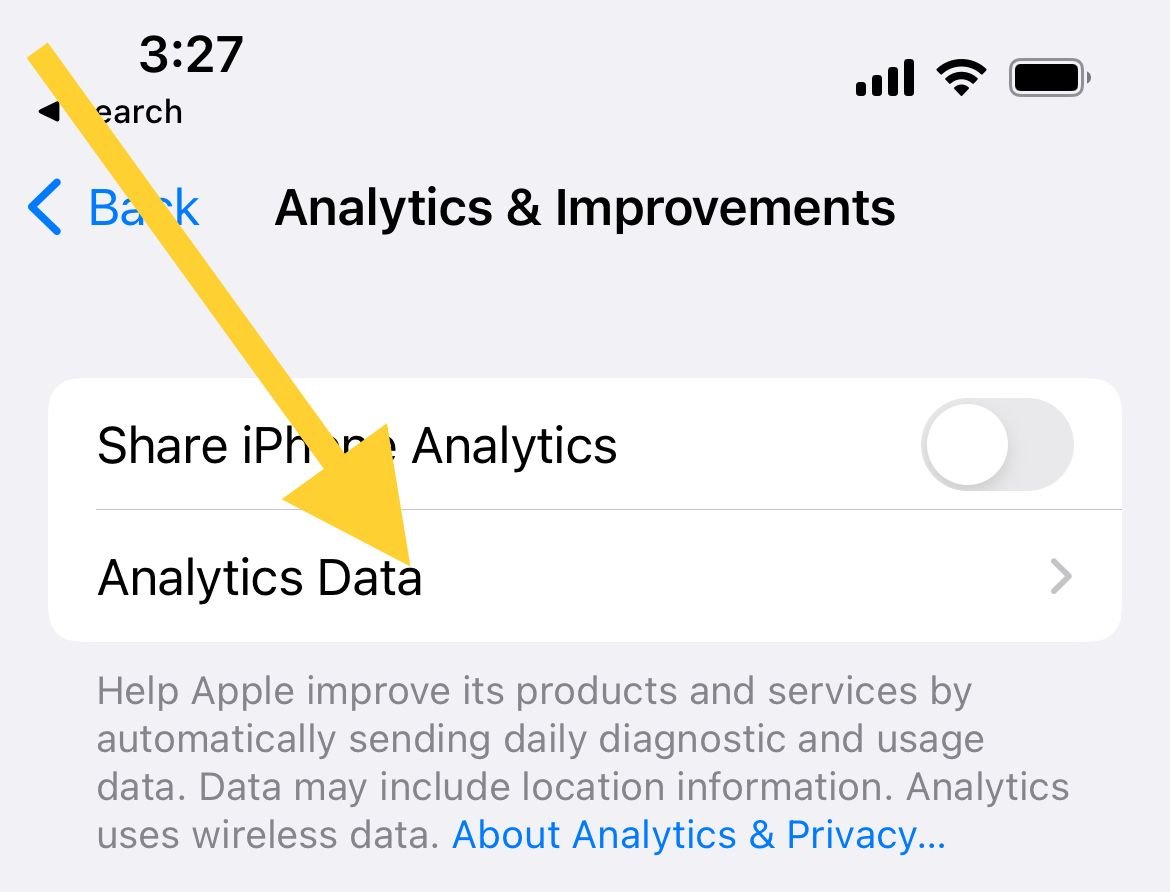
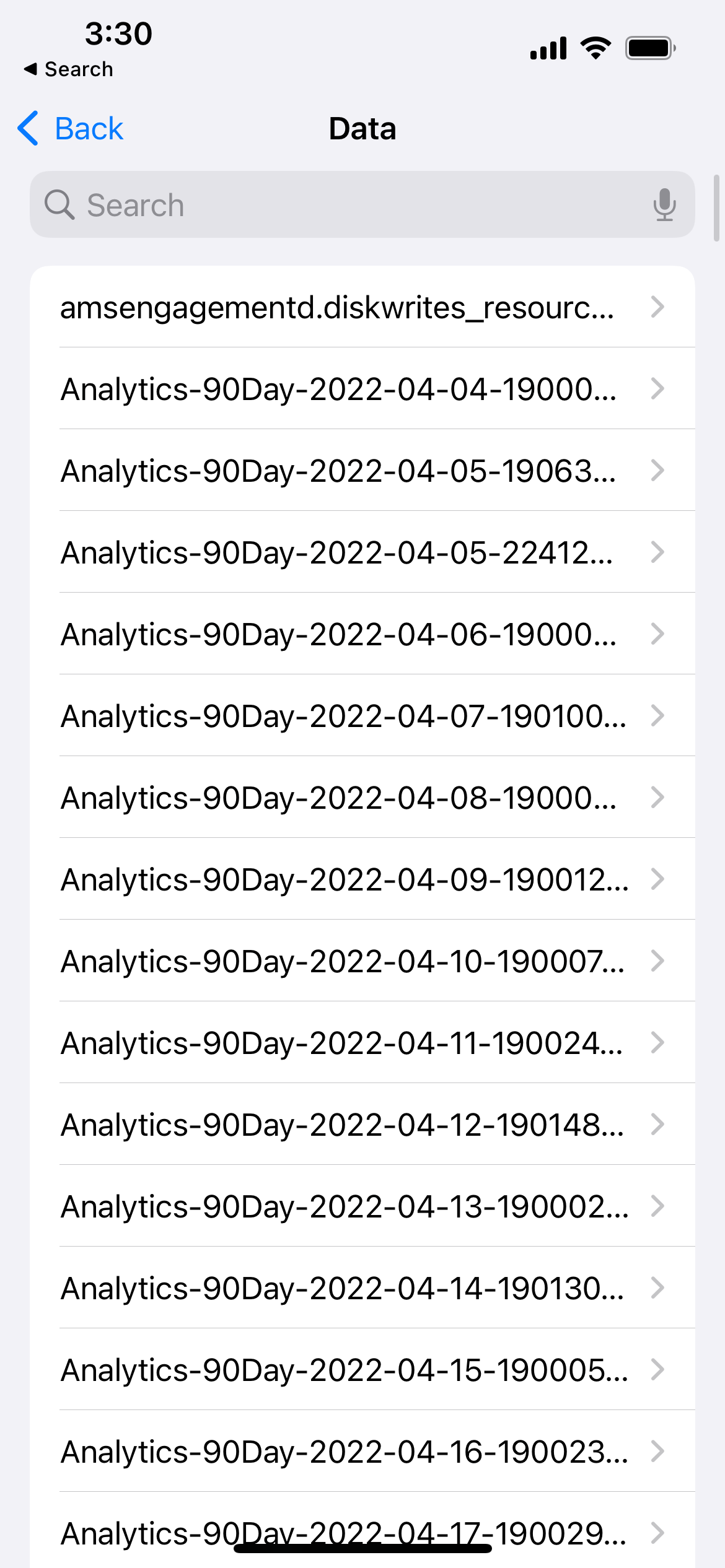
iPhone keeps detailed logs of crashes and errors that can help identify problematic apps or system issues. Go to Settings > Privacy & Security > Analytics & Improvements > Analytics Data.
Look for files starting with "panic-full" which indicate system crashes. Check for app-specific crash reports that might point to problematic software.
Free Up Storage Space
Low storage can cause system instability and random restarts. Check your available storage: Go to Settings > General > iPhone Storage. Review recommendations for optimizing storage. Consider offloading unused apps or moving files to iCloud.
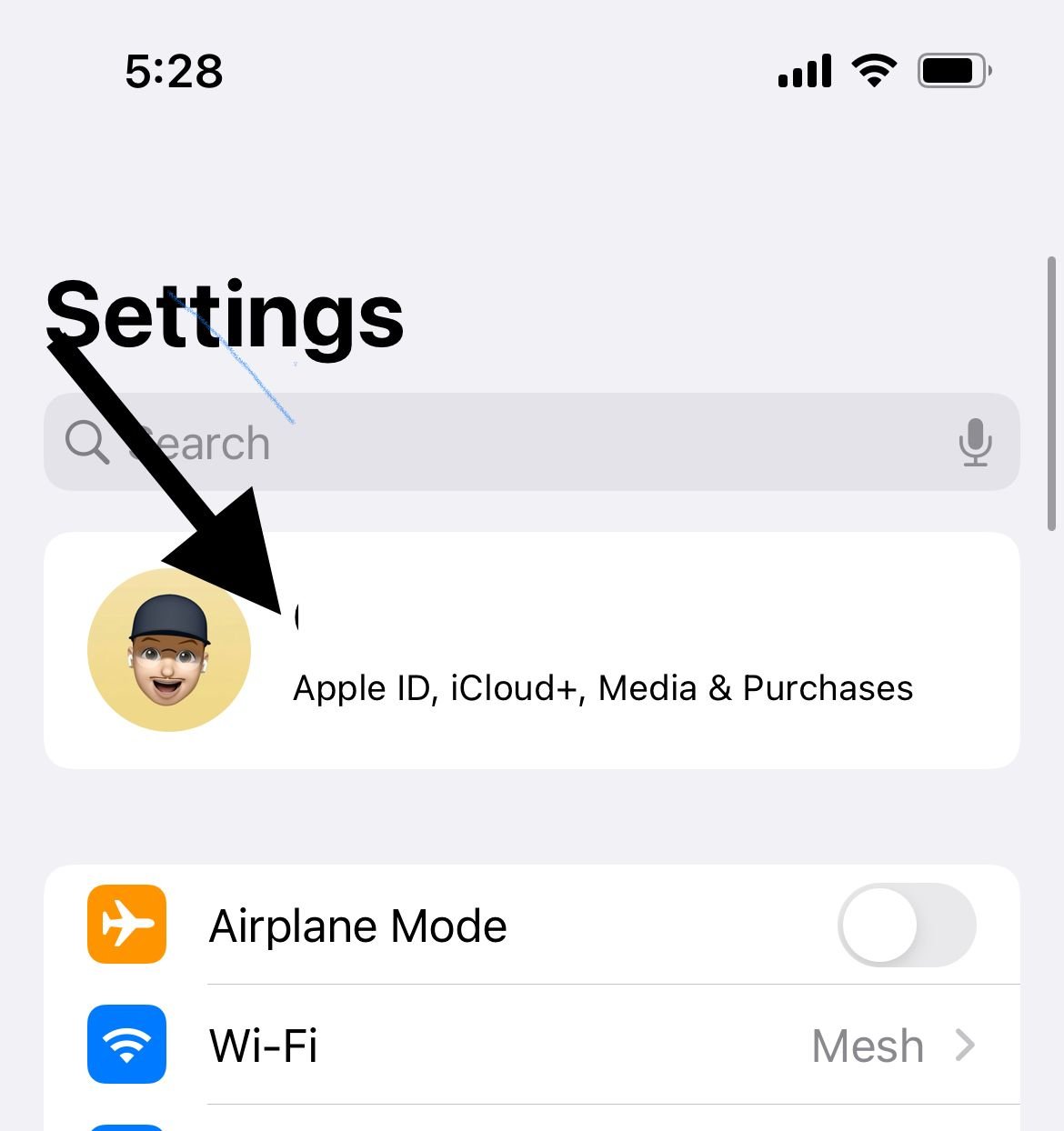
Reset Settings
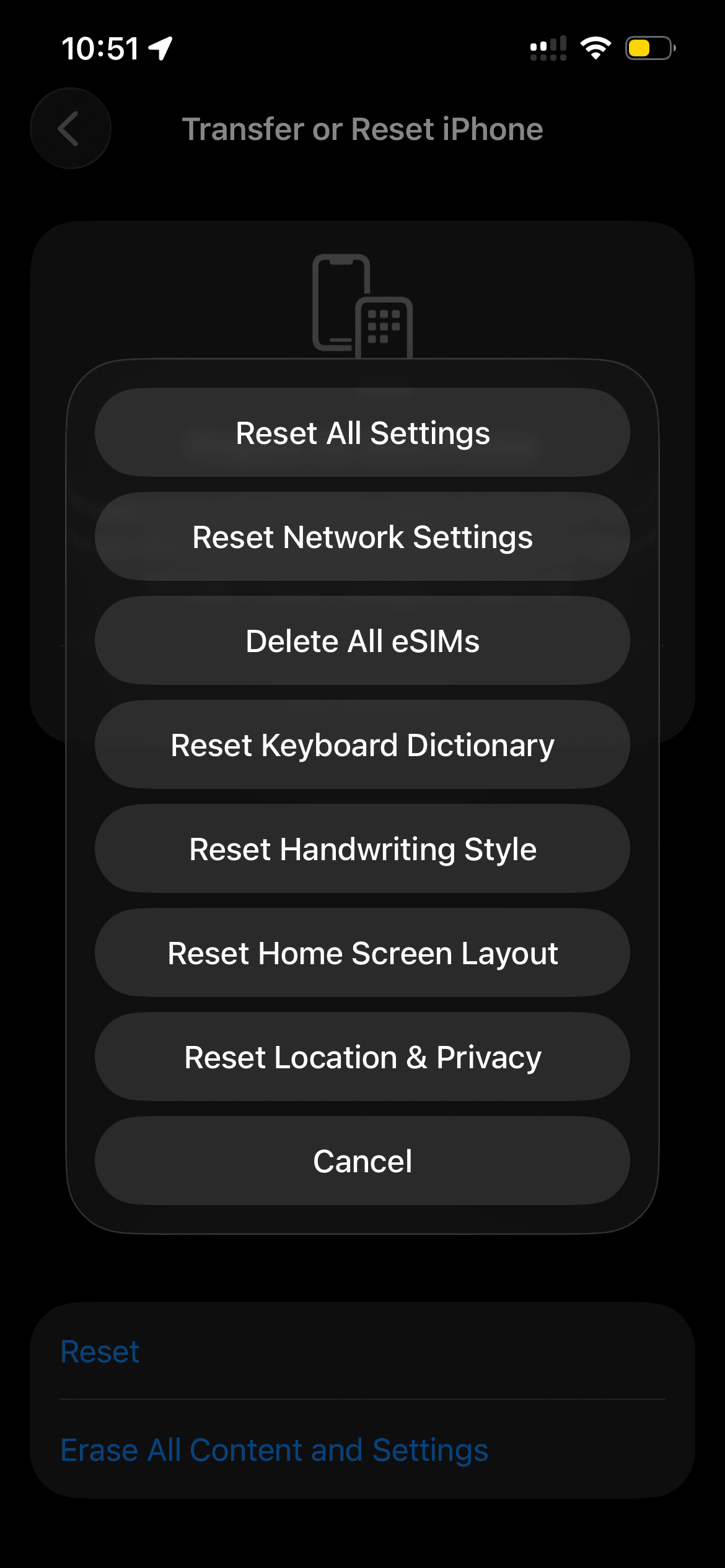
If the issue persists, reset your iPhone's settings without losing data. Go to Settings > General > Transfer or Reset iPhone > Reset. Select "Reset All Settings". Enter your passcode and confirm.
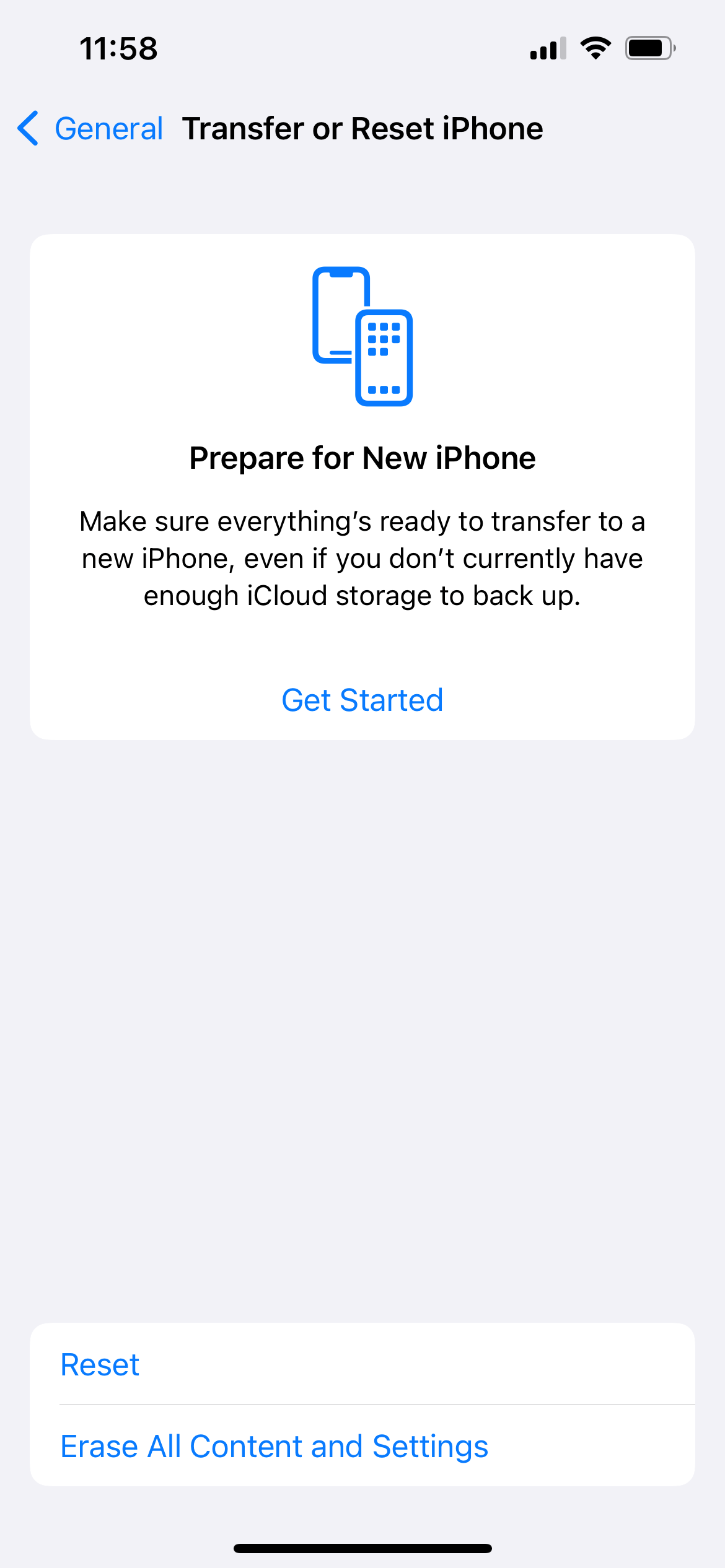
Factory Reset
As a last resort before seeking hardware repair, you can perform a factory reset. Go to Settings > General > Transfer or Reset iPhone. Tap "Erase All Content and Settings". Enter your passcode and confirm. Your iPhone will restart completely fresh.
Recovery Mode Restore
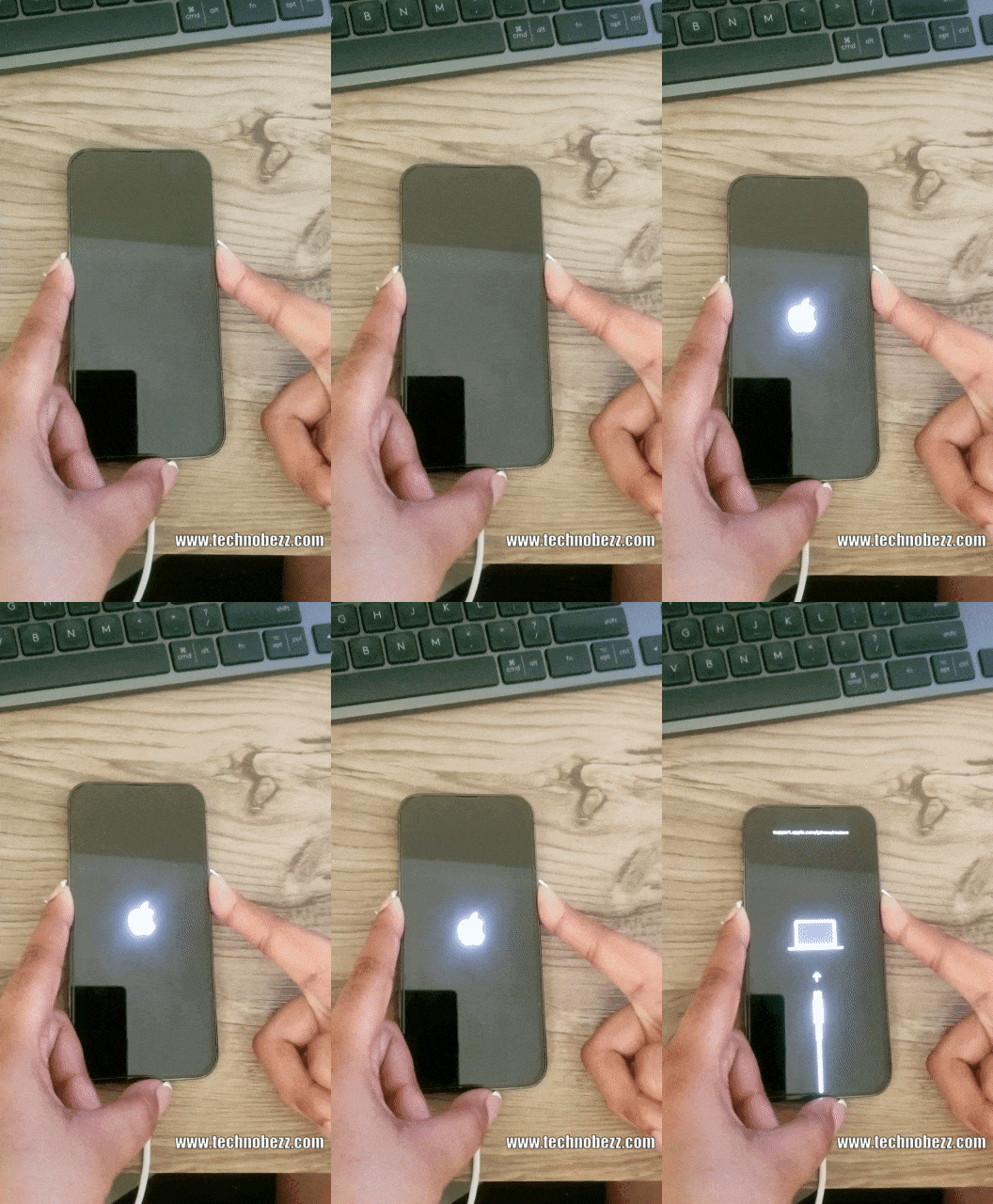
If your iPhone is stuck in a restart loop, recovery mode can help:
For iPhones with Face ID:
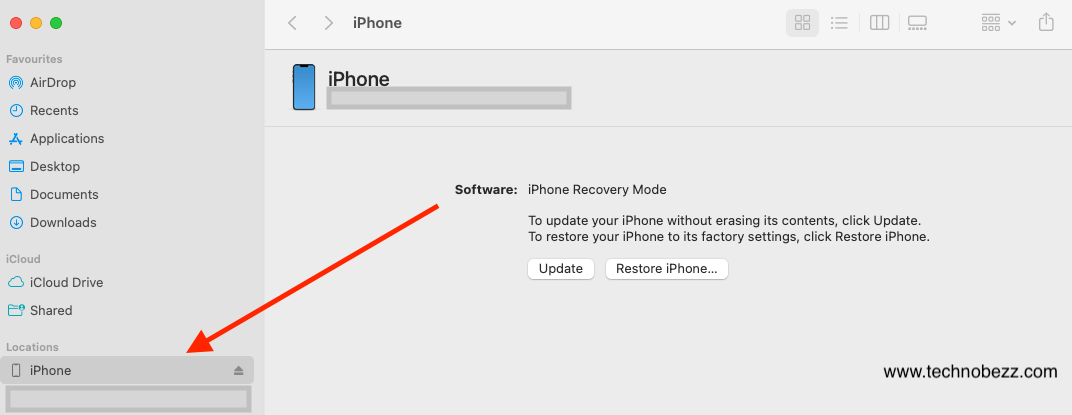
Connect to computer and open Finder (Mac) or iTunes (Windows). Press and release volume up, then volume down. Press and hold side button until recovery screen appears.
For iPhone 7 and 7 Plus:
Connect to computer. Press and hold volume down and sleep/wake buttons until recovery screen appears.
For iPhone 6s and older:
Connect to computer. Press and hold home and sleep/wake buttons until recovery screen appears.
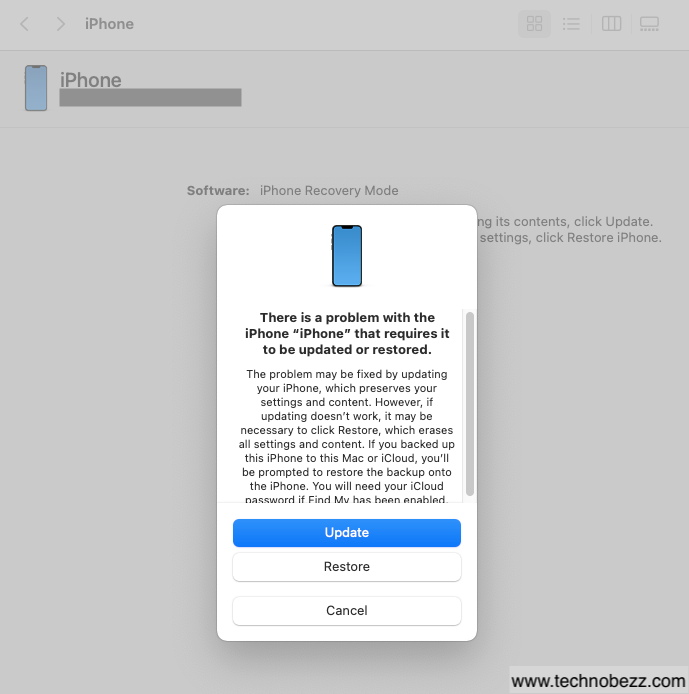
Once in recovery mode, your computer will prompt to update or restore your iPhone. Choose restore to reinstall iOS.
Check SIM Card and Hardware
Sometimes the issue is hardware-related. Try removing and reinserting your SIM card:
Read more - How to Fix iPhone SIM Failure No SIM or Invalid SIM Messages
Use a paper clip or SIM eject tool to open the SIM tray. Remove the SIM card and inspect for damage. Reinsert the card properly and test.
If you notice damage to the SIM card or the problem persists after all software troubleshooting, contact Apple Support or visit an authorized service provider. Hardware issues like faulty sensors, battery problems, or damaged internal components can cause random restarts that require professional repair.