To extend your iPhone’s battery life, lower screen brightness, use Wi-Fi when possible, turn on Low Power Mode, and check which apps use the most power. Adjust the settings connected to your actual usage instead of switching off every wireless feature.
The short version
- Usage: Start in Battery settings to identify power-hungry activity.
- Display: Enable Auto-Brightness and use a shorter Auto-Lock interval.
- Connection: Prefer strong Wi-Fi and use 5G Auto on supported models.
- Power mode: Low Power Mode limits background work and some visual effects.
- Apps: Review background refresh and location access instead of routinely closing everything.
Check battery usage
Open Settings > Battery to see what is using power and review any suggestions. On iOS 26 or later, the Daily Usage chart compares your usage with the previous seven days. Tap View All Battery Usage for more detail about apps and system activity.
Background music, location tracking, a weak signal, and notifications that wake the screen can all contribute to battery use. If battery life drops after a software update, wait a few days and check again because update work can continue in the background. On iOS 18 or later, an Ongoing iOS Update insight can identify that activity.
Reduce display power use
Lower brightness with the slider in Control Center. Open Settings > Accessibility > Display & Text Size and turn on Auto-Brightness so the display adjusts to surrounding light. Apple recommends enabling it to improve battery life.
Open Settings > Display & Brightness > Auto-Lock and choose a shorter interval that suits your use. Keeping the screen on longer increases power consumption. If an app repeatedly wakes the screen, review its notifications under Settings > Notifications.
Use efficient network connections
Wi-Fi uses less battery power than cellular data, so keep Wi-Fi on and connect through Settings > Wi-Fi when possible. A strong signal also uses less energy than a weak connection. There is no need to follow the old routine of turning Wi-Fi off whenever you leave a network.
On iPhone 12 and later or iPhone SE third generation, open Settings > Cellular > Cellular Data Options > Voice & Data and choose 5G Auto. This switches to LTE when 5G does not offer a noticeably better experience. Do not switch an older phone to 3G as a battery-saving measure; carriers have phased out 3G networks.
If you expect to remain in an area without coverage, turn on Airplane Mode to stop the phone searching for service. Cellular calls will be unavailable while that mode is enabled. Turn it off when you need to reconnect.
Turn on Low Power Mode
On iPhone 15 and later, open Settings > Battery > Power Mode and turn on Low Power Mode. On iPhone 14 and earlier, the switch is directly under Settings > Battery. Apple’s Low Power Mode instructions also cover switching it on through Control Center.
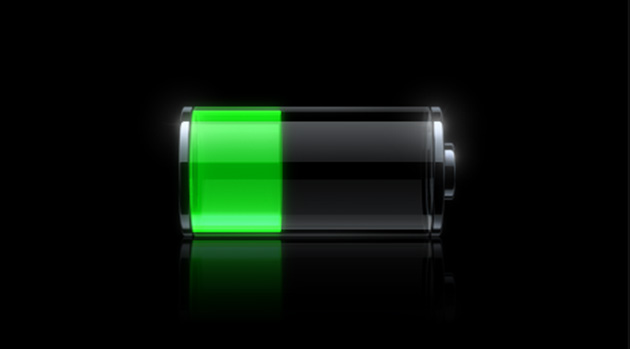
The mode reduces brightness, turns off some visual effects, and limits background tasks such as email fetch and automatic downloads. It also turns off Background App Refresh and temporarily pauses iCloud Photos. The battery icon turns yellow, and the mode turns off when the battery reaches at least 80 percent charge.
Manage background refresh and downloads
Open Settings > General > Background App Refresh and review which apps need to refresh while you are not using them. You can restrict background refresh to Wi-Fi or turn it off. Use the battery usage information to decide what is worth changing.
Automatic app updates have separate controls under Settings > Apps > App Store > App Updates. Turning that switch off makes you responsible for updating apps manually. For a temporary reduction in automatic downloads, use Low Power Mode rather than treating every app update as a battery problem.
Review location access
Open Settings > Privacy & Security > Location Services, then select an app. Choose While Using the App when that matches what you need, or Never for an app that does not need location access. The choices vary by app.
Apple identifies location and background location as activities that can use battery power. Restrict the apps you do not need rather than disabling the entire feature without checking the consequences. Some apps will not work properly without Location Services.
Keep motion and app closing in perspective
For screen-motion sensitivity, open Settings > Accessibility > Motion and turn on Reduce Motion. This changes or disables certain animations. It is an accessibility choice; Low Power Mode is the documented power-saving option that also limits visual effects.
Apple recommends closing an app only when it is unresponsive. Clearing every app from the app switcher does not improve overall performance or solve battery drain. Recently used apps consume power when active or performing specific background tasks, so focus on those activities.
Check battery health and temperature
On iPhone 15 and later, open Settings > Battery > Battery Health. On iPhone 14 and earlier, look for Battery Health & Charging. If a service recommendation appears, follow the onscreen advice about battery replacement.
Avoid ambient temperatures above 95°F or 35°C, which can permanently reduce battery capacity. If a case makes the phone hot during charging, remove it. Settings changes can reduce power use, but they cannot restore the capacity of an aged battery.
Updated October 2026: Corrected Wi-Fi and brightness advice, removed the 3G recommendation, and added Low Power Mode. The original article was published in July 2018.